
Working with PDF format on a Mac used to feel a bit tedious, especially when I needed quick changes.
Over the last few months, I’ve started relying more on AI PDF tools, and they’ve quietly become part of my daily routine. They save time, reduce small frustrations, and let me clean up or reorganize documents without bouncing between different apps.
In this article, I’m sharing 7 AI-powered PDF tasks I now opt for all the time. Whether you work with reports, school assignments, scanned files, or just random downloads, these can make life noticeably smoother.
1. Summarizing long PDFs
When I’m handed a 40-page report, the last thing I want to do is skim it under pressure. AI PDF summarizers solve this with a single click or a drag-and-drop window.
Here’s how these tools help:
- Trim down dense documents into clear overviews.
- Produce digestible summaries you can copy directly into emails or notes.
- Highlight central ideas instead of paraphrasing everything.
- Reduce time spent scanning repetitive details.
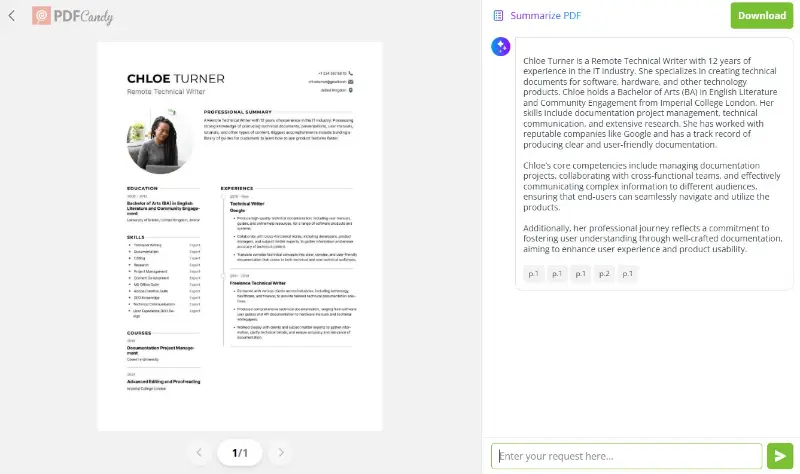
This has become my go-to when I receive manuals, academic papers, onboarding packets, or anything that eats up more time than it should.
2. Extracting clean text
This is the task I underestimated the most. AI for PDF OCR isn’t just about turning images into readable characters — it interprets structure, spacing, and tone. That means fewer broken lines, misplaced symbols, and random hyphens.
A typical scenario:
I get a scanned receipt or a contract someone photographed on their phone. The image is crooked, the font is uneven, and traditional OCR would butcher the formatting. AI, on the other hand, recognizes patterns and produces properly typed text.
A few moments where this feature shines:
- Transcribing old documents that were never digitized.
- Cleaning up invoices for bookkeeping.
- Turning classroom handouts into editable pages.
- Capturing handwritten notes (as long as they aren’t chaotic scribbles).
The accuracy has improved enough that I hardly ever correct the output manually. It’s one of those small conveniences that quietly saves hours over time.
3. Converting PDFs into editable formats
There’s nothing worse than receiving a PDF when you really need a Word file. Or wishing it could magically become Markdown so you can edit it in a writing app.
AI-based conversion tools do exactly that, without creating formatting disasters. They read each block of text, detect headings, reconstruct tables, and keep the layout from falling apart.
Here’s what I use the most:
- Changing academic articles into clean content for note-taking.
- Turning meeting minutes into a Word document so I can rewrite and edit PDF sections.
- Extracting structured elements for a presentation.
- Migrating book chapters into Markdown for easier reorganizing.
Instead of spitting out a messy text dump, artificial intelligence tries to understand the hierarchy and rebuilds it in the new format. It feels less like “conversion” and more like “translation.”
4: Improving content without copy-paste
There are days when you simply don’t want to move paragraphs into a text editor, tweak them, and paste them back. AI PDF tools eliminate that shuffle entirely.
I often use this feature for small tasks:
- Smoothing out awkwardly phrased sentences inside a PDF.
- Rewriting dense passages into something more readable.
- Turning technical descriptions into simpler explanations for clients.
- Fixing grammar and punctuation directly inside the document.
Different apps approach this in various ways — some open a side panel where you can request changes, others generate suggestions in place. Either way, the process feels natural. You don’t break your focus, and you don’t introduce layout inconsistencies.
This is especially great for anyone who works with multilingual content or needs to prepare polished reports quickly.
5. Translating PDFs
Translation used to mean exporting everything, sending it to an online service, and hoping the original structure didn’t get destroyed along the way. AI PDF tools on macOS finally solve this problem.
The main advantages:
- Paragraphs stay in the right order.
- Footnotes, captions, and tables remain intact.
- You can adjust tone or formality if needed.
I frequently translate product guides or research summaries, and these platforms keep the physical shape of the content recognizable. The result feels less like a universal machine work and more like a human-edited version.
If you collaborate internationally or read documents in multiple languages, this feature is a lifesaver.
6. Organizing pages automatically
This is where AI feels like a quiet assistant doing background procedure for you. Instead of manually rearranging pages or hunting for the right orientation, smart tools now suggest adjustments automatically:
- Detecting sideways pages and rotating them properly.
- Spotting duplicates and recommending removal.
- Splitting large files into chapters based on visual markers.
- Suggesting merges when multiple short PDFs belong to one batch.
Sometimes the app even names new pages based on recognized headers, which makes navigation painless.
If you work with scanned documents, legal packets, multi-page sheets, or photo-based PDFs, these automatic recommendations save a surprising amount of time.
7. Making PDF with AI
This is one of the more creative uses. Instead of building a PDF manually, you can ask the tool to generate something from scratch and then export it as a polished file.
A few things I’ve made this way:
- Small guides for clients based on notes.
- Travel checklists.
- Instruction sheets for events.
- Quick brochures with a mix of text and basic layout.
The workflow usually looks like this:
You describe what you want, the AI drafts content, you tweak the text, and then save the final design as a PDF. It’s not going to replace full software, but for clean, functional documents, it works beautifully.
Recommended macOS apps & services for AI PDF tasks
PDF Candy
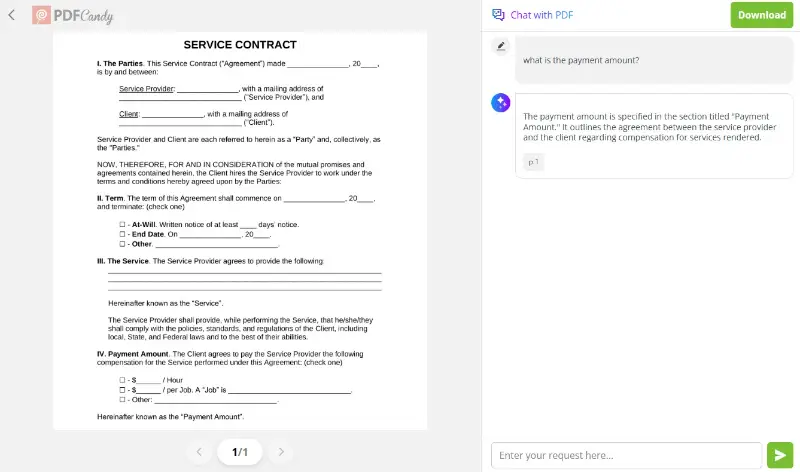
- Summarize PDF with AI in a few clicks, get the translation, ask any questions about the content in AI PDF chat.
- Edit, merge/split, compress, convert (PDF ↔ Word, image, etc.), rotate, reorder pages, delete pages, and basic editing needs.
- Because it’s web-based and doesn’t require heavy installation (unless you opt for the desktop version), it’s easy to use for quick tasks.
PDFgear
- Free (no forced sign-up) tool for macOS with a pretty full set of PDF editing features (text & image changes, page rearrange, form filling, redaction, etc.) + OCR for scanned papers.
- It includes an “AI assistant”. You can “talk to your PDF”, have it summarize, extract, or translate content, or get answers about the document.
- Good choice if you want an all-round option that also covers AI-based handling (especially handy for research papers, long contracts, or reports).
UPDF
- Universal PDF editor for macOS + other platforms with AI support: you get editing of text/images, converting, watermark/background/page management etc.
- If you want something simple yet powerful — especially for summarizing or extracting info from long PDFs — this is a solid choice.
Conclusion
PDF AI tools don’t magically fix every problem, but they definitely take care of the repetitive, time-consuming parts.
After switching to these features, I’ve noticed that I spend far less time wrestling with formatting, copying text by hand, or hunting for specific pages. It’s one of those quiet upgrades that make your workflow feel lighter without requiring a big effort.
If you haven’t tried adding a few AI helpers to your toolkit yet, these tasks are a great place to start — they’re simple, practical, and genuinely useful.