
Research papers can be overwhelming — especially when you’re juggling multiple PDFs, each packed with dense language and pages of citations.
I used to skim, highlight, and still end up feeling like I hadn’t absorbed anything. Then I created a workflow that not only summarizes research PDFs but also keeps everything intact and even builds a glossary of key terms automatically.
It turned the way I read and reference academic work into something faster, clearer, and surprisingly enjoyable.
The challenge of reading research PDFs
Opening the PDFs with researches can feel like navigating a forest without a map. Each file is dense, formatted differently, and full of technical expressions that take time to decode.
Even when you’re armed with a good PDF highlighter, you still end up with dozens of tabs, scattered notes, and no clear summary in sight.
Here’s what typically makes research PDFs so tricky:
- Formatting inconsistencies — some papers are scanned images, others use multi-column layouts that confuse regular text extractors.
- Specialized vocabulary — you can’t always guess what “spatial autoregression” or “nonparametric bootstrap” mean without looking them up.
- Citation overload — dozens of references break the flow and make summarizing by hand nearly impossible.
Even when you finally finish reading, recalling the main ideas later can be impossible. That’s why automating became a game-changer. With the new workflow, instead of wrestling with endless pages, I get:
- A clean overview of key arguments.
- Properly formatted citations that stay linked to their sources.
- A short glossary that helps me revisit technical terms without re-reading everything.
It turns this from a struggle into a structured process — and, honestly, it’s one of the best shifts I’ve made in my routine.
The workflow I use for my documents
My process for summarizing PDFs evolved over months of trial and error. I started by downloading every possible paper I could find, opening them one by one, and trying to pull out the essential points manually. It was exhausting.
Eventually, I discovered that a smarter, layered approach worked better — one that combines PDF reading tools, summarization features, and glossary generation in a single flow.
Here’s what I do now:
- Read and organize. I highlight PDF sections, leave comments in the margins, and use bookmarks to show key arguments or results.
- Clean and convert. Some papers have unreadable formatting or images instead of text. OCR turns them into searchable, clean files that automation tools can understand.
- Summarize research PDFs. This is where the real magic happens. I upload my cleaned document and wait a few seconds. The result is a concise, structured note that mirrors the logic — introduction, methods, findings, and discussion.
- Refine manually. I still skim through the output afterward, just to make sure nuances aren’t lost. Occasionally, I’ll add my own highlight where the summary aligns (or doesn’t) with my understanding.
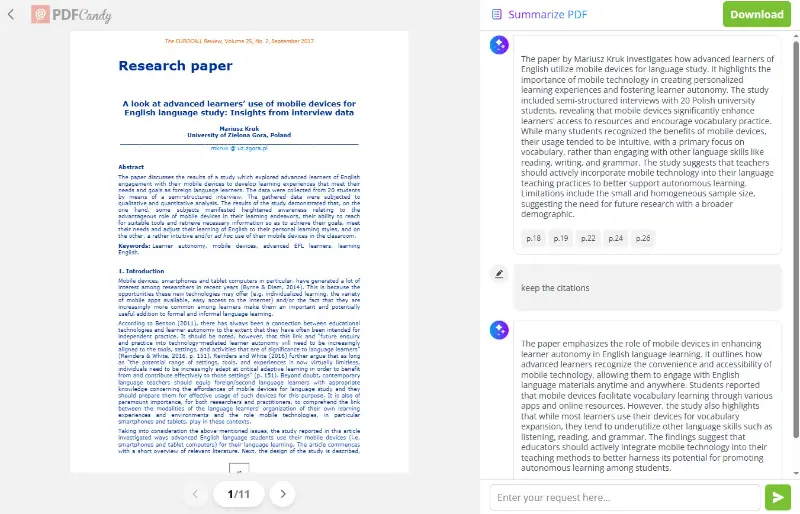
It’s a workflow that feels balanced — not entirely automated, but far more efficient than traditional note-taking. Most importantly, it respects the structure of academic writing instead of flattening everything into bullet points.
Keeping citations accurate
One of the biggest frustrations is the loss of proper referencing. A summary without citations can easily become disconnected from its source, making it useless for anyone creating research-based material.
I run a quick check with this method:
- Cross-verify citations. I open the original paper and scan through the highlighted parts. If the PDF summary references “(Smith, 2022)” but I can’t find that in the source, I fix it immediately.
- Employ consistent design. I prefer to keep everything in APA or MLA, depending on the context. The conversion process helps maintain integrity, so quotation marks, italics, and in-text citations stay properly formatted.
- Keep metadata in PDF. Many researchers forget this part. Always save DOI, title, and publication year in a small spreadsheet or citation manager. This makes exporting into a bibliography later seamless.
In practice, this isn’t just about technical precision — it’s about respect for the original authors. The summaries may be shorter, but they still carry intellectual credit where it’s due.
Automatic glossary for research PDFs
I use specialized apps to generate a glossary. Two that have worked best for me are Scholarcy and Trinka AI.
Here’s how I combine them with my main workflow:
Step 1: Run the summary output through Scholarcy. It identifies uncommon words and automatically writes short definitions, often pulled from the text or linked to credible sources.
Step 2: Review the glossary section the program creates. It usually lists terms alphabetically with explanations beside them. For instance:
| Term | Description |
|---|---|
| Autophagy | A process where cells break down and recycle components. |
| Epigenetics | The study of heritable changes in gene expression that don’t involve changes to DNA sequence. |
| RNA interference | A biological mechanism that silences gene expression with small RNA molecules. |
Step 3: Export that glossary as a separate document or copy it under the summary’s notes part.
Step 4: If I want cleaner phrasing or additional context, I run the result through Trinka AI, which refines definitions and adjusts scientific language without changing meaning.
What I like most about using standalone glossary tools is flexibility:
- Scholarcy excels at extracting academic vocabulary.
- Trinka helps make it more readable.
Together, they create a practical reference sheet that saves me from jumping between Google and my notes every time I forget a term.
This step has turned out to be one of the most valuable additions to my routine — not just for comprehension, but also for writing literature reviews and explaining concepts in simpler terms later.
Conclusion on PDF summarizing
Summarizing research PDFs with proper citations and a generated glossary not only saves time — it changes how you engage with knowledge. Instead of wrestling with every paragraph, I now concentrate on ideas and connections.
The tools do the heavy lifting, but the understanding still feels like mine. If you often find yourself lost in a maze of PDFs, this method might give you back your focus — and a bit of your free time.