
If you run a small business, you probably know the feeling of chasing down files that used to be “somewhere.” I’ve been there too — juggling screenshots and scanned receipts named “FINAL-final-v3.”
Over time, I realized the problem was the system behind the content. With right PDF tools and a few intentional habits, things finally started to feel manageable.
Today I’m sharing the document management tips that helped me keep my company organized while scaling — without adding unnecessary software or complexity.
Choosing a consistent file management system
Every organized digital workspace begins with an intuitive structure. Not a rigid corporate maze — just a system you can navigate without thinking too hard.
I used to save everything in one giant folder on my desktop, thinking I’d “sort it out later.” Eventually, I couldn’t even remember what half the files meant. So I rebuilt everything from scratch in a way that felt natural rather than complicated.
Here are a few things that made the biggest difference:
- Adopt names that actually mean something
- Write dates in a predictable way (e.g., 2025-03-12)
- Keep folder levels minimal so you don’t disappear into endless sub-directories
- Add “_archive” folders for older items you rarely need but don’t want to delete
A quick example: instead of letting invoices pile up, I created a set of folders like:
Clients
├── Westlake Studio
│ ├── Contracts
│ ├── Invoices
│ └── Deliverables
└── Pinecrest Agency
  ├── Contracts
  ├── Invoices
  └── Deliverables
It looks simple, but the clarity is a gift. Once your structure stops shifting around, everything else becomes easier — from tax season to long-term planning.
Turning scans into searchable PDFs
One of the most underrated improvements I ever made was converting old scans into searchable PDFs. Before that, trying to find information inside a document felt like digging through a filing cabinet blindfolded.
Why it matters:
- You can type a keyword and jump straight to what you need
- Long contracts or receipts become infinitely easier to browse
- Less scrolling, less guessing, less frustration
To illustrate: a couple of years ago, I had a stack of scanned contracts from early clients — all barely readable and impossible to search. After converting them into searchable PDFs, I could instantly find any clause, date, or payment term by typing a single word. It felt like magic the first time.
Small tip: When scanning, aim for clarity over speed. Clean images produce far better results later.
If you want to take it further, keep a dedicated “To Convert” folder. Drop new papers there during busy weeks, and clear it when you have a few minutes. It’s a tiny habit that pays off continuously.
Using smart PDF tools to simplify everyday tasks
This is where things get noticeably smoother. A good PDF toolbox can replace a surprising number of small, tedious tasks you handle manually. I don’t mean anything complicated — just functional features that shave minutes off your workflow throughout the week.
Here are a few examples that genuinely changed my routine.
1. Merging multiple files
Instead of sending four separate PDFs, I combine everything into a single, tidy document. Clients appreciate the simplicity, and I avoid mixing attachments in emails.
2. Compressing oversized PDFs before sharing
Especially helpful when you’re dealing with big design proofs, scanned forms, or image-heavy reports. Smaller files make sending and uploading faster.
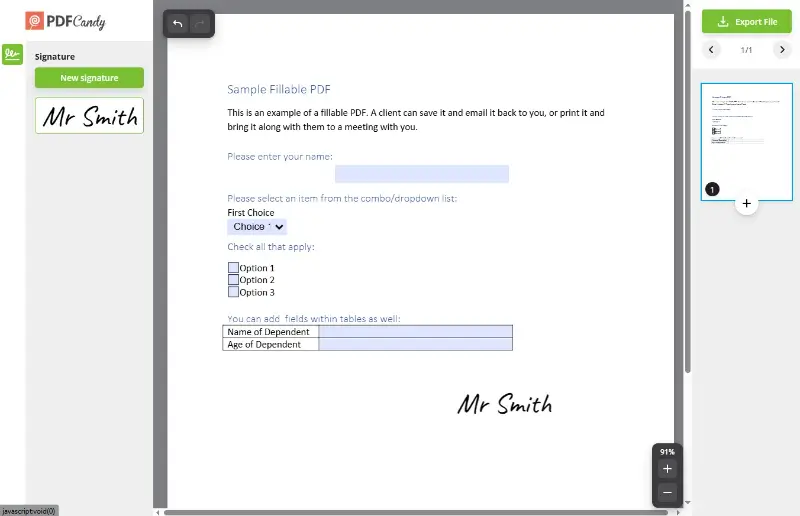
3. Signing documents digitally
No printing. No scanning. No running around looking for a pen. Adding a digital signature takes seconds — something I never thought I’d enjoy as much as I do.
4. Redacting sensitive information
Sometimes you need to share a file but hide specific data. Smart PDF tools make redaction precise and secure, not just a sloppy black box drawn over text.
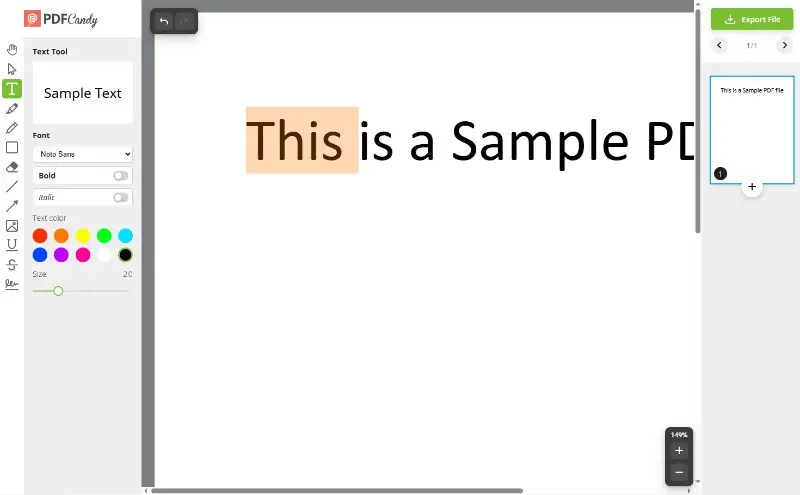
5. Highlighting or adding small notes
Instead of drafting long explanations, you can mark exact sections in a PDF. It keeps communication concise and prevents misunderstandings.
I often compare it to cooking with sharp knives — the tasks aren’t new, but everything is easier, cleaner, and more enjoyable.
Keeping everything safe
Security often feels like a technical mountain, but in daily work, it’s mostly a series of small, protective habits. The key is layering simple safeguards so no single weak point puts your whole business at risk.
Password protection that actually works
Instead of one generic combination for everything, I started using unique phrases that mix words, numbers, and symbols. A memorable example pattern might look like:
AutumnLake_47!Report
GreenDoor_92?Notes
Easy for you to recall, but hard for anyone else to guess.
Control over who can see what
Not everyone on your team needs to be able to view every document. The moment you adjust access levels, confusion and accidental edits drop dramatically.
Here’s a quick comparison of what different roles usually mean:
| Type | What They Can Do | Good For |
|---|---|---|
| View Only | Open files, but can’t change anything | New team members, external partners, auditors |
| Comment / Suggest | Add notes, highlight items, leave feedback | Collaborators reviewing drafts or proposals |
| Edit | Full control over the content | Core members who create or update materials |
| Owner | Manage permissions, delete, archive, restore | You or a trusted operations person |
Fine-tuning these settings keeps sensitive info from floating around unintentionally.
Safer ways to share documents
When you stop sending files through random messaging apps, you reduce risk dramatically. Instead, I share PDFs using temporary links that:
- Expire after a set number of days
- Automatically disable downloads if needed
- Allow revocation anytime
This way, access naturally fades over time, and there’s less lingering content in places you can’t control.
A quick cleanup routine for sensitive data
Sometimes the risk isn’t outsiders — it’s old documents you forgot existed. I schedule a short “security sweep” once a month:
- Delete outdated drafts
- Remove old scans with personal data
- Check that shared URLs from previous projects are no longer active
Five minutes of housekeeping make your entire business file management environment safer.
How to build habits that stick
Technology helps, but habits ensure everything runs smoothly. The biggest breakthrough for me wasn’t a new tool — it was the small routines I formed around my digital workspace.
Weekly tidy-up sessions
I treat this like closing a physical office on Friday afternoon. Ten minutes is usually enough:
- Move items from “Downloads” to the right folders
- Rename inconsistent files
- Check that shared documents are in the correct places
- Clear out temporary screenshots you no longer need
It’s simple maintenance, the digital equivalent of wiping down your desk.
Shared folder rules for teams
Nothing derails your perfect organization faster than everyone naming things differently. To avoid this, create a lightweight “agreement” for your team. Keep it short and practical:
- Use dates in YYYY-MM-DD format
- Avoid personal abbreviations
- Create one folder per client or project
- Stick to three folder layers maximum
Everyone follows the same map, so no one gets lost.
Celebrate consistency, not perfection
This might sound soft, but it matters: if you miss a week, it’s fine. If your folders drift a little, it’s normal. What counts is returning to your system and adjusting it as your company evolves.
Think of small business document management like maintaining a garden — little care, often, instead of giant clean-ups once a year.
Conclusion
Good document management for small businesses doesn’t need to be rigid or complicated.
When you have consistent habits and a few smart online PDF tools, everything feels lighter. Projects move faster, information becomes easier to find, and collaboration stops being a guessing game.
Most of all, you get back precious time that’s better spent on growing your business instead of hunting for lost files. If you’re in that messy middle stage of scaling, these small changes can make a surprisingly big difference.