
Campaign planning can get messy fast — especially when you’re juggling research reports, stakeholder briefs, audience insights, and trend studies scattered across dozens of PDF files.
I used to keep them in folders that made sense only to me, and whenever I needed a specific fact or quote, I spent more time searching than strategizing. Eventually, I realized I required something smarter than manual sorting.
That’s when I started experimenting with AI that can search inside PDFs, tag important sections, and automatically organize PDFs. The difference this made in my workflow still surprises me.
In this article, I want to share exactly how that transition happened, along with the specific techniques and tools I rely on now.
Why I turned to AI for help?
For years, I kept telling myself that I simply needed a better folder structure. I’d try sorting by project, then by topic, by client, and eventually I’d switch back to a giant “Resources” folder because everything else felt too rigid.
No matter how many times I restructured things, I still wasted time scrolling through thumbnails and filenames trying to remember where something lived.
There was a moment during a tight deadline when I spent fifteen minutes hunting for a quote I knew I had highlighted somewhere. Fifteen minutes doesn’t sound like much until there is a demanding client. It was the nudge I needed to try something else.
What convinced me to experiment with AI PDF organizers was the simple promise that these tools could search inside my documents without me having to build any elaborate system. I just required a smarter way to retrieve information without rearranging everything in PDF manually.
What I looked for wasn’t very complicated:
- The ability to search inside PDFs without extracting the text myself
- A way to assign tags automatically, but still refine them manually if needed
- A clear layout that wouldn’t overwhelm me with too many menus
- Reliable handling of large files (some of my decks are enormous)
- A workflow that wouldn’t take hours to set up
Once I saw what modern AI-powered features could do, I wondered why I had spent so long insisting on doing everything the old way.
Tagging and categorizing with PDF AI
If full-text search is the part that initially won me over, automated tagging is the part that completely transformed how I work.
After uploading a batch, the software I use generates suggestions to organize PDFs based on topics, themes, industries, dates, and entities. It doesn’t always guess correctly, but it gives me a starting point.
Instead of reading through fifty pages to figure out what labels I should try, I simply refine or remove the proposed options.
I approach tagging PDF with AI in layers.
1. General themes
I assign broad categories like “Brand Strategy,” “Market Shifts,” or “Audience Behavior.” These act as anchors that keep everything navigable.
2. Campaign-specific markers
If I’m working on a launch for a skincare line, I’ll place things like “Serums,” “Dermatology Insights,” or “Beauty Trends Europe.” When I close out the project, those labels help me return to earlier research whenever I revisit that brand.
3. Quick-access markers
These are incredibly practical. I add short notes like “Stats,” “Quotes,” “Charts,” “Voice Examples,” or “Competitive Positioning.” When I’m building a presentation, I can filter instantly for the type of reference I need.
What surprised me most was how tagging changed the way I think about information.
Instead of viewing documents as individual units, I now see them as interconnected pieces of a larger network. The act of assigning tags — especially when supported by AI suggestions — makes patterns visible long before I start drafting a strategy.
Sometimes I let the tool generate clusters automatically. Other times, I take a few minutes to build my own structure. Either way, it’s far more efficient than scrolling through endless folders trying to remember where I put something.
Organizing research into a clear workflow
Once the tagging is in place, the rest becomes much smoother.
My current system is divided into three stages. It isn’t elaborate, but it works consistently, which is what truly matters during strategic planning.
Stage 1: Collect
I gather everything relevant to the project: reports, interviews, competitor materials, creative moodboards, trend decks, and even screenshots of social chatter. I dump them into a single space without worrying about order — something old me would have felt deeply uncomfortable doing.
Stage 2: Process
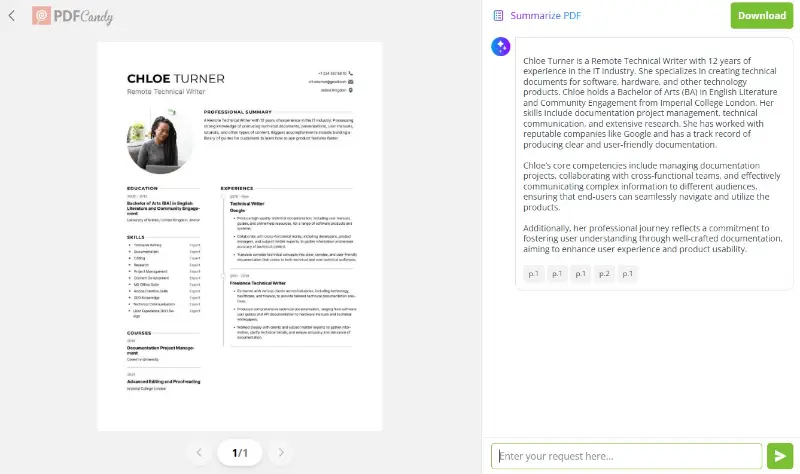
This is where AI helps the most. I run searches to see which themes appear frequently, glance through auto-generated PDF summaries, clean up tags, and sometimes merge similar topics. It feels more like curating than sorting.
I also use this moment to note potential angles. AI doesn't replace analysis, but it definitely highlights things I would’ve overlooked when skimming.
Stage 3: Build
When I begin drafting an actual campaign plan, everything I need is already one or two filters away. If a client suddenly asks for additional reinforcement or wants to explore a different direction, I can pivot with almost no friction.
The organized library becomes a living resource rather than a static archive.
This structure has saved me more times than I can count. Even after a project wraps, I can return months later and instantly retrieve every relevant idea, insight, and data point. Instead of starting from scratch every time, I’m building on top of previous knowledge.
Real examples from my experience
To give you a better sense of how this looks in practice, here are a few scenarios from my recent cases.
Example 1: A Retail Launch
While preparing for a campaign for a Scandinavian home goods brand, I needed to compare consumer expectations across its top markets. I had multiple PDFs: purchasing behavior studies, lifestyle reports, and category performance documents from the past three years.
Before AI, I would’ve created separate folders for each country and then spent ages clicking through them. Now, I simply filtered by tags like “Nordic Market,” “Seasonal Shopping,” and “Home Aesthetics.”
The material surfaced immediately, and I saw connections between regions that I probably would’ve ignored otherwise.
Example 2: A Re-branding Initiative
Re-branding often means revisiting older insights and contrasting them with recent trends. I had dozens of documents saved over the years, but many were out of date.
Instead of rereading all of them, I used AI to extract mentions of tone, customer expectations, and category direction. It highlighted shifts that helped me outline a more precise brand voice proposal.
Example 3: A Social-First Campaign
For a digital-only push, I needed to assemble references for visuals, messaging, and audience behavior.
The AI-generated tags — especially around “Visual Style,” “User Patterns,” and “Short-Form Formats” — let me pull everything I needed in under an hour. The final deck basically built itself once the references were aligned.
In all three cases, I spent more time shaping the storyline and much less time digging through files. That’s the part I appreciate most. It gives me space to think instead of letting admin tasks drain half my day.
AI PDF tools worth trying
Below is a small table of apps and services that have been useful in my workflow. I kept the descriptions concise but specific.
Comparison table
| Tool | Main Strengths | Notes |
|---|---|---|
| PDF Candy | Converts, merges, compresses, and edits PDFs | Great for preparing documents before analysis |
| Acrobat AI Assistant | Smart search, summarization, entity extraction | Works well with large batches; seamless if you already own Acrobat |
| DocuSense | Automatic tagging and topic mapping | Excellent for research-heavy projects with many related elements |
| Kami | Collaborative annotations with AI-assisted insights | Ideal when working with teammates or clients who need shared access |
| Humata | Fast retrieval of answers from long PDFs | Best for immediate Q&A style queries, especially with technical papers |
Conclusion
Adopting smart tools for searching, tagging, and organizing PDF with AI didn’t just make my campaign planning quicker — it changed the entire rhythm of how I work.
Instead of digging through files, I’m actually spending my time thinking creatively, connecting insights, and building better strategies. It’s a quiet shift, but a powerful one.
Once you start using AI for document management, it’s almost impossible to go back to the old way.