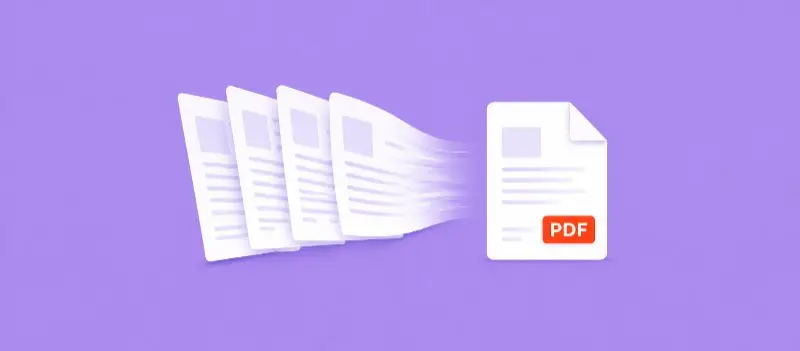

Understanding how to scan multiple pages into one PDF is an essential skill, especially for those working with a lot of paperwork. Many businesses, students, and professionals handle several pages every day, such as contracts, reports, invoices, or study materials.
Instead of having multiple files, many people prefer scanning multiple pages into one PDF; as with one individual document, it is easier to organize, review, and share with others.
How to Scan Multiple Pages Into One PDF
One of the most common ways is using a traditional scanner. There are options that provide multi page scan to PDF features.
Most modern office scanners allow users to continue scanning additional sheets before completing the process.
But for individuals working with computers, another method involves utilizing a PDF editing tool to combine scanned pages into one PDF after they’ve been captured.
With a PDF editor, you can:
- Upload files and arrange them as you want
- Reorganize sections
- Remove/delete pages
- Improve the structure
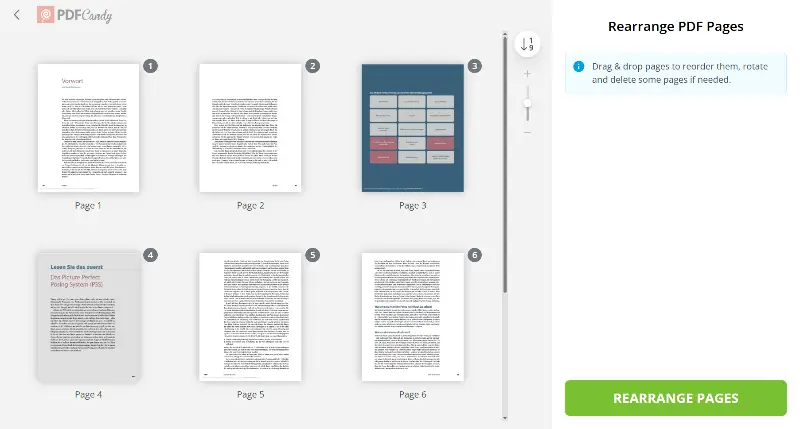
Many users rely on these features to combine multiple PDF pages into one final draft that looks polished.
In professional workspaces, teams often need to put together different PDFs to simplify collaboration.
As an example, departments may gather many different forms, agreements, or records that belong to the same project. Rather than, sending multiple separate attachments, they prefer to create a single complete document.
This makes it easier for colleagues, clients, or managers to review the material without confusion or missing sheets.
Mobile technology has also made it easier to manage documents on the go. Smartphone scanning applications support a multi page scan to PDF, allowing individuals to capture several papers in sequence using their device’s camera.
These apps offer additional tools like:
- Cropping PDF edges
- Adjusting clarity
- Confirming the page order
By using these extras, you can get a polished digital file and share it immediately with others, or store it for future reference.
Learning how to scan multiple pages into one PDF on Windows 11 or macOS will improve organization and also save time by managing files better.
A single document simplifies workflows and reduces the chance of losing important pages. This is particularly valuable when dealing with applications, official paperwork, or multi-section reports.
Conclusion
Scanning multiple pages into one PDF is a more efficient way to ensure that key information remains easy to access whenever it is needed.
In advance of scanning with the tools mentioned above, you can also take advantage of additional features they provide. Some example are highlighting PDF key sections, inserting notes, editing text in PDF, or adding an electronic signature.