.webp?6ac135b78 "Enhance PDF Workflow: 10 Chrome Extensions to Try")

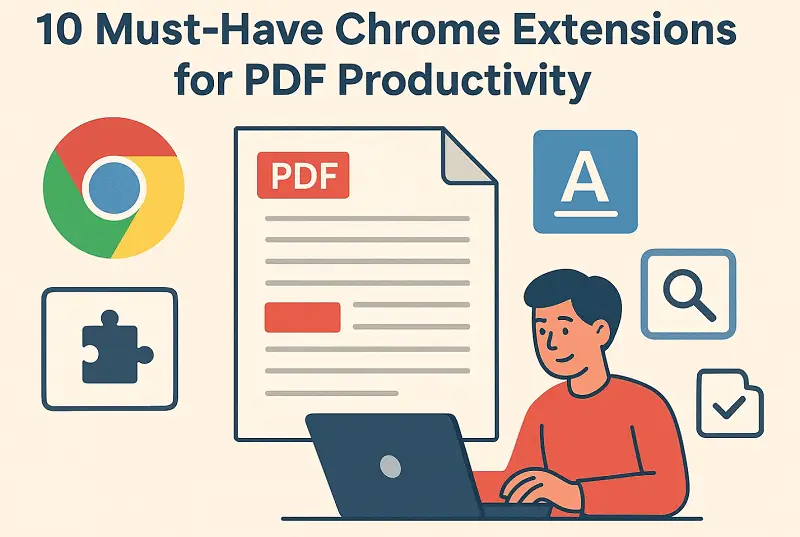
Dealing with PDFs usually eats up a lot of time, but the right Chrome extensions can really change that.
Editing, adding notes, organizing - suddenly it all gets easier. The only problem? There are way too many options out there, and picking the best ones isn’t always obvious.
So, here I’m sharing my top 10 Google plugins that I rely on daily. Whether you need to tweak a file or dive into more advanced features, these picks make working with documents smoother and faster.
1. PDF Candy
This is one of those all-in-one services I keep coming back to. The PDF Candy Chrome addon tackles almost every paper job I throw at it - resizing big archives, merging PDFs, pulling out specific pages. The interface is simple but has plenty under the hood for power users.
Key Features
- Packs in over 90 tools: convert, compress, split, OCR PDF, manage metadata
- Right-click context menu for fast conversions from webpages or files
- Batch mode for handling a bunch of papers at once
- Connects straight to Google Drive and Dropbox
- TLS/SSL encryption, plus auto-deletion after two hours for privacy
It shines when you’re dealing with a pile of papers. There’s a limit for free users every hour, but I don’t mind much - the context menu optimizes my daily routine and enhances PDF productivity. And during cooperative work with confidential files, knowing they’ll disappear automatically is a relief.
2. iLovePDF
This platform feels designed for speed. I employ its browser extension when I need to quickly rotate or compress a PDF without firing up a full program. It’s great for anyone who wants to get things done fast, no fuss.
Key Features
- Instantly combine, split, and optimize PDFs
- Convert to Word, Excel, PowerPoint, or image formats
- Add watermarks, unlock files, rearrange pages
- Simple, multitasking-friendly interface
- Free plan, with premium extras if you need them
I reach for iLovePDF when I’m juggling lots of tasks or working with short drafts. It’s swift, reliable, and the results are always consistent. If I need to do heavy refinement or collaborate, I’ll switch utensils, but for basic conversions, this tool never lets me down.
3. Adobe Acrobat
You expect Acrobat to deliver, and the web extension does just that. I apply it for serious modifications, digital signatures, or in joint tasks on official contracts. It’s not the lightest utility - kind of heavy, actually - but it’s rock solid and secure.
Key Features
- View, annotate, and comment in the browser
- Fill out PDF forms with validation
- Transform to Word, Excel, or PowerPoint (with a subscription)
- Cloud integration for editing across devices
- Seamless handoff to the desktop suite for advanced work
Cloud syncing is a lifesaver - I can start a job in Chrome and finish it on my laptop later, no problem. Some export features are paywalled, but honestly, it’s precision make it a must-have for professional duties.
4. Kami
When it’s time for real-time teamwork, I always turn to this app. The Google extension is perfect for reviewing class materials or shared docs, especially when everyone needs to pitch in at once. It blends PDF markup with live conversation.
Key Features
- Shared annotations: highlights, text, drawings, even voice notes
- Works with Google Classroom, Drive, and Canvas
- Commentary with auto-sync
- Version tracking for group altering
- Handles more than just PDFs
Kami is built for collaboration. When a bunch of people are writing on the same file, it keeps track of everyone’s input. It can slow down with big archives, but for interactive feedback cycles, it’s hard to beat.
5. Lumin PDF
This Chrome plugin shines when I need to collaborate or get a feedback fast. Whenever I need advice on proposal, this is the tool I open first. Here, I can chat with teammates right inside the PDF. No more endless email threads.
Key Features
- Sketch over files with underlines, comments, shapes, or drawings on PDF
- Fill out surveys and add secure digital autographs to sign your PDFs
- Share files in the cloud for instant collaboration
- Hooks up directly with Google Drive
- Runs light and fast - perfect for speedy reviews
What I really like is how clean the layout feels. No clutter, only the stuff I need. Lumin isn’t trying to be Acrobat, and that’s fine, it nails reviews and stays out of my way. That Drive compatibility is a bonus, too. It houses my files tidy without any extra effort.
6. PDF Editor Online
This Chrome addon is my go-to when privacy matters or I’m working somewhere I can’t install software. It preserves things simple. Everything happens in browser.
Key Features
- Review PDFs straight from your surfer: incline text in PDF, images, or drafts
- Reposition pages with drag-and-drop
- Uphold papers organized with the built-in dashboard
- 100% free and open-source
- Optional PDF URL detection
What sets this instrument apart is how easy it is to access. I don’t have to install anything, which is perfect for locked-down environments. I usually turn off the URL scanning for extra PDF protection, but even then, it handles small tweaks without breaking a sweat.
7. Print Friendly & PDF
If you ever want to save a web page without all the junk, this PDF productivity service is a lifesaver. I apply it to archive articles, research, or blog posts - minus the ads and nonsense that usually clutter things up.
Key Features
- Cleans up tabs automatically before turning them into PDFs
- Strips out banners, random pictures, and sidebars for a neat finish
- Lets you remove any extra pages, blocks or graphics by hand
- Adjustable fonts and layout for custom results
- Download or print your PDFs with one click
It turns searching into a conversation. Still, when it’s sensitive paperwork, I double-check the details myself because, honestly, AI sometimes misses the subtle point.
8. PDF.ai / ChatPDF
The plugin brings a whole new level of smarts to working with documents. I lean on it a lot, especially when I’m staring down monster research papers or those never-ending reports. Stuff that used to take hours? Now I can tear through it in minutes. The AI digs out the good bits for me, so I can search or make a request directly.
Key Features
- AI-powered summaries and quick info grabs
- Ask questions and get real answers
- Super handy for technical manuals and scientific articles
- Pulls out insights so you don’t have to read everything
- Runs through secure cloud servers
It transforms passive reading into an interactive experience. I can tell, “What’s the main conclusion of section five?” and receive an instant summary. For understanding large PDFs quickly, it’s revolutionary.
9. Copyfish
When I’m stuck with scanned PDFs or screenshots where the sentences are basically trapped in an footage, it is one of the greatest productivity methods. This service chews through all those image-based items and spits out editable text, saving me from endless typing.
Key Features
- Pulls words from visuals, photos, and printed articles
- Handles lots of languages, even ones with different scripts
- One-click copy to clipboard or save as a file
- Hooks into translation and note-taking tools
- Doesn’t slow down your browser
The multilingual side is the best thing. I’ve run it on Japanese receipts, French instruction booklets, English invoices. Accuracy depends on how clear the shot is, but even with rough scans, it saves me a ton of time.
10. PDF Viewer
Last up, there’s the web extension - a no-nonsense, super lightweight PDF viewer. I prefer it for those times when I need to peek at a file before deciding if it’s worth diving deeper. It’s barebones but still covers almost everything I require for reading.
Key Features
- Quick in-browser PDF rendering with minimal system load
- Search, zoom, and click through links with zero hassle
- Runs on Mozilla’s open-source PDF.js engine
- Handles big files with ease
No waiting, no lag, only instant access - ideal for skimming manuals. When I want the gist without any fuss, this Chrome addon gets me there the fastest.
Conclusion
Wrapping up, getting good at editing PDFs in Chrome is really about picking the right tools, not piling on a bunch of random Google plugins.
We live in a time where PDFs fly around everywhere - work, school, government. Managing them smoothly in your browser isn’t just nice to have anymore. It changes the game.