
Knowing how to convert PDF to JPG may be helpful if you want want to extract images from documents. Good news - you don’t need fancy software or tech skills. Do it online, fast.
Let’s get right to it. There’s a simple web-based service to transform your PDF files to JPGs. No advanced technical skills or software downloads are needed, making it accessible for everyone.
How to convert PDF to JPG online
PDF Candy is an online platform that allows to perform various tasks related to working on documents. These include merging, splitting, editing, and securing PDF papers, etc.
How to save a PDF as a JPG using PDF Candy
- Head over to the online PDF to JPG converter in a browser of your choice.
- Upload your material with the "Add file(s)" button. You can even throw in a bunch of drafts at once.
- Preview all elements. If a page is sideways, rotate it.
- Pick the quality you want for your JPGs. You’ll find more details about this just below.
- Click "Convert PDF" to change the document to the JPG format.
- Download images one by one or as an archive.
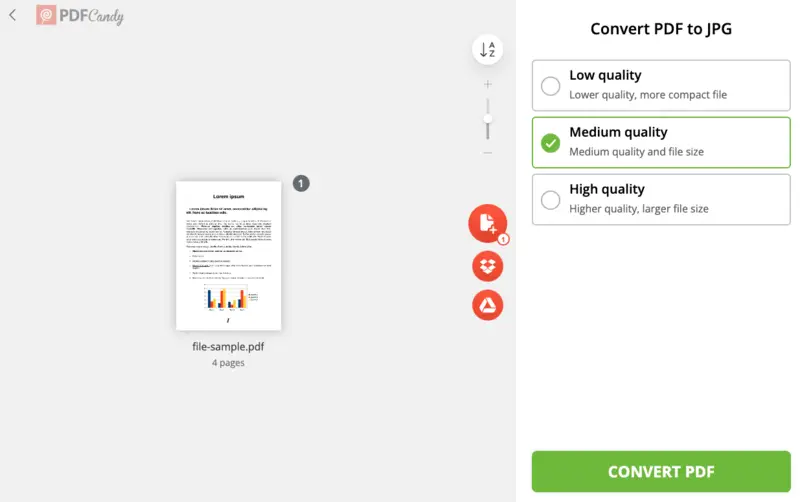
Output fidelity settings for PDF to JPG conversion
Our service has several options for fine-tuning the quality of the resulting pictures:
- Low. Pick this if you want a smaller file and don’t mind losing a bit of detail.
- Medium. To maintain the perfect balance between the photo size and its quality, choose this option.
- High. Go here if you require the sharpest footage and weight isn’t an issue.
How to share or save the created images?
Once the PDF to JPG conversion is done, you have multiple options for saving and sharing your pictures:
- Send instantly with a URL and QR code. Just hit the "Share" button on your results page.
- Download the JPG straight to the device. Tap "Download file" and you’re set.
- Upload the pics right to your cloud - Google Drive or Dropbox. One click and you’re done.
Advantages of the online PDF to JPG converter
- Works on any device with internet, so you can turn PDF into JPG wherever you are.
- Everything happens in your browser, no need to install anything.
- The whole process is quick and simple. Upload, process, and download.
Other features of PDF Candy
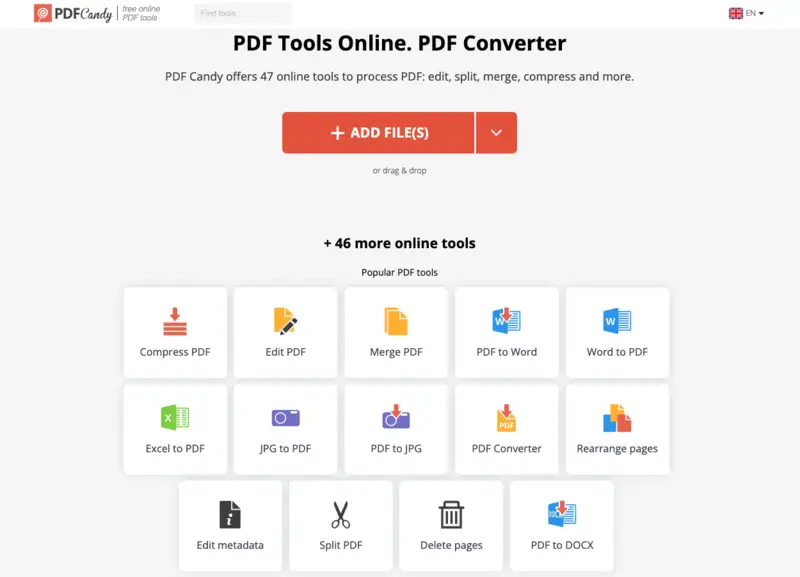
Apart from the ability to change a PDF to a JPG online, with this service, users can perform other manipulations with their digital copies:
- Compression. Make files smaller for easier distribution or storage, no big quality loss.
- PDF editing. Add text, notes, or images to your PDFs, all without fancy software.
- OCR. Pull text out of scanned PDFs, so you can search or modify them.
- Rotate and crop. Fix page orientation or trim things down for a cleaner look.
- PDF protection. Lock your papers with a password for extra security.
- Merge. Combine several files into one neat package.
- Split. Break up big PDFs into smaller, more manageable pieces.
In all, PDF Candy gives you 90+ free online tools to cover just about any PDF need.
PDF vs JPG: The real differences
| Feature | JPG | |
|---|---|---|
| File Type | Document format | Graphic extension |
| Content Type | Text, footage, vector graphics | Raster pictures (illustrations) |
| Compatibility | Requires PDF reader or software | Works pretty much everywhere |
| Editing | Allows text and layout modifications | Limited editing (mainly with photo editors) |
| Quality | Retains high quality, scalable | Can get fuzzy from compression |
| Usage | Business documents, eBooks, forms | Photos, websites, presentations |
| Searchable Text | Yes, supports content search | No, words are part of the image |
| Page Count | Can hold multiple pages | Single picture per file |
| Security | Can be encrypted and password-protected | No safety features |
University of Minnesota Libraries recommends JPEG for web access and online sharing due to smaller size.
FAQ on how to convert PDF to JPG online
Do I need an account to use the tool?
Nope. Insert your file and get started. No registration needed.
Can I save each PDF page as a separate JPG?
Absolutely. The platform splits your PDF so every page becomes its own JPG image.
What if my PDF is password-protected?
You’ll need to unlock the PDF first. Once it’s decrypted, you’re good to go.
Can I export my PDF to other footage formats?
The service supports various output types such as PNG, BMP, or TIFF.
Can I convert scanned PDF documents to JPG?
Yes, that’s possible. And if you want to grab the text from those copies, PDF Candy offers an OCR (Optical Character Recognition) utility to pull out the words for you.
Conclusion
In conclusion, utilizing PDF Candy offers a practical and accessible solution for users seeking a quick and efficient way to turn PDF pages into JPG format.
Whether for sharing images on social media, creating presentations, or any other purpose, with this free file converter, you'll be sure that your PDFs are exported into high-quality pictures.