.webp?6ac135b78 "Hidden Risks in PDF Metadata")

When I first started poking around in PDF metadata, I couldn’t believe how much stuff these plain old files actually hang onto.
Most people send PDFs all the time, totally unaware that behind those neat pages, there’s a whole layer of info quietly giving away more than you’d expect.
If you care about your privacy or want to look professional, you’ve got to pay attention to metadata. So, let’s talk about what you might accidentally be sharing - and how to clean it up.
Structural Anatomy of Hidden Metadata in PDF
PDFs are a lot messier than they look. Sure, they seem like simple files, but underneath, you’ll find a whole tangle of objects, streams, dictionaries, and random extras. Each one is a possible hiding place for sensitive facts.
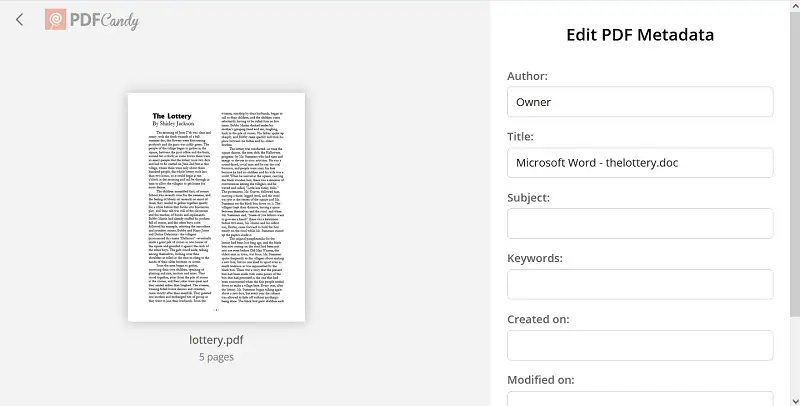
Core Components I Inspect
- Document Dictionary. This is where you usually find records like Title, Author, Subject, Keywords, Creator, and Producer. Sometimes, you’ll see entries like "Adobe Acrobat X" or "LibreOffice 6.3" here. Those default settings spill quite a lot. They can reveal what software you used and hint at your system setup or paper history.
- XMP Packet. Basically, this is a chunk of enclosed XML. It can double up on the stuff in the Info Dictionary, but sometimes it throws in extra bits: timestamps, edit history, and which programs touched the file.
- Inserted Attachments. PDFs can stash away spreadsheets, images, CAD, old drafts. Each of those comes with its own baggage: device paths, who made it, when it was last changed, and so on.
- Hidden Annotations. Not everything you see is all there is - white-on-white text, off-page boxes, or threads of comments can stick around, even after you think you scrubbed metadata from PDF.
- Update Streams. Every time you edit and save, those changes get tacked on instead of overwriting the old data. That means previous versions can hang around in the background.
- Embedded OS. Sometimes you’ll spot things like
\\CORP\Users\jane.d\Desktop\Internal.docx. These can quietly leak your network layout. - Scripts . JavaScript or links inside the PDF can ping out attributes about your environment as soon as someone opens the material.
I’ve seen research showing that "sanitized" PDFs usually keep layers you’d never expect. Bottom line? If you want a truly clean file, you have to dig deep.
Real-World Risks
Let’s talk about all the elements hiding inside your average PDF. It’s not some imaginary hacker problem, there are real, everyday dangers here.
Findings from Public PDF Audits
Someone dug through almost 40,000 PDFs from 75 different security agencies.
Out of all those, only 7 organizations scrubbed their files properly before letting them out into the wild. And get this: even among the ones that tried, 65% of "cleaned" papers still leaked PDF properties.
So, the folks who should know better keep slipping up.
Security Implications
Exposed metadata can facilitate targeted attacks by revealing authors, software versions, device OS, or paths. Attackers can use this information for phishing, malware crafting, or social engineering.
Redaction and Forensic Risks
When you leave PDF input exposed, you’re basically handing out clues for a targeted attack.
Stuff like who wrote the file, what software they used, what operating system, equal the path on their machine - hackers love that. They’ll utilize it in illegal purposes.
Compliance Concerns
Just because you slap a black box over secret material doesn’t mean it’s gone. Those little black rectangles often leave the original text’s position entries right there for someone to dig up.
Researchers have shown it’s not that hard to recover what was supposed to stay hidden, likewise from government files.
Meticulous Workflow for Metadata Hygiene
Stage 1: Preserve the Original
Save the untouched source and your very first PDF export, properties and all. Stash them somewhere secure, with access tightly controlled. You’ll want these for any future audits or to confirm exactly what changed and when.
Stage 2: Get a Clean Candidate
Now, generate a new PDF via locked-down profile like PDF/X-1a or PDF/A.
Turn off document info, attachments, comments, basically, strip out anything extra or interactive. Give the draft a clear, traceable name like Project_External_Release_v1.pdf so there’s no confusion about what it is.
Stage 3: Manual Inspection of PDF Metadata
Pop open the item in a solid viewer and comb through those fields:
- Author: Switch to something generic, like "Communications Dept."
- Creator/Producer: Change PDF version metadata or system details.
- Keywords/Subject: Clear out codes or anything confidential.
- Title: Make the name more general if it’s too specific or internal.
- Creation/Modification: Reset dates to something neutral if privacy’s a concern.
Stage 4: Remove Attachments
Check PDF metadata for any embedded papers: old drafts, spreadsheets, or source docs hiding in there.
If you don’t need them, delete. Revise annotations, form fields, and any off-page or objects. If you spot something invisible, get rid of it.
Stage 5: Flatten Interactive Content
Simplify everything interactive - form fields, comments, links, layers. You want static, boring pages, with no structures or trails.
Printing to PDF or exporting with "flatten all" options does the trick.
Stage 6: Use Metadata-Scrub Tools
Now, run your material through a strong metadata cleaner. For sensitive contracts, stick with offline apps like ExifTool or qpdf.
For less critical files, browser-based options like PDF Candy work fine. Double-check what layers the app scrubs - don’t just assume it gets everything.
Stage 7: Validation
Reopen the PDF to confirm:
- Metadata is either empty or generic.
- There are no leftover form fields, comments, attachments, or stray text lurking off-page.
- Try selecting and copying sentences to catch any sneaky content.
- Dig into the file with a hex PDF metadata editor or run
stringsto spot any buried paths or codes. - Check for scripts or remote URLs.
Stage 8: Apply Permissions
Set read-only authorization, restrict printing or editing, and optionally apply a digital signature. Preserve the internal master separately in a secure repository.
Stage 9: Sustain Audit Logs
Log everything - version, date, who got it, what scrub platform you used, checksum, and ID. This way, you’ve got a clear record for audits or if anyone questions what happened along the way.
Conclusion
PDF metadata can reveal far more than the visible content of your documents, including authorship, device details, paths, and hidden revisions.
A thorough workflow - preserving the master, inspecting and removing metadata, flattening content, utilizing tools like PDF Candy, validating, and applying approvals - ensures truly clean papers.
By adopting systematic PDF hygiene, you protect sensitive information, maintain compliance, and share papers safely.