
The need for digital documents these days has risen, as everything in our daily lives revolves around technology!
New inventions have made our lives easier, and one of them is our mobile phone.
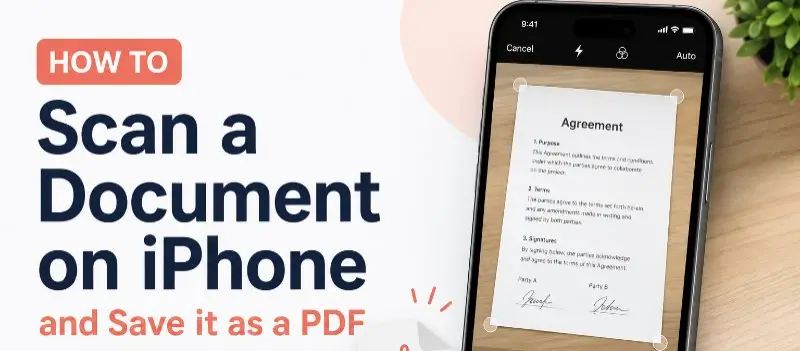
In this article, we will explain how to scan a document on an iPhone, and create digital copies from paperwork.
We will present you with the best ways that will allow you to keep your files organized, and helpful tips to get started.
How to Scan a Document on iPhone
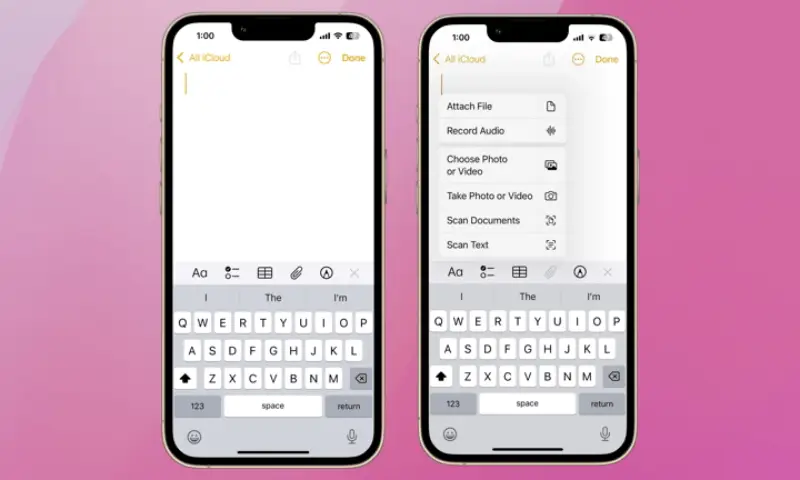
Option 1: Use the built-in Notes app on your Phone.
In seconds, this document scanner automatically detects paper documents and converts them into PDFs.
How to utilize it:
- Open the program.
- Select the link icon.
- A menu will appear. Pick "scan documents".
- Put the document on a flat surface with good lighting.
- If automatic capture doesn’t trigger, you can manually press the shutter button to scan a document to PDF on iPhone.
- You can make adjustments before saving the file.
- Save as a PDF format.
Option 2: Scan to PDF on iPhone with the Files App
Another great example of a built-in way is through the files app. You can easily save PDFs right into folders on the device or cloud storage.
How to use it:
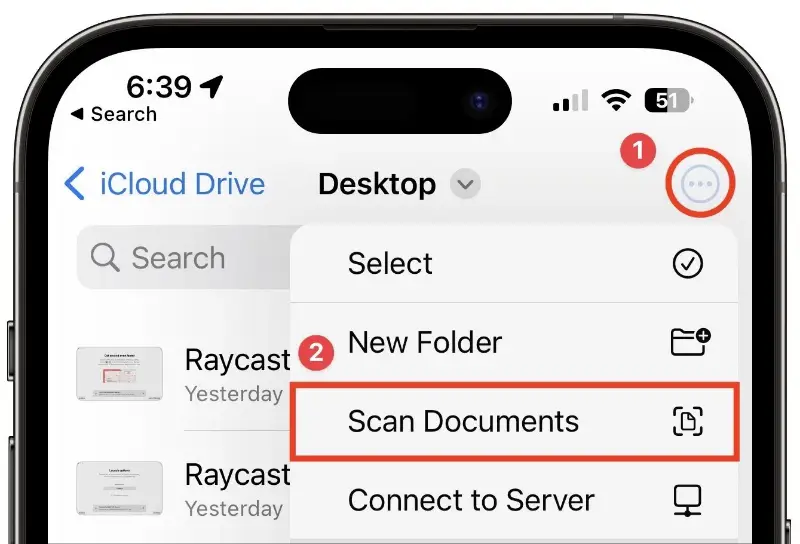
- Open the files app on the iPhone.
- Tap the three-dot menu in the top-right corner of the screen.
- Select scan documents from the dropdown menu.
- Position iPhone above the paper and allow the camera to detect the page.
- The device will automatically capture the document and convert it into a scanned PDF .
- Click save after scanning is complete.
- The file will be stored as a PDF inside the files app, completing the process.
This process is useful in case you want to organize documents into folders or upload them to cloud services like iCloud or Google Drive.
Share or Export iPhone scan to PDF
Once finished with the iPhone scan to PDF, you can easily send the file to others.
Steps to follow:
- Open the final document.
- Tap the share icon.
- Choose a way to forward the file.
Common sharing options are:
- Messages
- AirDrop
- Cloud storage
- Printing
This makes scan from iPhone to PDF extremely practical for business, school, or personal documents.
Tips for Getting the Best iPhone Scan to PDF
To improve quality when performing an iPhone scan document to PDF:
- Have good lighting for content to be visually clear.
- Place papers on a smooth, flat surface to prevent distortion.
- Make sure your hands or phone do not cast shadows on the page.
- Hold the mobile still.
By holding or setting the camera steady the results will be clearer when you scan to PDF with iPhone.
FAQs
Should You Use an iPhone Scan to PDF App?
While iPhones include built-in scanning tools, some users prefer using an iPhone scan to PDF app for additional features.
Can I Scan a Multi‑Page Document into One Single PDF?
Yes. Both options, the Notes app and the Files app, support multi‑page scanning.
Do I Need an Internet Connection to Scan a Document on iPhone?
No. Both the Notes and Files apps scan entirely offline. The camera and onboard processing work without Wi-Fi or cellular data.
Third-party apps may offer:
- Optical Character Recognition - OCR.
- Automatic extracting text from PDF.
- Batch document scanning.
- Organization tools.
Conclusion
Knowing how to scan a document on iPhone is undoubtedly a useful skill. Understanding the process can help you simplify workflows and limit any type of paperwork that overloads you. As mentioned above, with the built-in Notes and Files apps, you can easily handle essential files digitally and share them without any difficulty.
Whether you need to work on receipts, contracts, or school assignments, the scan to PDF on iPhone feature turns your smartphone into a portable tool that comes in very handy.
Once you understand the process, nothing is in your way; you’ll be able to manage important tasks anytime, anywhere.