

Working in HR can feel like a steady stream of documents coming at you from every direction — onboarding packets that need polishing, performance evaluations revisions, and endless requests arriving at random times.
After a few years of handling these tasks, I realized that messy, confusing HR PDF forms were stealing more time than the actual tasks themselves. The problem wasn’t the content; it was the structure.
In this article, I’m sharing the practical habits and tools that helped me streamline both form creation and completion — tips that anyone working with digital paperwork can adopt.
Why does a clear PDF form matter for HR?
If you’ve ever had to chase employees for missing details, you already know why efficient forms are essential.
Every confusing field becomes another email thread. Every awkward layout turns into hesitation. And every unclear instruction leads to partial data that you eventually have to fix manually.
When the layout is intuitive and the purpose is obvious, you avoid that entire chain reaction. People move through the form in interactive PDFs with confidence, and you get consistent information the first time.
It sounds simple, but I’ve watched this small shift dramatically reduce processing time and errors.
Start with a reusable library
One of the most helpful changes I made was building a small collection of PDF form templates that I return to again and again. They’re not fancy — just well-organized starters I can adjust quickly.
Here’s what made the biggest difference:
- A predictable hierarchy for headings and subheadings.
- Standard spacing that keeps everything readable.
- Default fields I often need: employee name, supervisor, department, date, and a notes section.
- A simple, neutral design so it still looks appropriate whether I’m preparing an onboarding checklist or a policy acknowledgment page.
Having these ready means I no longer start from zero every time. When a new PDF document is required, I duplicate the closest match and adapt it. This saves at least 20–30 minutes for every paper and keeps formatting consistent across the entire folder.
Use smart fillable PDF form fields
This is the part that truly changed how quickly people complete forms. The more it “guides” the person, the fewer questions they have later.
Here are some examples of fields that work well.
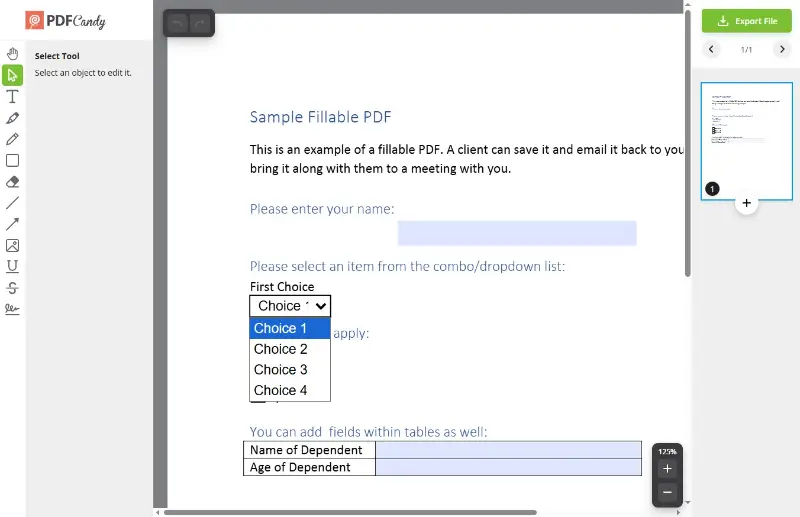
Dropdowns
Great for departments, job titles, office locations, or any category with a fixed list. They prevent typos and eliminate mismatched wording.
Checkbox groups
Perfect for standard answers — day-off types, equipment requests, training sessions, and so on.
Short tips or tiny clarifications
A small line beneath a field, like “Put in your official job title,” can save several follow-up conversations.
Automatic date and name input
If your platform allows it, this cuts down on mistakes.
When I’m preparing a form, I often use a PDF form filler to quickly test fields on practice. It’s straightforward, and it works on any device.
Keep the layout predictable
There’s nothing wrong with a straightforward design. In fact, the simpler the structure, the faster people fill out PDFs. I follow a few personal rules that keep everything easy to read without turning content into walls of text:
- Group related items together.
- Keep long explanations out of the flow and place them beneath the main line or in parentheses.
- Avoid stacking multiple large inputs right next to each other — people get overwhelmed quickly.
- Use white space generously. It’s not wasted space; it’s breathing room.
- Place the most important fields near the top so the purpose is clear immediately.
This approach works for almost any HR document. Instead of forcing employees to “decode” the structure, you’re quietly guiding them from one step to the next.
Test each PDF form on a real person
Before I send out anything new, I ask one colleague to go through it. This tiny step has saved me countless hours.
Often they’ll notice things I missed:
- A field that should be optional but is set as mandatory.
- A label that seems unclear once it is in front of someone else.
- A section that’s too long or visually heavy.
- Instructions that sound obvious to me but are confusing to someone outside HR.
My favorite example is from an equipment request form. I once included a “Supervisor Confirmation” section at the bottom, thinking it was obvious that managers needed to sign a PDF later. But the employee who tested it assumed they needed to fill it out in PDF. One quick revision fixed that misunderstanding and prevented what would have been a flood of confused messages.
This kind of quick test doesn’t have to be formal. Just hand your colleague the draft and watch where they pause.
Automate where it makes sense
Automation isn’t about replacing anyone. It’s about removing repeated tasks that eat up your day.
Below are a few ideas I rely on.
| Feature | How It Helps | When I Use It |
|---|---|---|
| Conditional logic | Keeps data shorter by showing only the fields someone actually needs. | Multi-step requests, surveys, or approval workflows where answers influence the next section. |
| Automatic routing | Sends submitted documents to the right inbox or folder without manual forwarding. | Leave requests or anything that must reach a specific manager. |
| E-signatures | Speeds up authorization and avoids printing, scanning, or chasing down physical signatures. | Policy acknowledgments, contract updates, and onboarding files. |
| Pre-filled elements | Reduces typing and eliminates repeated mistakes by pulling in saved employee information. | Forms that repeatedly require basic details like department, role, or supervisor. |
Review and update
Forms age. Policies shift. Processes change. And if you don’t revisit yours regularly, they get cluttered with outdated content that wastes time.
I’ve made it a habit to review my main PDF forms every quarter. During one of these reviews, I noticed a document that still included a “fax number” field (left over from an ancient template). Removing it reduced messages from people asking what to put there.
Here’s how I handle reviews:
- Print the form or fill out your PDF online.
- Read it from the perspective of someone unfamiliar with the process.
- Mark anything that feels redundant, unclear, or outdated.
- Ask one team member to check the revised version.
- Update the internal link and archive the old file.
This rhythm prevents buildup and keeps everything fresh.
Conclusion
Creating fast, clear forms doesn’t require complicated tools or major system overhauls. It just takes a little attention to structure, a few reusable templates, thoughtfully designed fields, and occasional updates.
When employees understand the content instantly, they finish it quickly. When the design is clean, you avoid confusion.
Over time, these small improvements shape a smoother HR environment with fewer delays, fewer questions, and far less paperwork stress. It’s one of those changes you feel every day, even if nobody notices the thought that went into it.

.webp?w=420&h=184)