
Handling PDF on iPhone used to feel like a chore — something I postponed until I could sit down at my laptop. Whether it was a form I needed to sign or a long document I wanted to skim, mobile tools always felt a bit too limited.
That changed once I started using AI. Suddenly, editing, summarizing, and organizing became something I could comfortably do while waiting for coffee or riding the metro.
In this article, I’m sharing the simple PDF AI-powered tools that helped me streamline my entire workflow on iOS.
Why AI makes PDF tasks easier on mobile?
Artificial intelligence isn’t about complicated automation here. It’s about simplifying things you already do. The difference is subtle but powerful.
- Instead of manually scrolling through dozens of pages to find what matters, AI skims the document and presents a clean overview.
- Instead of using your laptop to rewrite a long paragraph for clarity, it fixes the phrasing right on the phone.
- Instead of retyping text from a scanned file, the system converts everything into editable content instantly.
A few specific improvements I’ve noticed:
- Faster transitions between tasks.
- Cleaner, more readable documents with less manual effort.
- Reliable text extraction from even low-quality scans.
- Easier time switching between languages.
- Fewer “I’ll do this later” delays.
This shift from postponing to completing tasks immediately has had the biggest impact on my daily routine.
Useful AI PDF tools for everyday tasks
This is where things get fun. Here are situations where artificial intelligence genuinely made work less of a hassle.
Converting a scan into real text
I often snap photos of receipts, handwritten notes, or printed papers. AI can switch these images into real, selectable, copyable content in seconds. It’s great for:
- Saving text into Notes without retyping
- Dropping key information into a message or email
- Turning a travel document or class reading into an editable file
Summarizing long documents
Some PDFs are simply too long to read on a small screen. Smart tools can condense them into manageable blurbs — summaries of main PDF points, lists of arguments, timelines, or even simplified explanations. This is especially helpful when:
- You’re reviewing a contract and want a quick preview
- You need the essence of an article during a commute
- Someone sends you a long report minutes before a meeting
Organizing PDFs automatically
AI-based categorization helps detect what’s inside a file — invoice, form, ID scan, manual, report — and suggests folders or tags. This dramatically reduces that annoying pile of “miscellaneous” documents that never get sorted.
Removing sensitive details
You can blur, mask, or delete phone numbers, addresses, signatures, and other identifiers with surprising accuracy. Once personal data is recognized, you can redact it with a couple of taps.
Quick translation and paraphrasing
If you work or study in multiple languages, translation and rewriting tools are priceless. They keep the structure intact while shifting the text into a different tone or vocabulary level.
Signing forms without stress
Some AI-powered PDF apps now detect fields automatically. Instead of zooming in to align your signature, the system places it precisely where it belongs.
Best AI PDF tools for iPhone
I’ve tried quite a few apps, but these stood out because they felt smooth, integrated well with iOS, or performed specific tasks brilliantly. Here’s a small, curated list rather than an overwhelming catalog.
Apple Intelligence
With recent updates, Apple’s native tools are noticeably more capable. The new system-level AI can:
- Extract text from images directly in Photos
- Create smart summaries
- Help rewrite sections
- Proofread content
- Compose text with ChatGPT
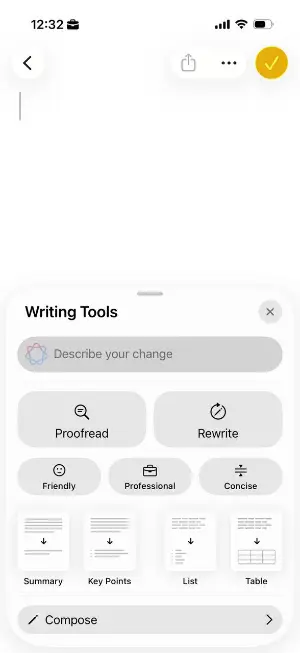
If you prefer staying within the ecosystem, these features alone cover a surprising amount of your day-to-day needs.
PDF Candy AI Tools
If there’s one suite that feels specifically built for “real-world PDF chores,” it’s PDF Candy. Their smart tools are surprisingly polished:
Summarize PDF
Perfect for condensing large documents into digestible notes, whether it’s a financial report, a policy PDF, or a long research article.
Translate PDF
Accurate and quick, ideal when you get something in languages you don’t speak. I’ve used this for travel papers, product manuals, and study materials.
Rewrite
Great for cleaning up writing inside PDFs — polishing grammar, simplifying complex passages, or adapting tone.
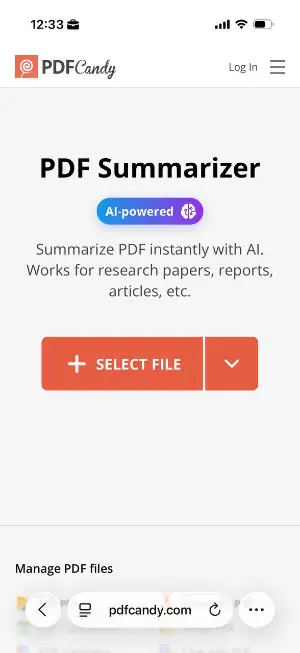
The entire workflow feels fast and natural on an iPhone, and the tools integrate well with imported files.
Scanner Pro
A robust app that cleans up shadows, enhances contrast, and turns even rushed photos into clear, professional-looking paper. Its automatic edge detection is especially good when scanning receipts or forms outdoors.
Notability
If you annotate PDFs regularly — marking up lectures, design drafts, or work documents — combination of handwriting tools and AI suggestions makes the process smooth and intuitive.
GoodNotes
Recently improved, with features like converting messy handwriting into neat text, generating helpful explanations, and automatically organizing imported pages.
Adobe Acrobat Mobile
Classic, reliable, and now equipped with stronger analysis. Good for people who need PDF editing tools that resemble desktop software.
Simple workflows you can adopt today
Below are a few small routines I use constantly. They’re quick, flexible, and easy.
1. Turning paper into clean digital notes
Photograph the document using a scanning app or iOS built-in option.
- Let AI extract the content.
- Drop the text into Notes and export as PDF.
- Employ a PDF editor to clean up formatting.
- Save the new version alongside your original scan.
This takes less than a minute and replaces a messy pile of paper with a searchable document.
2. Reviewing before bed
At night, my brain wants things simple. I usually:
Step 1. Open the PDF on my phone.
Step 2. Run a quick AI summary.
Step 3. Highlight key sections.
Step 4. Add short notes.
Step 5. Save everything to iCloud, so it’s available on my laptop the next morning.
It’s a gentle way to stay on track without diving into full, serious reading.
3. Handling forms
If someone sends me a contract or form while I’m away from my desk:
- I open it in the Files app.
- Let AI detect fields.
- Insert my signature.
- Utilize rewrite features if I need to add a clear statement or correction.
- Export and send it straight back.
It genuinely feels like cheating compared to how much time this used to take.
4. Quick translation
When I receive documents in languages I don’t speak well:
Step 1. Upload the file to PDF Candy.
Step 2. Run the PDF translate tool.
Step 3. Save the English version with the original formatting intact.
This has saved me more times than I can count—especially when dealing with product instructions and official papers abroad.
5. The “morning document sweep”
A small routine that helps keep my files uncluttered:
- Open Files and check new PDFs.
- Delete duplicates.
- Convert scans to text.
- Tag important elements.
AI does most of the work. I just confirm choices.
Privacy and reliability
AI-powered PDF tools often handle sensitive documents, so I’ve built a simple habit: before using a new program, I check how it stores data. Many reputable options offer on-device processing, encrypted transfers, or clear privacy statements.
Apple’s built-in features rely heavily on local intelligence, which is ideal when dealing with private papers.
When using online platforms, I stick to trusted services, avoid uploading confidential information, and read their data retention policy.
It doesn’t take long, and it gives you peace of mind when working with personal or official information.
Conclusion
Since bringing AI into my daily routine, PDFs have gone from annoying little tasks to quick, manageable moments I can handle anywhere.
The right tools don’t just save time — they remove those small points of friction that slow down your day.
If you're looking for a smoother, more flexible way to work with documents on your iPhone, experimenting with AI features is a great place to start.