
(1).webp?6ac135b78 "End-of-Year PDF Reporting Guide")

Another year’s in the books, and that means it’s time to pull everything together into one solid PDF report.
Sounds simple, but, the little stuff - like page numbers in PDF, watermarks, and a sharp executive summary - really shapes how people see your work.
In this article, I’m going to show you some straightforward ways to tidy up these details, so your paper looks polished, reads smoothly, and feels more put-together.
Why these elements in PDF reporting matter
Let’s cut through the noise for a second. These three features don’t always get the love they deserve, but honestly, they make a massive difference.
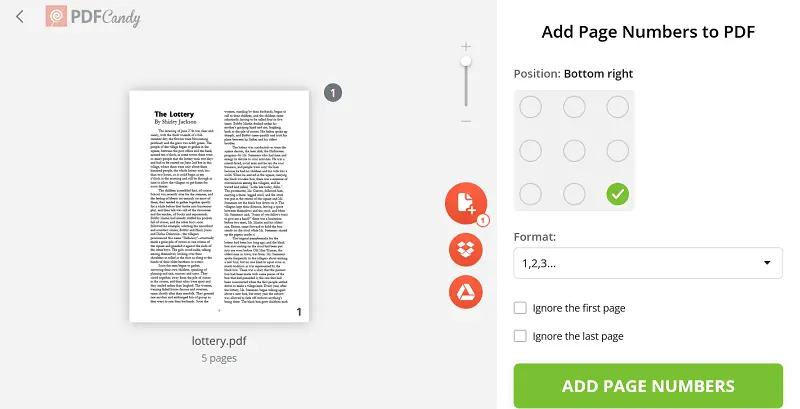
Page numbering
Ever open an end-of-year report and realize the pages aren’t counted? Or worse, they jump around like someone rolled dice?
Right away, I start doubting the whole thing. This is not just a nice touch. They let you navigate to what you need, reference specific sections with confidence, and keep all those appendices and charts in order.
In a long document loaded with graphs, attachments, and links, clean numbering screams, "We know what we’re doing".
Watermarking
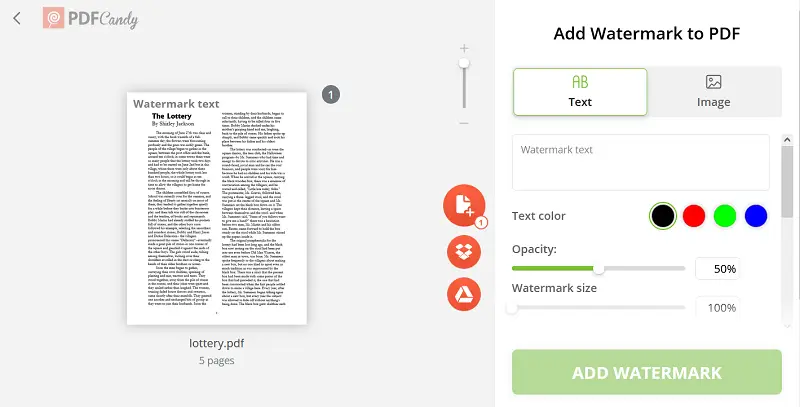
If your draft is heading out to investors or partners, there’s always a risk that outdated or unofficial copies start floating around. Watermarks in PDF put a stop to that.
One look, and people know: this is the real thing, and here’s when it was last updated.
The PDF protection market hit $1.24 billion in 2024 and is on track to double by 2033. Clearly, companies are serious about securing their files and keeping versions straight.
Summary
Leaders are busy. Nobody’s scrolling through a 70-page PDF report for fun. That’s why the summary matters - it delivers the big picture, fast.
Turns out, seniors spend about 2.5 hours a week just reading papers, and 85% of organizations always include a synopsis. Skip it, and your record might end up collecting digital dust.
So, if you nail these three, you’re turning your files into something crowd trust, use, and remember.
End-of-year reporting page numbering
1. Decide on your system
First things first: figure out your plan. I ask myself:
- Do I number every sheet - cover, front matter, table of contents, appendices - or only the body?
- Should I use Roman numerals (i, ii, iii) for the front and Arabic (1, 2, 3) for the main part?
- Do the attachments maintain their own itemizing (like A-1, A-2), or do they keep going from the key section?
- What about orientation - does landscape get indexed differently from portrait?
2. Synchronize in PDF report
Once I’ve got my final draft, I export to PDF. I always double-check the page numbers - sometimes they end up hiding under elements, or get knocked out of place after export.
Free services like PDF Candy make it easy to preview every folio, and I do a quick run-through to catch any enumeration quirks before sending the document out.
3. Include numbering in the footer/header
I usually stick the numbers at the end of the page, either in the middle or on the right. That way, they don’t get in the way of the content.
If there’s a big graphic or a fold-out chart, I might skip labeling for that sheet or bump up the margins. The main thing is to uphold the font and size consistent.
Watermarking
This isn’t just about slapping your company logo on a page. It’s about marking your territory, everyone knows what’s official, what’s still in draft, and where a document came from.
For me, watermarking is a regular part of wrapping up my end-of-year reports, and it’s more useful than most people think.
Why to apply?
- First, every copy gets a unique stamp, sometimes obvious, sometimes hidden. If someone edits or leaks the doc, you know where it started.
- It shows which version is "the one". With drafts flying around, this matters more than you’d expect.
- In regulated industries, watermarks help you meet compliance standards.
- And, let’s be real, a subtle imprint looks professional. That faded title running through the background? It reminds people who’s behind the work.
Here’s how I handle the process
1. Pick the type
- Visible: words or a logo, low opacity so people can still read everything.
- Invisible: these live in the metadata, so you can track who got what without cluttering the page.
2. Decide on placement
- Usually, I go for a diagonal across the folio or tuck it up in a corner. Always behind the text, never blocking it.
- If your doc already has headers or footers, review that the watermark doesn’t mess them up.
3. Choose the content
- Company name or brand.
- The title, like "2025 Year-End Report".
- Version info: "Draft v0.9 – Confidential" or "Final v1.0 – 31 Dec 2025".
- If it’s sensitive, I’ll add a "For internal use only" line.
4. Keep it consistent
- The watermark goes on every page. That way, nothing looks out of place.
- If a section has a full-page graphic, I’ll check if the stamp still shows up.
5. Always double-check
- After exporting, I open the PDF everywhere to verify the mark appears right.
- Print preview is key. Sometimes imprints are too dark or too faint on paper.
Executive summary
Honestly, getting this section takes real skill. I always save it for last. Once I’ve finished the main end-of-year report, I finally have a clear view: the standout findings, the numbers that really matter, and the story I want to tell.
What should go in?
Based on what the pros say:
- Spell out why you wrote the document and why it matters now.
- Lay out the main findings results (what happened).
- Point out why it’s important. Don’t just dump info, explain the "so what".
- List recommendations or next steps. What should appear now?
- Make it self-contained. If someone reads only the summary, they should still get the point.
How long, and how should it look?
For many PDF reports, one to two pages does the trick. I like to break it up with clear sub-headings:
- Background & Purpose
- Highlights
- Metrics Snapshot (A bullet list of 3-5 critical indicators.)
- Conclusions & Recommendations (2-3 concise, actionable steps.)
A few style tips
- Picture your reader: busy, skimming on their phone, maybe on a train. Keep it tight and easy to scan.
- Don’t overload it with detail. Save the deep dives for later in the end-of-year report.
- Utilize active voice and present tense. It feels more direct and urgent.
- Always add a quick “what’s next” paragraph.
- Proofread like your reputation depends on it.
Example snippet
Here’s a hypothetical opening line I might use:
"This year’s year-end report covers a 12-month review of our core operations, financial performance, and strategic initiatives as we gear up for the 2026 growth phase."
Then I’d roll out a few big wins: "We hit 24% revenue growth, launched 18 new products, and cut costs by 9%", before finalizing with the takeaways and what’s coming next.
Final thoughts
As I wrap up writing my own PDF report this cycle, I reflect on how attention to details like page numbering, watermarking and summaries collectively elevate the document’s value. They transform the file from a static item into a usable, authoritative artefact.
Because when your paper is well-structured, secure and readable, that reflects positively not only on the content - but also on you as the communicator.