
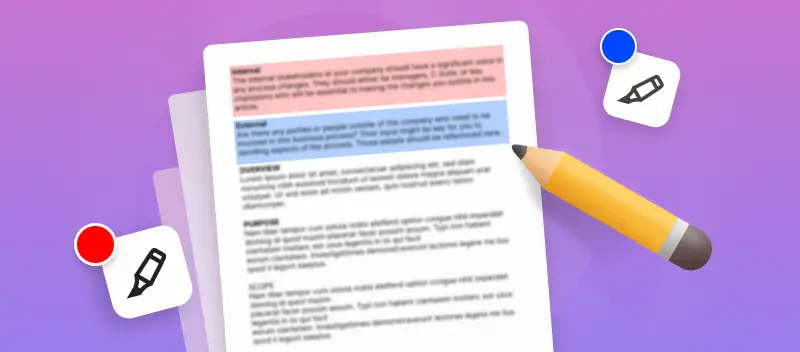

Knowing how to highlight a PDF is required when you need to draw the reader's attention to essential points of a document.
Whether you're a student poring over research articles, a professional reviewing critical reports, or anyone navigating the electronic papers, this is a valuable skill.
In this article, we will present you three ways how anyone can highlight PDF text.
Method 1. Online PDF highlighter
Instead of downloading a bunch of different programs onto your computer and wasting time learning them, try a free online PDF editor. Below we provide detailed instructions on how to highlight a PDF on any device.
How to highlight text in editable PDF online
- Open the PDF editor in any preinstalled browser.
- Hit "+ Add File" and upload the document you want to edit. Note that you can import data from Google Drive and Dropbox cloud storage as well.
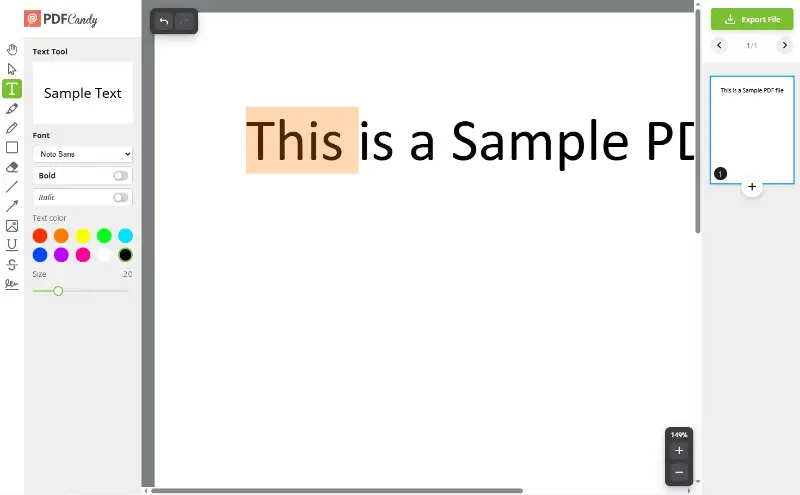
- Press "Highlight Text" on the vertical toolbar on the right.
- Select the color and its opacity level.
- Choose the desired word, sentence, or paragraph using the mouse cursor. If you make a mistake at this stage, you can undo the last action. This is done with the arrow icon in the upper left corner of the working area or with the Ctrl + Z shortcut.
- Save the result with a click on the green "Export" button.
- Download the file to your device or save it to Google Drive and Dropbox cloud storage.
Advantages of THE online PDF highlighter:
- Does not require installation and doesn't consume space on your computer. Memory is required only to save the result.
- In addition to the editor, the platform has many additional tools to convert and compress, merge and split, rotate PDF, and extract text or graphic objects from the file.
- Supported by all popular operating systems: Windows XP, Vista, 7, 8, 10, 11, Mac, iOS, Android.
- Download and upload data from and to Google and Dropbox storage saves space on your hard drive, too. This is relevant when working on a mobile device with a small storage space.
- No additional programs, drivers, or utilities are needed to edit your PDF. A simple browser and an internet connection are all you need. You can work on tablets and smartphones on public transport, in a queue, or in a taxi.
- In addition, the service does not require high-performance PCs or mobile gadgets.
- This online PDF Editor is completely free to use.
Method 2. Highlighting scanned documents
Why can't I highlight text in PDF?
Many people question why they are unable to stress content in a PDF. The answer is simple: PDFs are not designed to be edited. They were initially made to be read-only.
If you attempt to highlight text without special tools to edit a PDF, the changes won't be retained. It also means that if you try to copy and paste into another document, the formatting of the original won't be preserved.
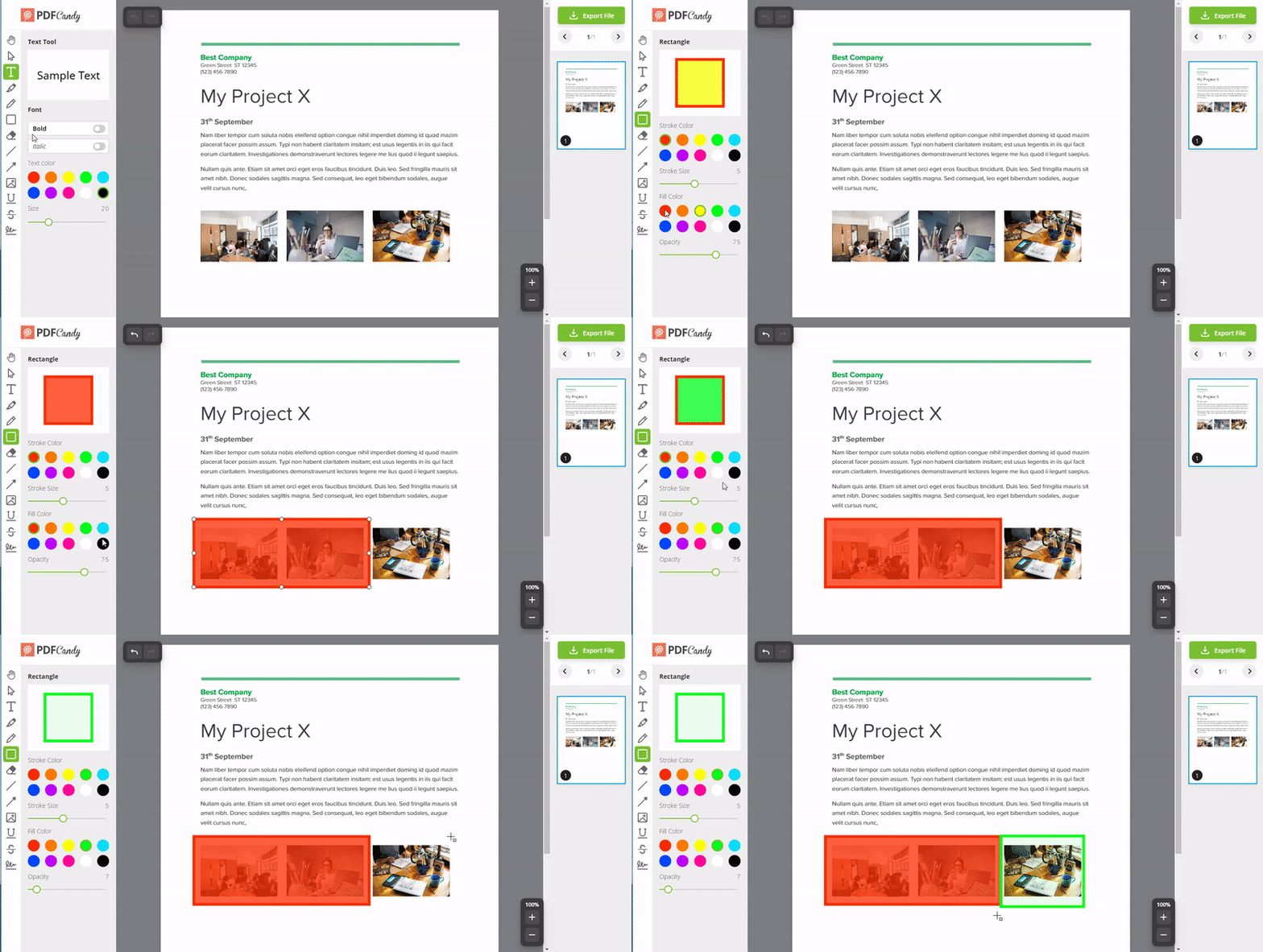
However, there are workarounds for both issues. If your file is not a text but a picture and the text is not clearly recognized, you can highlight it on a PDF with a "Rectangle" tool.
How to highlight a PDF in a scanned document
- After uploading to the PDF editor, select "Rectangle" from the toolbar on the left.
- Set the strike and fill colors and opacity.
- After that, simply choose the area with the mouse cursor.
- Save the document as described in step 7 above.
Method 3. Adobe Acrobat
Highlighting PDF text is an easy task with the help of Adobe Acrobat. With this powerful application, you can quickly and effortlessly emphasize any phrase.
How to highlight PDF in Adobe Acrobat
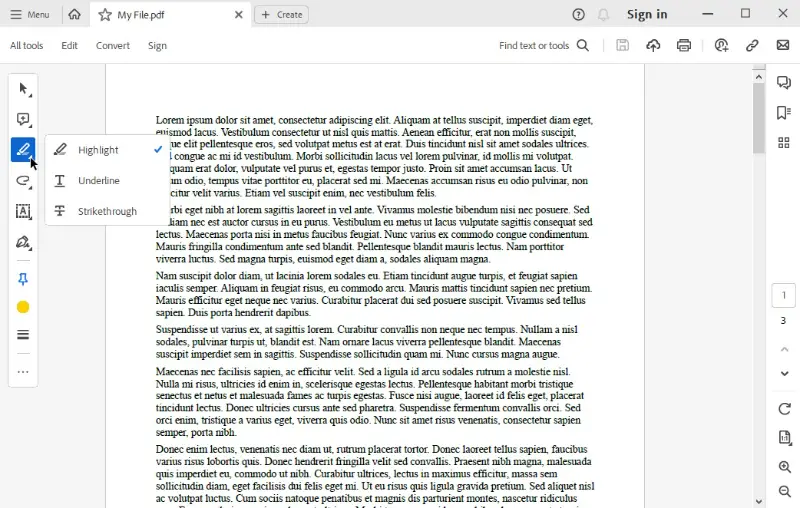
- Launch Adobe Acrobat, open the file, and select the "Text" tool from the top bar.
- Choose the "Highlight" button and pick the content you wish to color.
- The text will become in yellow, but you can also change it by clicking on the "More Colors" option.
- You can also adjust the opacity of the highlight by moving the slider below the palette.
- Once you are done, simply save your changes and close the document.
Pros:
- The interface is intuitive and easy to navigate.
- You can select from a variety of colors and sizes to emphasize different elements on the page.
- It has extensive capabilities, so you can make more than just changes to the highlights.
Cons:
- Requires a subscription for full access to features.
- Some older versions of Adobe Acrobat may not be compatible with newer versions.
By following these simple steps, you can easily highlight any text in a PDF file with Adobe Acrobat. This feature is particularly useful if you want to mark up specific passages or point out an idea or concept. Give it a try!
Why to highlight a PDF?
Emphasizing helps readers quickly find the most important information. PDF highlighter can help you organize and review your content more efficiently.
- Highlighting words facilitates the rapid detection of essential texts without perusing the whole document. You can keep track of important facts, figures, and topics that you may need for future reference.
- This also allows you to add notes in the margin or in between lines of text. This simplifies the process of retaining points when reviewing. Plus, any annotations you add to the PDF will stay, even if it's shared with others.
- Underlining text in a PDF helps you quickly spot sections that require additional inquiry or elucidation. You can make notes directly on the page so you can come back to them later.
Utilizing text highlighter is an efficient route to guarantee that you don't miss out on essential data.
Tips on highlighting PDF text
- Color coding. Assign different colors to highlight different types of data. For example, use one for main ideas and another for supporting details. This helps visually categorize information.
- Create a legend. If you have different colors for specific purposes, create a legend. This can be a separate document or a note on the PDF itself, helping you remember the meaning behind each color.
- Highlight key ideas. Instead of entire paragraphs, focus on main phrases or sentences. This keeps your highlights concise and draws attention to the most important information.
- Precise highlighting. Zoom in on the PDF for more precision, especially when editing smaller text or intricate details.
- Highlight numerical data. If your PDF contains numbers, emphasize key figures or statistics. This is particularly useful for financial reports, research papers, or data-heavy content.
- Time-based system. If you're reviewing a document over multiple sessions, consider various colors for different days or sessions. This can help you track your progress and new insights.
- Other annotations. Integrate highlighting with other annotation types, such as text comments, shapes, or drawing tools. This can provide a richer layer of context to your notes.
FAQ
Q1: Can I highlight a PDF on my phone?
A1: Yes, you can open the PDF editor on your phone (iOS, Android) and use its tools to pick out text and highlight it.
Q2: How do I know which parts of a PDF are highlighted?
A2: Look for colored lines or shapes around the text. This indicates that the text has been marked.
Q3: What is the best way to highlight a large section of text in a PDF?
A3: Utilize the highlighting tool to pick the first word, then hold down shift and click on the last word to select all text between them.
Q4: Is it possible to cjoose different colors?
A4: Yes, you can highlight text in PDF with several colors.
Q5: Can I highlight only text or a specific area?
A5: You can do both: simply select the paragraph or a single word with the help of the "Highlight Text" button. Or just use a rectangle tool to select the desired area with text and graphics.
Q6: Can I erase a highlight?
A6: Yes, most PDF viewers let you tap or right-click on the marked area and choose an option like "Remove" or "Clear Highlight."
Q7: Will others see my markings if I send them the file?
A7: They will. Any annotations you’ve added are saved with the document and appear when it's opened on other devices.
Conclusion
Hopefully, this guide has given you all the information about highlighting your PDF documents.
Whether you're a student, professional, or researcher, the ability to highlight PDFs is a valuable skill that enhances collaboration, note-taking, and information retrieval.
By incorporating the tips and methods explored in this article into your workflow, you're now better equipped to make the most out of your content.
What else can you do after you use the PDF highlighter
Stay in the PDF editor and learn how to rewrite the text: both the existing and the new one.
Head over to PDF splitter and check how you can extract pages from the document and even more with this tool.
Merge PDF that you highlighted with other papers or images.



.webp?w=420&h=184)
