
(1).webp?6ac135b78 "QR Codes in PDFs: Tips for Menus, Products and Events")

The first time I figured out how to add a QR code to a PDF, it felt like a life hack.
Suddenly, sharing info at events, updating digital menus, or attaching links to product sheets just got way simpler. Forget about clunky URLs or walls of text. Now, people launch a pic and go straight to a website, video, or booking page.
Now, I’m here to show what actually works - real tips for blending QR to your PDFs, so you can grab attention and give your audience a better ride from start to finish.
Why add a QR code in a PDF?
Drop a QR into PDF and suddenly, you’ve turned a plain old document into an interactive doorway.
Nearly 45% of internet users aged 16 to 64 scan at least one code every month. Even wilder: 59% of smartphone owners say they follow square barcodes every day.
I’ve worked with planners, restaurants, and marketing teams, and here’s what matters: it’s not the tech itself. What makes or breaks the experience is how smoothly the shortcut fits into what people are already doing, how reliably it detects, and what it has on the other side.
That’s the difference between a mark people ignore and one they love.
Map the journey
Before I even think about generating or embedding a QR code to doc, I stop and plan out three things:
Goal
- Events. Stuff like registration, updating the live schedule, sharing speaker materials, or collecting feedback.
- Menus. An interactive form, allergen details, letting folks place orders, and yes, handling payment right there.
- Product sheets. Maybe someone wants to grab the full spec list, watch a demo, play with a configurator, or ask for a quote.
Destination Environment
Pretty much consumers scans with their phone. So if the landing page isn’t mobile-friendly, I instantly see people drop off.
A lot of the time, my OR codes end up in files that go out both online and on paper. That’s where the choice between a dynamic and a static link really matters.
The first one lets you change where the tag sends, even after you’ve sent out the PDF. Second is simple, but once they’re set, that’s it.
QR code design, placement, and format
Nailing the style matters as much as picking the desired URL. I stick to a pretty strict checklist to keep things sharp.
Size
- For print, I don’t go smaller than 2 x 2 cm (about 0.8 x 0.8 inches). If it’s headed for a wall or a big booth, I scale it up to match.
- The quiet-zone (clean white border) is key. I leave at least 4 modules of space around every snapshot. Without that breathing room, phones have a hard time reading it.
- If the same draft will be used both on-screen and printed, I always export the QR as a vector image if I can. That way, it stays crisp.
Color and integration
- The safest bet: dark code on a white background. High contrast always comes first.
- If the getaway goes on top of a picture, I lay a white box behind it or lighten up that part of the footage.
- Large logos slow down scanning. If I include a brand mark in the center, I bump up the redundancy grade and always test it with real phones.
Embedded graphics
| Error-correction level | Approximate data recovery | Ideal case |
|---|---|---|
| L (Low) | ~7% | Minimal overlay; little paper size |
| M (Medium) | ~15% | Moderate, typical letter-size |
| Q (Quartile) | ~25% | Works for bigger emblems; solid prints |
| H (High) | ~30% | Handles lots of decorations, make sure the output is huge enough |
Placement within the document
| Type | Recommendation |
|---|---|
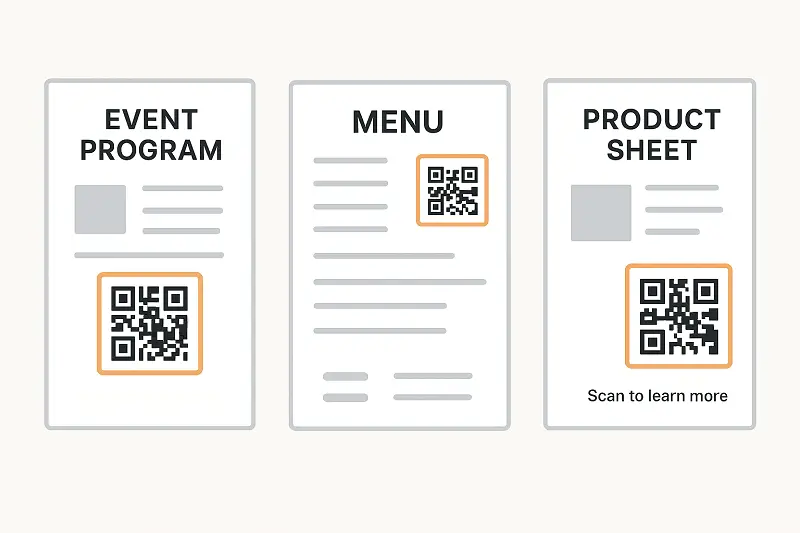
| Event programme. | Stick it on the cover, top or center, for registration. Add smaller image of a QR code on speaker or schedule pages. |
| Restaurant menu. | Put the main tag up front near the table ID, or at the top. Tiny images inside can link to things like allergen info. |
| Product spec sheet. | Massive barcode on the front leading to the full digital version. Pick petite ones for each folio for variant data. |
How to add QR code to PDF
Step 1. Picture creation
- Generate a snapshot with a trusted provider (static or dynamic). Pull it as a vector (SVG) or a sharp PNG (at least 300 DPI, but, 600 DPI's better).
- Open your favorite tool - InDesign, Illustrator, Affinity, whatever you like. Send in the QR code. Don’t forget the quiet zone and get the size right.
- Double-check the layout: how it’s turned, contrast with the background, where you put it, and if it needs a caption.
- Export it at Press Quality or something similar. Don’t squash the tag with heavy compression.
Step 2. Insert image into PDF
- Go to PDF Candy's Add image to PDF tool and drop in your file.
- Pick the needed footage or incline it via a link.
- Move the frames to adjust the pics' dimensions. Save the result.
- Test on your phone and print a quick sample.
- If activating is rough, tweak the resolution, size, or quiet zone until it works.
Accessibility
Alternative reach
- Include a written URL beside the PDF QR code (e.g., yourbrand.com/menu).
- Provide brief instructions: "Use your phone camera to scan the barcode above".
Screen-reader support
- Incorporate alt-text that says: "QR code leads to full interactive menu".
- Verify images are tagged correctly in PDFs.
- Pick a caption font that’s easy to understand and stands out from the background.
Multi-device testing
- Try the PDF on a bunch of different iOS and Android devices.
- Print out a sample and see if you can discover it in both dim and bright light.
- Check that it’s still clear, even when you zoom out.
Conclusion
Adding a QR code to a PDF isn’t rocket science, but when you do it right, it packs a punch. Pay attention to where you place it, how it looks, and make sure it works for everyone.
Platforms like PDF Candy can help you insert image into existing PDFs, but ultimate effectiveness comes from careful testing, iteration, and design decisions.


.webp?w=420&h=184)