
Nothing kills your momentum faster than trying to email a PDF, only to get slapped with a "file too large" error. And sometimes, there’s nothing you can take out to make the PDF smaller. You’re stuck - unless you know the right trick.
Here’s where PDF Candy steps in. It’s a totally free service that squeezes your PDFs down without cutting out any content.
Let’s talk about why you’d want to compress your PDF in the first place, and how tools like this actually help.
Why bother compressing PDF files?
There are a bunch of reasons, actually.
File size reduction
- Storage efficiency. Smaller PDFs take up way less room, so you don’t have to stress about running out of space or wrangling a mountain of papers.
- Beat attachment limits. Email servers love to complain about big files. Condensing keeps you under the limit, so you can send what you need without hassle.
Web optimization
- Quicker website loading. Compressed PDFs load much faster, which means people aren’t stuck staring at a spinning wheel when they want to read your document.
- Save bandwidth. Your data (and your wallet) will thank you for opting for compact PDFs, especially if you exchange a lot of them online.
Network efficiency
- Faster sending. When you compress a PDF, it zips across the network quicker. Less waiting, more doing.
Security
- Speedy encryption. Smaller PDFs are faster to lock down and unlock, so password-protecting your files feels a lot less sluggish.
Improved performance
- Smoother viewing. Ever tried opening a huge PDF on an old laptop or phone? Compressed PDFs open rapidly and don’t bog down your device.
Compliance requirements
- Stick to the rules. Sometimes, you have to play by the book - some organizations won’t even let you upload files if they’re too big. Compression helps you meet those requirements, no sweat.
Compress PDF online
PDF Candy is a free and easy way to reduce PDF size. Also, with this website, there’s no need to download any apps or have a specific device to install and run compatible software to shrink PDF size.
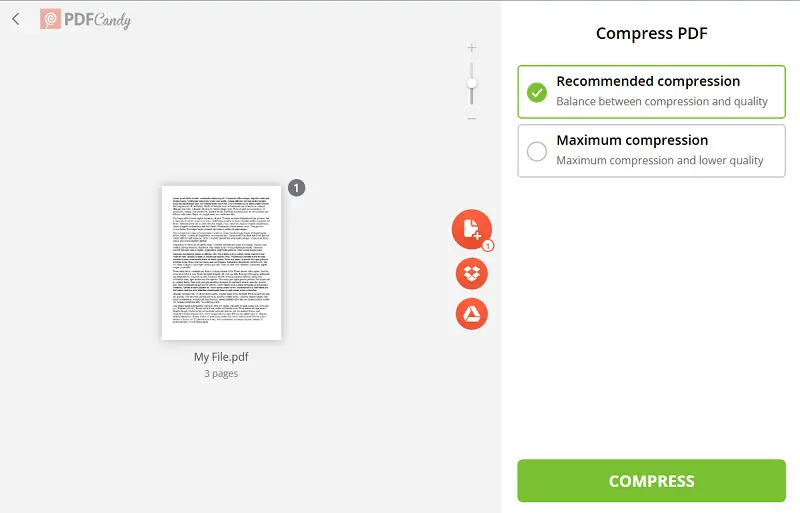
- Open the "Compress PDF" tool in any browser.
- Drag and drop or use the "Add file(s)" button to upload the document from your device. Alternatively, transfer it directly from Google Drive or Dropbox.
- Set the PDF compression level.
- Recommended. There’s no noticeable drop in quality. However, the size would most probably be larger.
- Maximum. While you may need the smallest size possible, it’s important to note that this option may lessen the quality of your doc.
- Click "Compress" to initiate the process.
- Download your file with the reduced size.
How does a PDF compressor work?
When you diminish the paper, you can shrink the size by up to 90%, and you won’t lose any important info. Basically, you’re "zipping" the file.
Apps work by employing various techniques to make a PDF smaller. Here are some common methods used:
Image
- Lossy. This chops out some footage data to cut down the weight. You might notice a little drop in quality, but it’s usually not a big deal. JPEG is the go-to format for this.
- Lossless. Here, the instrument squeezes photos smaller without losing any fidelity. PNG and TIFF are examples of such formats you’ll see inside PDFs.
Text
- Deflate. Compressors employ algorithms like Deflate (a type of ZLib) to lighten things. It’s lossless, so text and vectors look the same.
Font
- Remove characters. Programs can strip out characters in typefaces that never get used in your paper. Only the letters and symbols that appear stay in the file, which makes the font data compact.
Content re-purposing
- Downsampling. Tools can lower the resolution of pics or change their dimensions while keeping the resolution steady. Both help shrink the file a lot.
Remove redundant data
- Delete metadata. PDFs often contain metadata that may not be essential. Compressors may remove unnecessary info to reduce size.
Flatten transparency
- Rasterizing transparent objects. PDFs with transparent elements can be flattened by converting them into raster. This reduces the complexity of the document and, consequently, the file size.
Zip
- Overall compression. This method is effective for minimizing the entire item, especially when combined with other techniques.
It's important to note that while the process cuts the size, there may be a trade-off in terms of image and text quality. Users should choose settings based on the specific needs of their papers and the acceptable level of loss.
FAQ
How do I choose the right compression level for my PDFs?
If size is the main concern, opt for higher reduction. For documents where quality is crucial, choose a lower setting to retain better quality.
Is it possible to compress multiple PDFs at once?
Yes, our service supports batch processing, allowing you to process several files simultaneously. This is particularly useful for handling large volumes of drafts efficiently.
What should I do if the compressed PDF is still too large?
You might need to remove unnecessary elements, or use advanced tools to further reduce the size. Consider splitting the document into smaller parts if feasible.
How can I evaluate the quality of my PDF after reducing its size?
Examine the pages to check for any loss in image sharpness, text clarity, or formatting issues. If elements seem blurry or unclear, consider adjusting the settings.
Are there any limits to how much a PDF can shrink?
The level of reduction varies depending on the content. PDFs with mostly text are more likely to see a significant decrease in size. However, those with high-resolution images or intricate graphics might not compress as much.
Discover more tools!
Sometimes even after you have optimized PDF files, it’s still not the last stop. If you need to further edit PDFs, you can try using some of our other solutions.
- We offer the possibility to split PDFs into separate documents.
- Try PDF editor to remove unnecessary text.
- Rearrange pages to get the most information at the start. Like the free PDF compressor.
All of these tools and many more are available online and completely for free.