
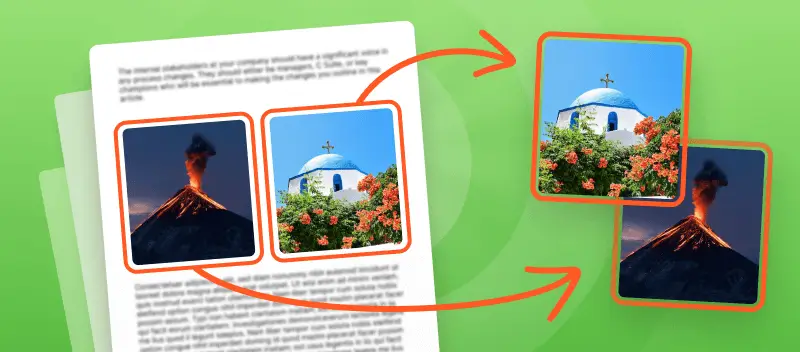

Ever find yourself needing to extract images from a PDF? Happens more often than you’d think, especially if you’re knee-deep in research or building out a presentation.
PDFs may seem locked down, but they actually store pictures in several different formats—sometimes embedded, sometimes just referenced.
There are simple methods and handy tools out there; you don’t need to be a developer or anything. I’ll walk you through the whole process, step by step—no convoluted code, no cryptic error messages, only practical instructions.
PDF Candy
PDF Candy functions as a comprehensive toolkit for PDF management online. It’s got a straightforward interface—honestly, you don’t need a manual to get started.
Whether you’re new to document work or a seasoned pro, the platform streamlines tasks like merging, converting, or editing PDFs.
How to extract images from PDF online with PDF Candy
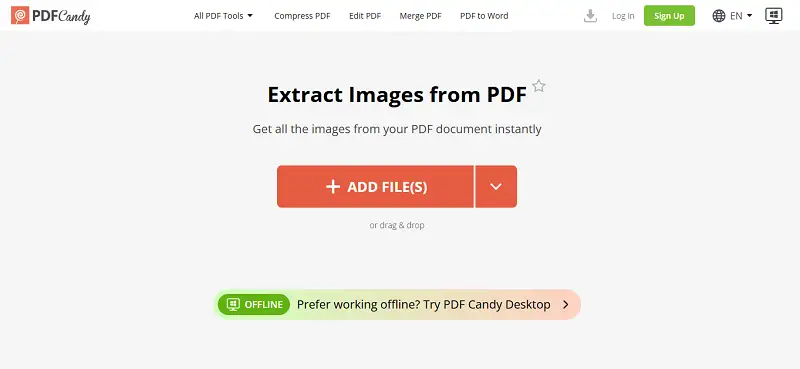
- Open the online PDF image extractor.
- Utilize the "+ Add File" button to upload material or simply drag and drop it into your browser.
- Automatic recognition of graphs will commence. The duration of this process varies, ranging from seconds to minutes, depending on the quantity of objects within the PDF.
- Download the extracted prints either as an archive or individually by clicking on the thumbnails of the snapshots.
Advantages of the online image extractor
- Web-based utility—no installation necessary. Access from any browser.
- Designed for legacy hardware; functions effectively on older computers.
- Broad platform compatibility: fully operational on Windows, macOS, Android, and iOS.
- Preserves native visuals resolution and fidelity during extraction.
- Simple, user-focused interface allows for immediate adoption with minimal learning curve.
- Supports export of artwork or footage from PDFs in multiple standard formats (PNG, JPEG, and more).
- Built-in integration with cloud platforms (Google Drive, Dropbox) for streamlined workflow.
- Capable of extracting single pictures or generating a compressed archive containing all photos from a PDF.
PDF Candy Desktop
PDF Candy Desktop is an application designed to provide a comprehensive set of tools for working with PDFs directly from the PC.
The software allows you to merge and split PDFs, compress them to reduce size, and add passwords, permissions, or watermarks for security.
How to extract photos from PDF on PC with PDF Candy Desktop
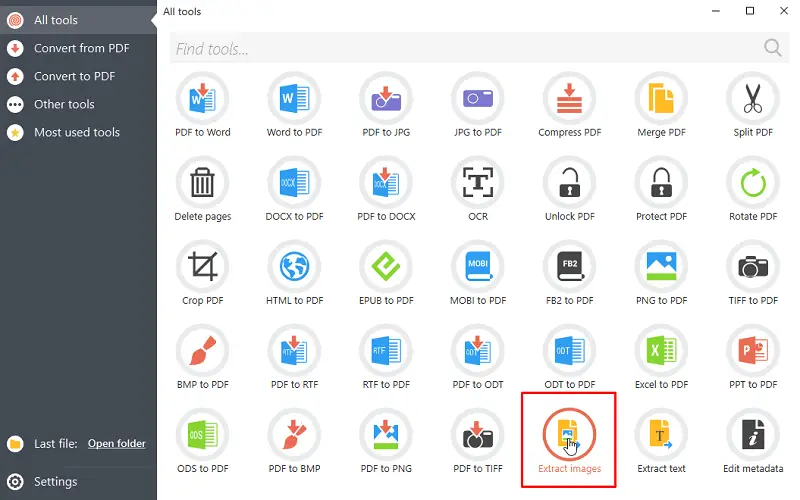
- Download, install, and launch the PDF grab picture app for Windows on a computer.
- Locate and select "Extract Images" from the list of available options to upload the file. Alternatively, you can drag the PDF from the desktop and drop it onto the icon.
- Pick your preferred settings, such as the page range and destination folder.
- Click the "Extract Images" button to begin the process.
Benefits: export images from PDF offline
- Operates locally on a device, allowing you to work with PDFs without an internet connection.
- Has an intuitive interface, accessible to users of all levels of experience.
- Permits you to process multiple documents simultaneously.
- Is regularly updated to incorporate new features, improvements, and bug fixes.
- Provides customization options, enabling the selection of specific pages.
- Compatible with all versions of Windows OS.
Reasons to extract PDF images
1. Reusability
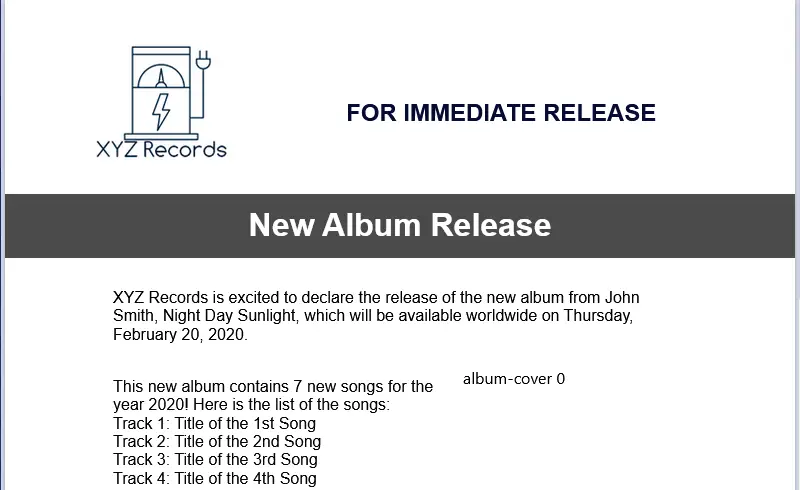
Let’s be real: PDFs often serve as data vaults—graphics, charts, diagrams all trapped inside. If you’re assembling a marketing presentation, those footage are solid gold. Extracting and repurposing them streamlines information transfer and maintains visual consistency across your assets.
2. Editing
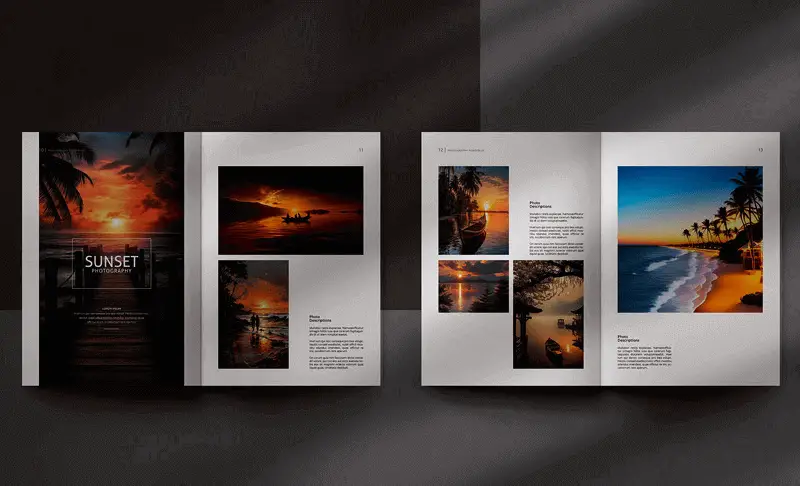
Photographers and designers know this headache—images embedded in PDFs, hard to reach.
By pulling them out, you can route files through Photoshop or your editing suite of choice. Make pixel-perfect adjustments, apply filters, or update branding elements before deployment.
3. Analysis
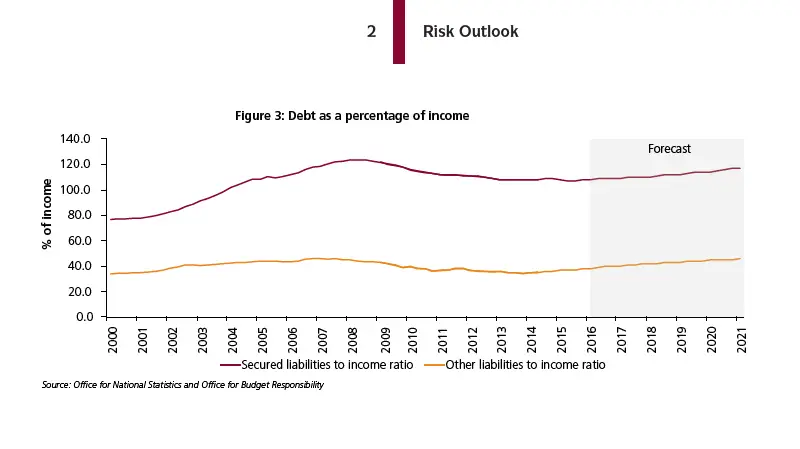
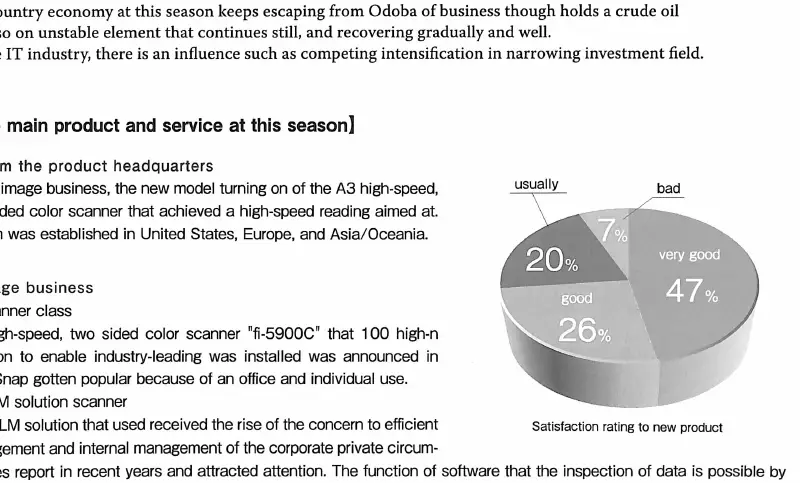
In research, data visualization is everything. Spreadsheets and graphs printed into a PDF aren’t much use unless you can take out and manipulate them.
Extracting these figures enables advanced analysis—running computations, detecting patterns, and integrating visuals in your reports or publications.
4. Sharing
Collaboration is all about efficiency. If your team’s distributed, there’s no need to send the whole PDF—pull out the relevant photos and share them directly via email, cloud systems, or project management tools. Cuts bandwidth and avoids confusion.

5. Compression
Website performance isn’t just hype—it’s metrics.
Blogging with high-resolution stills originally stashed in PDFs? Extract and compress those assets (see how) to optimize for fast loading times without losing clarity. Your SEO and users will thank you.
Tips on how to extract image
| Tip | Description |
|---|---|
| Check Fidelity | Confirm the DPI of integrated visuals to guarantee clarity and sharpness in the extracted files. |
| Identify Original Format | Determine the source type (JPEG, PNG, TIFF, etc.) to maintain quality and prevent unnecessary conversions. |
| Direct Extraction | Access renderings without rasterizing to avoid compression artifacts or detail loss. |
| Preserve Layers and Transparency | Retain layered elements and alpha channels for accurate reproduction. |
| Batch Multi-Page Processing | Handle big PDFs simultaneously to keep outputs organized and complete. |
| Oversee Color Accuracy | Keep encoded profiles such as CMYK or ICC to avoid tone discrepancies. |
| Optimize File Size | Reduce or adjust dimensions without compromising shots quality, especially for high-resolution content. |
| Keep Metadata Intact | Conserve EXIF data, timestamps, or copyright information for archival purposes. |
| Guard Vector Graphics | Avoid flattening scalable illustrations to raster formats to sustain precision. |
| Handle Embedded Objects | Extract items stored within grouped items to ensure no units are missed. |
| Separate Background Layers | Isolate back constituents to obtain cleaner figures. |
| Process Masked Images | Detect and uphold clipped visuals to stabilize transparency and layout. |
| Manage Color Spaces | Convert or save shades correctly for consistent appearance across devices. |
| Tweak Compression Settings | Identify internally compressed photos and manage extraction to prevent quality reduction. |
| Detect Reused Assets | Recognize repeated parts across pages to prevent unnecessary duplication in output. |
FAQ
1. What types of images can be extracted from a PDF?
All right, so you’ve got raster footage - think regular photos, screenshots, stuff built from pixels. Those are a breeze to rip out. Now, vectors (fancy word for shapes, logos, line art) can get a little trickier. For that, you might have to break out some special utilities or fiddly conversion steps.
2. Will extracting depictions from a PDF remove them from the document?
No, you’re just making a duplicate - think of it like copy-pasting a photo out of an album, not cutting it up with scissors. The original PDF keeps everything right where it was. Want to zap illustrations or pics out of your PDF instead? That’s a whole different algorithm, and you’ll need editing software for that. (Don’t worry, there’s a guide for that too.)
Conclusion
Here’s the deal - extracting images from PDFs isn’t complicated, and it actually plays a pretty big role in workflows across tech, research, and design.
Once you’ve pulled those visuals out, repurposing them is way faster. You can drop them straight into new slide decks, analyze them separate from all the clutter, or archive them without sweating compatibility.
Tools like PDF Candy (seriously handy, whether you use the desktop version or just hit it up online) make the extraction process plain.
And don’t forget to check out the toolkit on our site. Practically every core PDF operation is covered and it won’t cost you a dime. Ideal for anyone who deals with documents on the regular.