
PDFs offer robust versatility—they support text, tables, images, hyperlinks, and even interactive forms. In comparison, PNGs serve a more specialized function: delivering lossless quality without sacrificing visual fidelity.
There are scenarios when you may need to save PDF as a PNG—extracting graphics, keeping page snapshots, or sharing visuals, for example.
This guide outlines how to convert your PDF files to PNG format online via three trusted web-based platforms to ensure reliability and ease of use.
PDF Candy
PDF Candy serves as a multifunctional, reliable service for turning PDFs into pictures efficiently.
It’s not just a basic converter—there’s an extensive suite of features: watermark application for copyright protection, thorough file manipulation options, and a solid online PDF editor for management.
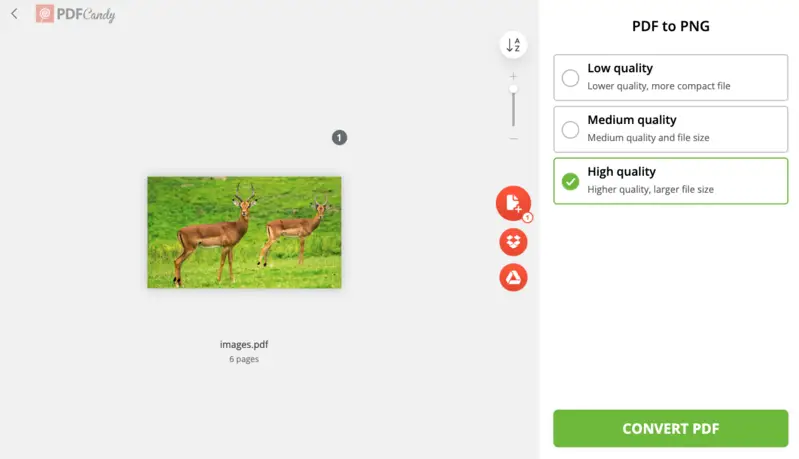
How to change any PDF to a PNG with PDF Candy:
- Access the PDF to PNG converter in a browser of your choice.
- Upload your archive by clicking "Add file(s)" or drag and drop the material directly into the window. Integration with Google Drive and Dropbox streamlines cloud reach.
- Choose the output quality: High, Medium, or Low, depending on your requirements.
- Initiate the process by pressing "Convert PDF" .
- When the transcoding is finished, download the PNG or ZIP if the PDF contains multiple pages.
Pros of using PDF Candy
- Friendly Interface. The layout is clear and efficient—even those with limited technical background should find it easy to employ. No complicated submenu structures or unnecessary hurdles.
- Variety of Formats. Besides PNG, PDFs can be exported to JPG, TIFF, BMP, and other extensions. This level of flexibility is beneficial for a range of technical workflows.
- Batch Conversion. Handling multiple papers simultaneously is a huge plus. You can queue several items at once, cutting down on repetitive, manual tasks.
- Privacy and Security. Uploads are encrypted during processing and automatically removed from servers after 2 hours, ensuring confidentiality.
- No Watermarks. The service does not add watermarks to the resulting item, guaranteeing that your PNG images are free from any unwanted branding.
Best for
- Graphic Designers – Export high-resolution photos from PDFs for seamless integration into layouts. No loss of detail, no weird artifacts.
- Archivists – Batch-process entire document collections for large-scale digital archiving. Streamlines preservation without manual extraction.
- Researchers – Quickly extract charts, figures, or diagrams for application in academic papers and presentations.
Overall, PDF Candy delivers a reliable and secure solution for how to convert a PDF to PNG online, combining straightforward usability with advanced functionality.
Canva
Canva also offers a tool to change from PDF to a PNG format. This method lets you save your photo collection as separate images and make revisions if necessary.
Using this approach simplifies your editing workflow, so you don’t need to reupload files to the design platform.
How to save a PDF as PNG with this service:
- Visit Canva's website and open the PDF-to-PNG converter.
- Click "Upload your file" or manually drag and drop it into the browser's tab.
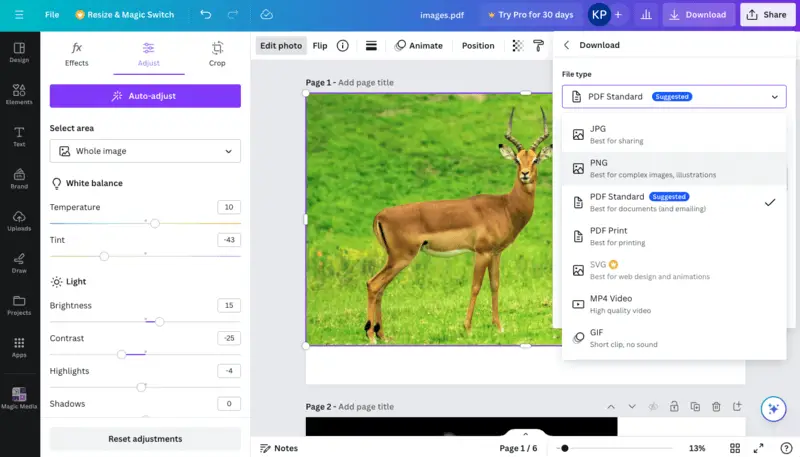
- Your document will be opened in the editing mode. Apply filters, effects, adjust brightness, etc.
- To save modified PNGs, hit "Share". Choose "Download".
- From the "File type" dropdown, select "PNG".
- Press "Download" to save each picture individually or as a ZIP archive.
Pros of using Canva
- Versatility. This all-in-one platform allows to add text, graphics, and other elements to your visuals.
- Customization Options. Change size, orientation, resolution, and other parameters of your PNG files according to your requirements.
Best for
- Social Media Managers – Turn lengthy reports into visual assets tailored for campaigns, optimizing illustrations for platform requirements.
- Teachers – Upgrade course materials or develop dynamic exercises via various graphics.
- Event Planners – Adapt invitations, schedules, or signage with rapid exports and design tweaks.
Overall, Canva is a powerful and beginner-friendly tool for converting PDFs to PNG while producing visually appealing designs.
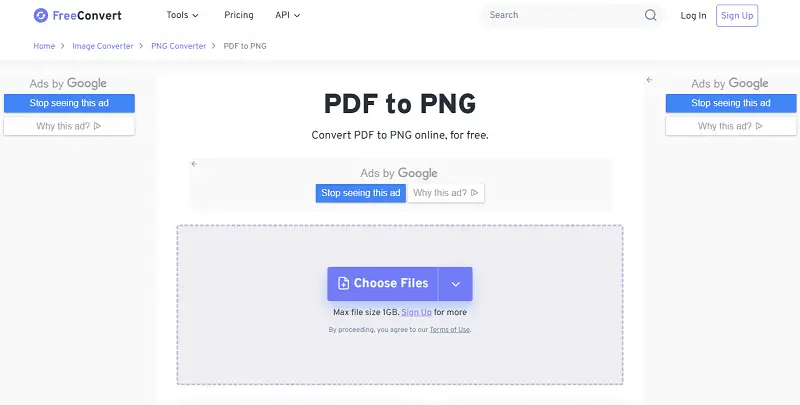
FreeConvert
FreeConvert is a web-based platform that helps transform reports across multiple types, including documents, images, videos, audio, eBooks, and archives. It provides a fast and straightforward way to change formats without installing any software.
How to change your PDF to PNG with FreeConvert:
- Open your browser and go to the service.
- Click "Choose Files" to upload a PDF from your device.
- Alternatively, select items from Google Drive, Dropbox, or enter a URL.
- Press "Advanced Settings" to modify DPI, pages and compression – balancing quality and size.
- Hit "Convert to PNG" and wait for the process to complete.
- Once done, tap "Download" to save the document.
If several pages were turned, they can be available as ZIP.
Pros of using FreeConvert
- Simple. Clean design with drag-and-drop support for quick conversions.
- Customizable Settings. Allows DPI adjustment, compression, bitrate, sharpness changes, and more for fine-tuned output.
- Cloud Integration. Works with Google Drive, Dropbox, and direct URL uploads.
Best for
- Web Developers – Transform pixel density and compression directly from PDFs, improving site performance and load times.
- Marketing Analysts – Create condensed snippets from bulky reports for dashboards and quick-share briefs.
- Authors – Reformat book covers or artwork for digital editions or promotional needs. Keeps your branding sharp across every medium.
For personal projects, professional tasks, or everyday file handling, FreeConvert provides a convenient and secure solution for format transformations.
Why use an online PDF to a PNG converter
| Reason | Description |
|---|---|
| Resource Efficiency | The platform conducts modification via cloud resources, minimizing strain on local CPU, RAM, and storage. |
| Ubiquitous Connection | Accessible via any internet-enabled workstation or mobile device—supports distributed workforces. |
| Automatic Rollout | Updates are deployed instantly; individuals always retrieve the latest build. |
| Compatibility | Full correspondence with all mainstream browsers (Chrome, Firefox, Safari, Edge), mitigating version issues. |
| Instant Sharing | Outcome files can be immediately transferred via email, direct links, or integration with cloud storage providers. |
| Lightweight Workflow | Requires no installation; conserves system resources and ensures minimal interference. |
| Platform Neutrality | Operates on Windows, macOS, Linux, iOS, and Android; maximizes flexibility. |
| Immediate Retrieval | Upload via local disk, cloud drives, or URLs with near-instant conversion and retrieval. |
| Simple Interface | Designed for all experience levels, allowing quick and intuitive PDF to PNG turning. |
| Adjustable Output | Control resolution, page selection, and compression directly online. |
| Temporary Storage | Files are retained only briefly, reducing security risks and saving system storage. |
| No Licensing | No subscriptions, product keys, or extra software dependencies required. |
| Multi-Format Capability | Simply turn PDF into PNG or other extensions excluding switching tools. |
Why convert your PDF to PNG?
Here’s why saving documents as graphics actually makes sense:
Image Extraction
If a PDF contains embedded footage you want to access separately, converting to PNG simplifies the process. Each photo can be isolated as an individual file, making them easier to use across different platforms or software.
Transparency Support
Another point—PNG format supports transparent layers, which is something you can’t always rely on with other picture types.
So, if your paper has logos with translucency, changing into PNG ensures those components are preserved rather than replaced with white or solid backgrounds.
Change PDF to a PNG: conclusion
In this article, you learned about 3 reliable PDF to PNG converters with completely different functionality.
Consider whether you need to modify the PDF content before transition or edit the resulting PNG images afterward to achieve the best outcome.
Try other PDF tools
- Password protect PDF so only someone with an assigned password can access it.
- You can split your PDFs or merge documents with photos or other pictures.