
Let’s be real—nobody’s got time to drag and drop a hundred photos one by one. Whether you’re a student drowning in screenshots or just someone trying to wrangle pics into something you can actually send, the ability to convert multiple JPG files to one PDF is basically a life skill at this point.
In this guide, we’re gonna break down the details of turning your JPG to a PDF without any of the usual headaches. Join us as we navigate through the steps and best practices.
No matter if you're a beginner or a seasoned professional, this article is your roadmap to mastering the art of digital document conversion.
Option 1. PDF Candy
PDF Candy is an online platform that offers a wide array of tools for working with PDF. Whether you need to convert files to and from PDF format, edit existing PDFs, merge, or split them apart, our service has you covered.
How to combine your images into a PDF on PDF Candy website:
- Open the JPG to PDF converter.
- Upload multiple JPG or JPEG pictures in bulk. Explore various methods for adding items below.
- Simply click "Convert files" to transform your JPGs into a PDF document.
- Once converted, download your PDF, instantly share it using a URL or QR code, or conveniently upload it to your Google Drive or Dropbox.
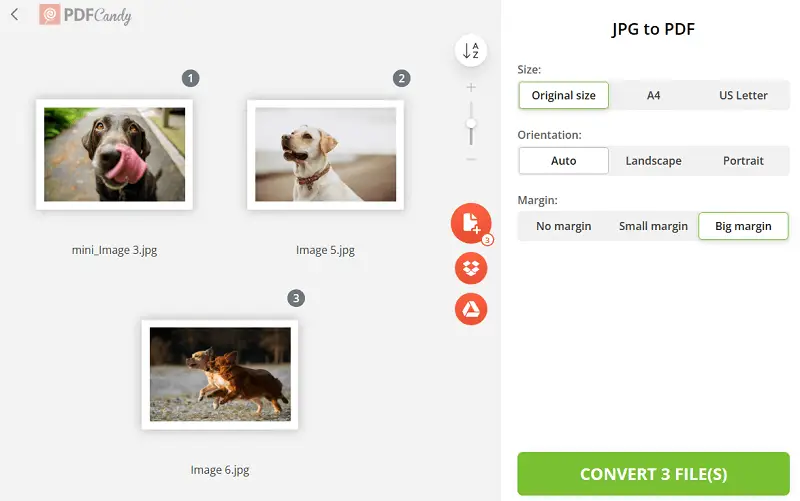
Image to PDF online converter features
- JPG to PDF converter not only supports adding footage from your computer hard drive or smartphone memory. It also integrates seamlessly with Google Drive and Dropbox.
- PDF Candy offers a preview mode allowing individuals to check the final document and make necessary edits before converting pictures to PDF.
- Users can customize the page size of the output PDF by selecting either A4 or US Letter format.
- Within each format, there are options for portrait or landscape orientation. You can also adjust the margins of the PDF page.
- Simply convert images to PDFs on Windows PCs, Macs, Linux computers, and iOS and Android devices.
Option 2. iLovePDF
iLovePDF is a web-based platform designed to handle nearly every common task involving documents. It's known for its clean interface, ease of use, and fast cloud-based processing.
How to merge several pictures into PDF on iLovePDF website
- Open the tool in your browser.
- Click "Select JPG images" or drag and drop multiple materials directly into the upload area.
- Once done, thumbnails of your pictures will appear.
- Reorder them and set layout preferences.
- Press "Convert to PDF". Download the result.
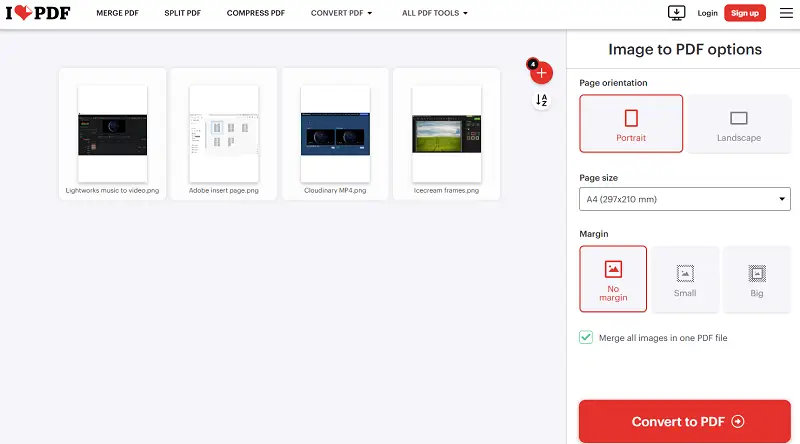
Advantages
- Integrates with popular cloud storage services like Google Drive and Dropbox.
- The mobile app and desktop version extend functionality offline.
Option 3. PDF Candy Desktop
PDF Candy Desktop is a versatile solution designed to streamline various tasks related to working with files directly on your PC. With a comprehensive set of tools, the program offers users a convenient and efficient way to convert, merge, split, compress, and manage PDF documents offline.
How to convert your pictures to PDF on a computer with PDF Candy Desktop:
- Download and install the JPG to PDF converter for free.
- Open the program, navigate to the "Convert to PDF" option in the left pane, and specify the input format.
- Upload your images, then click the gear symbol to optionally add a password or adjust layout settings.
- Select the "Merge all into one PDF file" option.
- Initiate the conversion process by pressing "Convert".
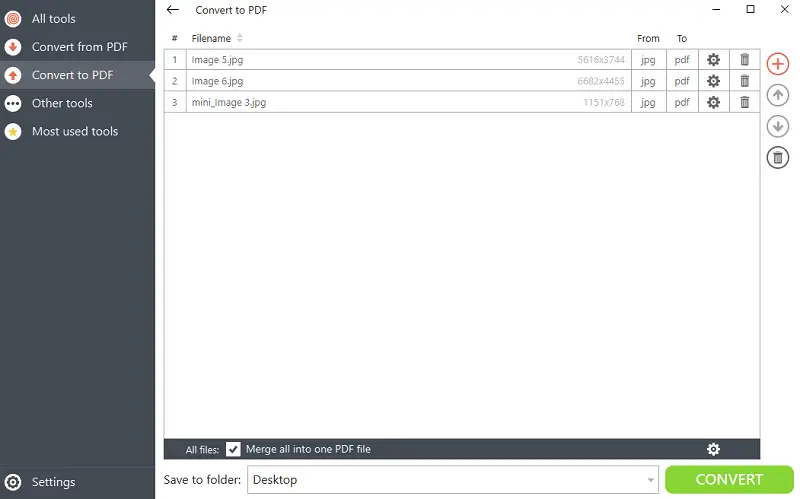
Advantages
- Operates without the need for an internet connection, ensuring reliable access to its features and tools at all times.
- Individuals have the flexibility to customize layout settings, add password for security, and more, tailoring their paper management to their specific needs.
- Boasts an intuitive design and user-friendly interface, making it straightforward to merge multiple pictures into a single PDF document.
Option 4. Print to PDF
On iPhones or iPads, you can effortlessly convert multiple JPG files to a PDF via the print feature, which is integrated into the system.
How to convert all JPG images to PDF on iOS
- Open the Photos app on your device.
- Choose the JPG pictures you wish to turn into a PDF.
- Tap the share icon (the square with an upward arrow) located at the bottom of the display.
- In the menu, scroll down and select Print.
- On the "Options" screen, spread two fingers on the image preview to zoom in.
- Hit share again and either "Save to Files" or send it via email, messages, or cloud storage.
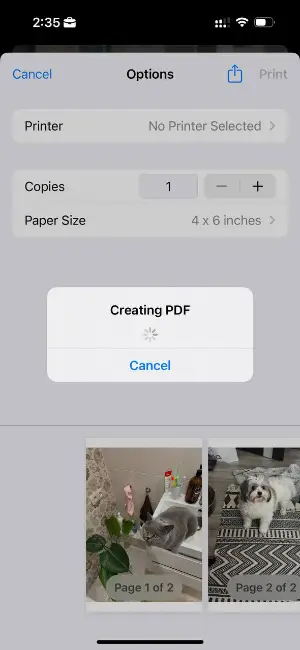
Key features of this method
- Use the built-in functionality of iOS without the need for extra downloads.
- Combine several images into one PDF.
- Create a document with just a few simple steps.
- Save or share your file directly to iCloud Drive, Google Drive, or other services.
Reasons to combine your JPEGs into a PDF
- Everything Looks Cleaner. Merge images to a PDF and, boom, you’ve got yourself an organized package. Perfect for anyone trying to look like they’ve got their life together — think portfolios, presentations, whatever.
- Ease of Sharing. PDFs are the universal language of files. Doesn’t matter if someone’s on a Mac, PC, or using their grandma’s iPad — PDF just works.
- Compression. PDFs tend to have smaller sizes compared to JPG, making them straightforward to store and transfer.
- Protection. Want to keep your stuff private? PDFs let you slap a password on your material or even encrypt it. No more worrying about nosy people poking around your designs or photos.
- Convenience of Organization. Combining multiple JPG shots into a single PDF simplifies document management, reducing clutter.
- Preservation of Quality. Converting JPEGs to PDF doesn’t turn your footage into a blurry mess. The fidelity stays solid — no weird pixelation, no muddy colors. What you see is what you keep.
Convert multiple JPG files to PDF: conclusion
By exploring the diverse methods available users can navigate the process of converting JPG files to PDF with ease and efficiency.
In today's digital realm, whether you're assembling a portfolio, crafting a presentation, or organizing your digital archives, the skill of effortlessly combining JPEG images into refined PDF proves invaluable.
What else can you do with the PDF
- If the resulting file size is too large, compress it.
- Utilize the "Add page numbers" feature to sequentially number the pages of your document.
- Modify the size of PDF pages to adjust the dimensions as needed.