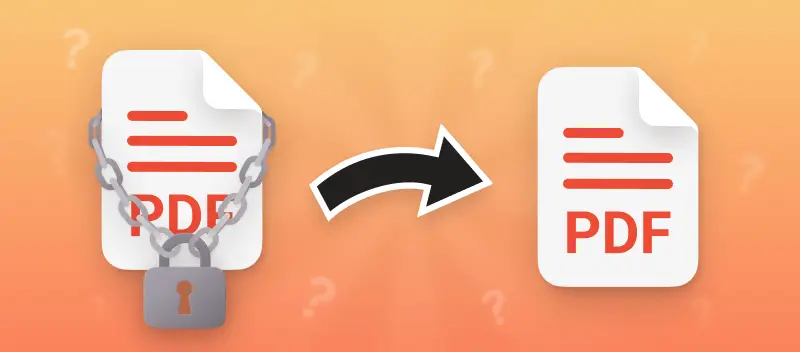

A lot of PDFs are password-protected—mainly for data privacy. That’s important when you’re handling sensitive material.
But let’s be real: sometimes, those keys just slow you down, whether you forgot the code or someone actually gave you access and now you need to remove the PDF password for convenience.
This walkthrough covers several safe, practical methods to unlock protected PDF right in your default browser—no third-party installs, no headaches. Follow along to streamline your workflow.
PDF Candy
PDF Candy functions as a comprehensive online suite for paper management. It’s equipped with everything from conversion and merging to splitting, compressing, direct editing—even key removal.
If you need to lift a protection from a PDF (provided you know the combination or need a quick workaround), here’s the instruction:
How to remove a password from a PDF online with PDF Candy
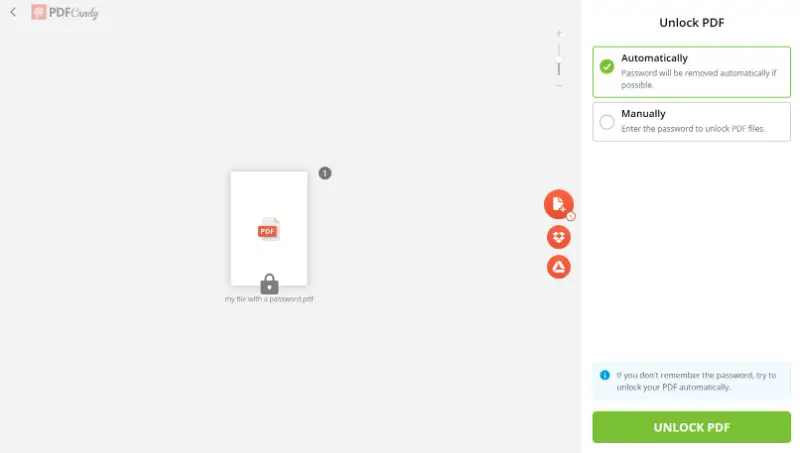
- Navigate to the free online PDF unlocker in the browser of your choice.
- Upload the secured PDF. Drag and drop the item into the interface, or use the "Add file" button.
- If you have the token, enter it. Otherwise, the tool attempts to unlock item automatically.
- Click the green "Unlock PDF" button to delete the codeword from your PDF.
Advantages of the online method to unlock a PDF:
- The UI is extremely intuitive —no specialized technical knowledge required. Upload and proceed; the workflow’s as streamlined as it gets.
- Fully browser-based compatibility means you can utilize it on virtually any operating system or device. Installation or setup? No. Just go to the site and start.
- There’s no need for the original key. The PDF password remover cuts out security from files without requiring the unlock code, so even forgotten credentials aren’t an obstacle.
- The process is exceptionally fast, typically requiring a few interactions to complete.
- Besides unlocking a PDF, the service offers a comprehensive suite of tools for converting, compressing, and editing your papers. This makes it a one-stop solution.
- All functionalities are free of charge, providing a cost-effective solution for handling PDFs.
Best for:
- IT Support Specialists – Quickly bypass restrictions on client or internal PDFs without installing additional programs, simplifying troubleshooting.
- Academics – Access secured study materials, journal files, or datasets for reference and analysis.
- Journalists – Retrieve protected reports or press documents efficiently when facing tight deadlines.
Print function
If you want to remove the PDF password for easier sharing, one effective method is the printing tool. This technique involves "reproducing" the protected PDF, effectively creating a copy.
This approach to unlock PDF will only help if you have the correct keyphrase. You can employ it in any browser, for example, Firefox, Opera, Microsoft Edge, etc.
Below is a step-by-step example using Google Chrome. However, others require almost the same actions.
How to remove a PDF password with the Print function
- Locate the desired file on your computer or device. Drag and drop it into a new tab. Alternatively, you can right-click on the document and opt for "Open with" > "Google Chrome".
- When the prompt appears, type in the code.
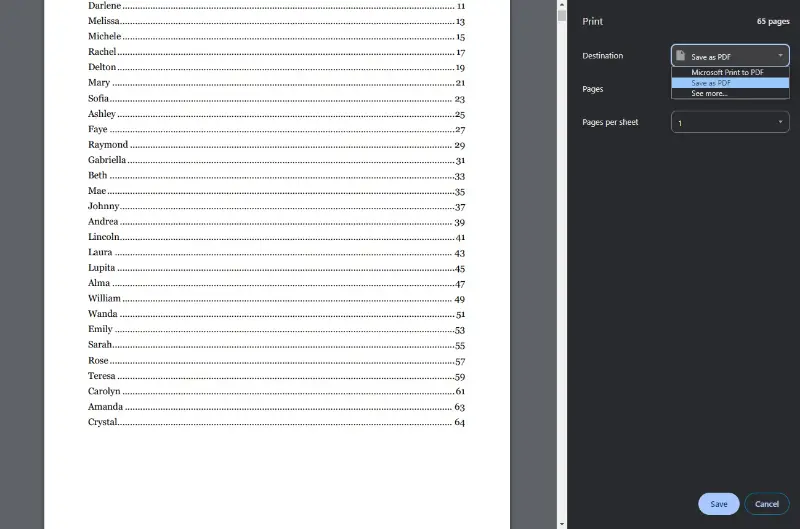
- Press Ctrl + P (Windows) or Cmd + P (macOS) to open the Print dialog.
- Find the "Destination" section and select "Save as PDF" from the dropdown menu.
- Hit "Save" and choose the location where you want to save the result. Rename it if necessary.
Advantages of this strategy to remove a PDF password:
- These days, most mainstream browsers—think Chrome or Firefox—come equipped with integrated PDF viewers. This means you can unlock a PDF files via the hard-copying process, no advanced technical background needed.
- Many people are already familiar with printing documents, making this option intuitive and easy to understand.
- Removing the password from PDFs does not require an active internet connection, which can be advantageous in offline scenarios.
- There's no cost associated with using this feature.
Disadvantages:
- You will not be able to remove the password from your PDF if you forget it. This does not offer any hint or automatic combination guessing.
Best for:
- Office Coordinators – Create unrestricted copies of PDFs for internal circulation.
- Designers – Generate editable versions of defended items for creative projects.
- **Educators* – Produce accessible handouts from password-protected PDFs, even when offline.
What PDF encryption actually does?
When you apply protection, you’re locking it down in one (or both) of these technical ways:
User (Open) Password
- Encrypts the material so that it can’t be opened without the correct credential. All content stays inaccessible unless authentication succeeds.
Owner (Permissions) Password
- Restricts certain operations like typesetting, copying text, or editing. The document can be viewed, but specified actions are disabled unless you provide the permissions key.
How to set a strong PDF protection?
Adding a password is fundamental in restricting unauthorized admission to sensitive data—especially when temporary protection credential is necessary for legitimate tasks.
Some tips to help you create a strong encryption:
- Sufficient Length. Opt for a code with a minimum of 12 characters. Increased length significantly mitigates brute-force attacks.
- Complexity. Integrate uppercase, lowercase, numeric, and special symbols (e.g., !, @, #, $, %) to quantify entropy.
- Avoid Predictable Patterns. Exclude dictionary words, common sequences (e.g., “123456”), and widely-used passphrases.
- Unique Information. Do not repurpose codes from other accounts. Also, refrain from personally identifiable information (name, DOB, etc.).
- Random Generation. Consider a reputable makers for creating unpredictable tokens. Employ a secure password manager for storage if necessary.
- Memorability. While it should be strong, choose a combination that you can remember if necessary.
- Regular Updates. Change keys periodically—particularly if documents hold confidential or high-stakes data.
- Encryption Protocols. Ensure the string you set in PDF editing instrument uses strong encryption standards like AES (Advanced Encryption Standard).
- Strength Assessment. Before implementation, assess resilience with reputable online strength assessment tools.
PDF encryption vs. password protection
| Feature | PDF Encryption | Password Protection |
|---|---|---|
| Security Level | Strong – utilizes algorithms like AES for robust protection. | Moderate – relies on a passcode to block unauthorized gateway. |
| Reach Control | Limits actions such as viewing, editing, or printing based on permissions. | Prevents entry until the correct code is provided. |
| Protection Type | Encrypts the entire document, offering a high level of defense against bypassing. | Offers basic safety but can be erased with certain tools. |
| Ease of Use | More complex to configure due to the encryption configuration. | Simple setup – requires only the creation of a passcode. |
| Size Impact | Slightly increases the size due to encryption processes. | Has minimal effect on file size. |
| Compatibility | Not universally supported by all readers or software. | Compatible with almost every PDF reader. |
| Recoverability | Difficult to recover without the encryption key. | Easier to recover with special methods. |
FAQ
Is it legal to remove PDF passwords?
It depends on the circumstances and the jurisdiction. Removing a password from a PDF you own or have rights to is generally legal, but it's essential to respect copyright and ownership laws.
Will removing the code affect the document's contents?
No, this process does not alter the contents of the file. It simply removes the security measures that prevent access.
Can I unlock a PDF on a mobile device?
Yes, PDF Candy is available on all devices with an internet connection. The functionality is the same as in the desktop version but the interface is optimized for mobile platforms.
What should I do if a PDF password remover fails to work?
It's possible that the doc is too complex for automated tools, in which case, professional assistance may be necessary.
How to remove password from PDF: conclusion
Removing a password from a PDF can make accessing and sharing your documents a lot more straightforward. No more wrestling with forgotten codes or locked files.
There are a couple of methods worth considering—web-based services or built-in browser apps. Each approach has pros and cons, so you’ll want to pick the one that aligns with your workflow.
Still, it’s crucial to keep the rules in mind. Make sure you’re using these utensils responsibly and legally, especially when you’re dealing with confidential or sensitive information. No shortcut is worth a compliance headache.
Other tools to work on your PDF:
- Add watermark to PDF online to mark the content with your trademark.
- Sign the PDF and put a new password on it.
- Remove unnecessary pages from PDF for easy handling of the file.