

PDFs—honestly, they’re like the peanut butter of the digital world. You find them everywhere, and for good reason: they work, no matter what device you’re using. Super reliable.
But let’s talk about modifying them. Ever tried to write on a PDF? Feels like you’re wrestling with a stubborn jar lid—frustrating as heck. That’s why being able to create an editable PDF is a total game-changer.
If you’re over the headache of struggling with locked-down documents, you’re in good company. I’m here to show you how to unlock those PDFs, step by step, so you can tweak, edit, and actually get things done—minus the stress. Stick with me and you’ll have those static files dancing to your tune in no time!
Method 1: Using an online PDF editor
PDF Candy is your go-to if you just wanna fix up a paper real quick—no downloads, no fuss. Seriously, it’s like the drive-thru of PDF editors. Need to toss in a little bit of text you forgot? Boom, done.
However, the simplicity of redacting hits a roadblock when it comes to handwritten notes and signatures, as they are not modifiable.
Now, if you’ve got a scanned PDF, that’s basically a picture of a piece of paper. You can look at it all day, but refining? Not gonna happen. It’s like trying to draw on glass with a pencil—doesn’t work.
But hey, things are getting better. Services like PDF Candy are figuring out ways to let you actually make a PDF writable. So, brighter days ahead for all us accidental typo-makers!
How to create an editable PDF from your scan:
- Access the scanned file through the online PDF editor. To do this press "+Add File".
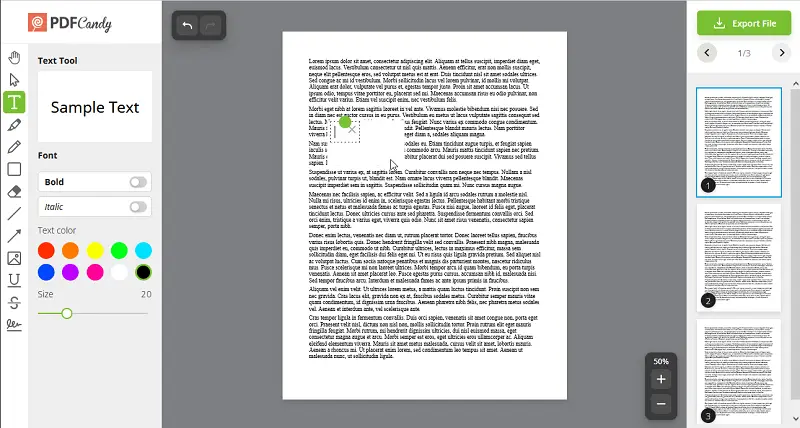
- Choose the whiteout instrument to obscure specific information or visual imperfections by overlaying a colored area.
- Select the text tool to insert new text. Explore further details about all the instruments available in the online PDF editor.
- Save the PDF document by following "Export File" > "Download File".
Method 2: Using OCR technology
Hey, have you ever tried OCR? It's honestly pretty cool. You scan your paper, drop it into a text recognition utensil, and—presto!—your digital image becomes an editable PDF. No more typing everything by hand or dealing with illegible copies.
It’s a total lifesaver if you’re looking to organize your paperwork or make those old school PDFs actually useful.
How to make a PDF editable with OCR:
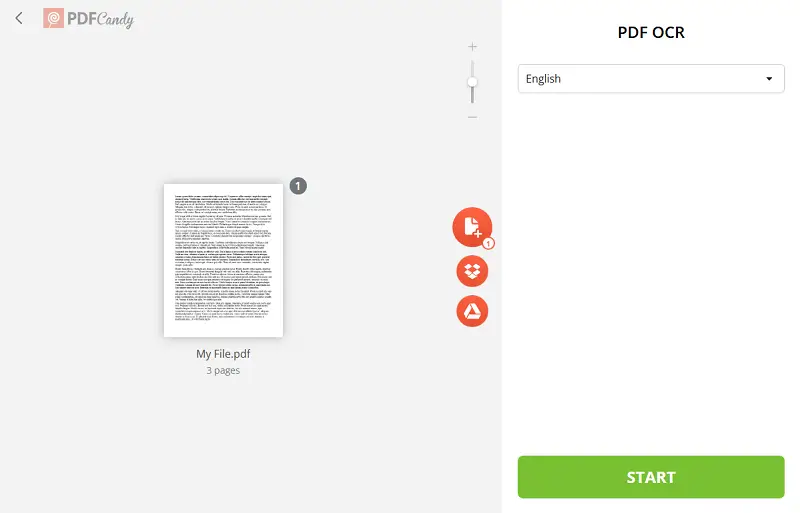
- Open OCR in your browser.
- Upload the PDF you need to edit by pressing "+Add File", dragging and dropping it, or importing it from Dropbox/Google Drive.
- Choose the language and click "Start". Note: the result will be in TXT format.
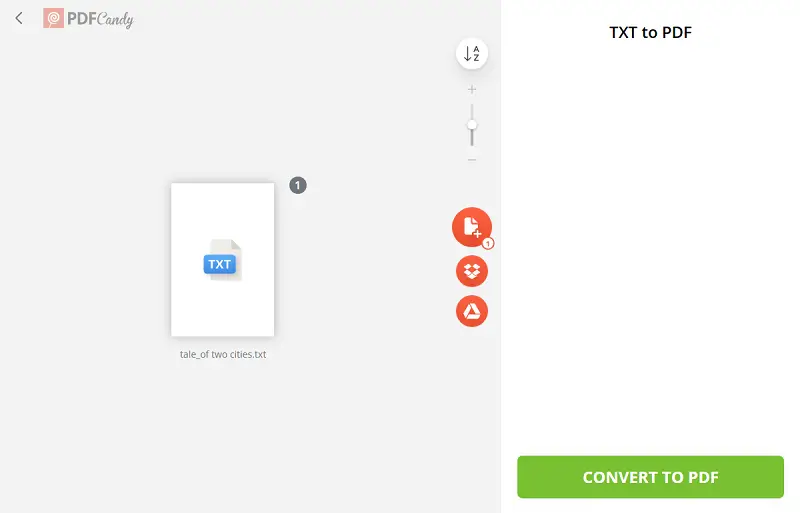
- Once the archive is converted, save it and launch the TXT to PDF converter.
- Convert the TXT back to PDF and save it to your PC.
Method 3: Converting from other format
Got a paper that isn’t already a PDF? Maybe it’s a Word file or even an Excel sheet—no worries at all. Turning those into editable PDFs is actually simple.
Most PDF editors out there will let you bring in your materials and keep all your formatting, so you don’t have to start from scratch. Just import, give it a little tweak if you want, and you’re golden.
Oh! And if you want a quick fix, our online app can convert your documents to PDF in no time. Simple.
How to create an editable PDF via conversion:
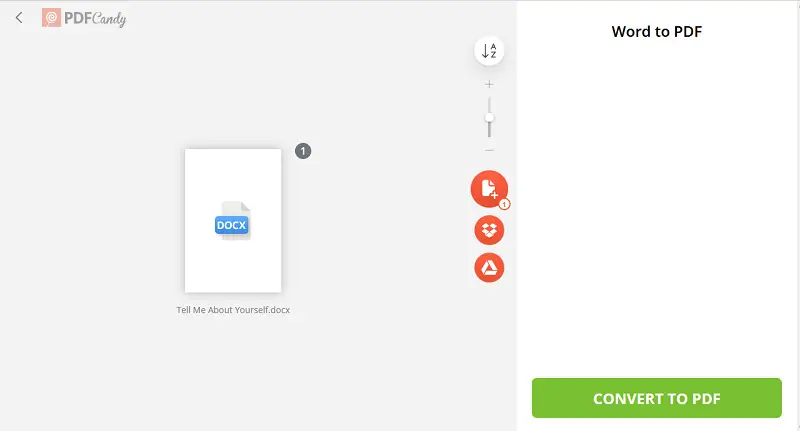
- Open the Word to PDF converter.
- Upload your file either by dragging and dropping it into the utility or by clicking the "+Add File" button. Alternatively, you can import a paper directly from your Google Drive or Dropbox. Hit "Convert".
- Choose to save the resulting editable PDF to your hard drive, share it via a link, or re-upload it to your preferred cloud storage.
Once it's converted to PDF, you can make any edits you need using online PDF editor.
Advantages of creating editable PDFs with PDF Candy
- Retains Elements. Tables, pics, funky fonts—whatever you toss in, PDF Candy keeps it looking the way you meant. No weird layout surprises.
- User-Friendly Interface. Seriously, you don’t have to be a tech wizard. The controls are clear as day—click around and you’ll get it. Even your tech-challenged uncle could handle it.
- File Format Conversion. Got a JPG, PNG, or even one of those Word docs? No sweat. You can switch them up without a hassle.
- Security. Worried about your archives ending up who-knows-where? Don’t be. PDF Candy locks stuff down tight, so your private items stay private.
- Accessibility. Phone, tablet, laptop—if you’re online, you’re in. Great for when you’re running around town or stuck waiting in line.
- Speed and Quality. No endless loading bars or janky results. The platform moves quick, and the material you upload comes out looking sharp. Can’t complain!
FAQs
1. Are there any limitations to making PDFs editable?
Oh, absolutely! If your PDF is all fancy with wild layouts, redacting it can get messy real quick. Sometimes objects shift around or look wonky. So yeah, the flashier the design, the trickier it is to keep everything looking right.
2. Is it possible to revert the changes made to an editable PDF?
For sure! You can hit undo or redo if you take a wrong turn. Honestly, it’s a lifesaver. And hey, always a good move to save a backup copy before you start revising—just in case you want to go back to square one.
3. Can I use PDF Candy on mobile devices such as smartphones or tablets?
Definitely! Our utility got your back on mobile. The site squishes down nicely for phones and tablets, so you can mess with your PDFs wherever you are.
4. Why would I need to create an editable PDF?
So many reasons! Editable PDFs are awesome for contracts, surveys—basically anything you want someone to fill in or sign. Makes collecting info so much easier, and everything looks neat.
5. How do I ensure my PDF works correctly on all devices?
Your best bet? Try opening your PDF in a few different apps or devices. Keep the form fields simple and skip any super-custom scripts, since those can break or just not show up on some readers.
6. Which document types can be transformed into fillable PDFs?
You’ve got options! Word, Excel sheets, PowerPoints, or even images like JPEGs and PNGs—they all work. Upload and turn them into interactive PDFs, easy peasy.
7. Is it possible to work on an editable PDF with teammates?
You can share the file via cloud platforms like Dropbox or Google Drive to coordinate changes and feedback.
How to make an editable PDF - conclusion
Knowing how to create your editable PDF is really handy. It makes life easier, you know? No more wrestling with weird formatting or copying stuff over like it’s 2002.
You’ve got a bunch of ways to do it—grab a quick online tool, bust out some OCR magic, or switch up the extension. Whatever works. It’s not rocket science, promise.
This little guide? It's all about simplifying your life. Edit your PDFs with zero stress and keep everything looking nice and tidy.
Try out other PDF instruments
- Place a watermark on the created PDF to protect it before sharing.
- Compress your PDF file before publishing it.
- Rearrange or remove unwanted pages to improve the structure.

.webp?w=420&h=184)
