
It's important to know how to add new text to a PDF or change content that is already there. This is true whether you're filling out forms or just adding notes.
We'll show you how to write on a PDF page in a few easy steps in this article. Whether you need to edit PDF text, place some images, or place a signature, we've got you covered. Let's dive right in!
PDF Candy
Writing on a PDF document can be a tricky task if you don't have a dedicated PDF editor. Fortunately, modern web tools offer an accessible and user-friendly way of doing so.
With the help of PDF Candy, you can add text in just a few clicks.
How to write on a PDF online with PDF Candy
- Open the online PDF text editor.
- Hit the "Add file" button and upload your document.
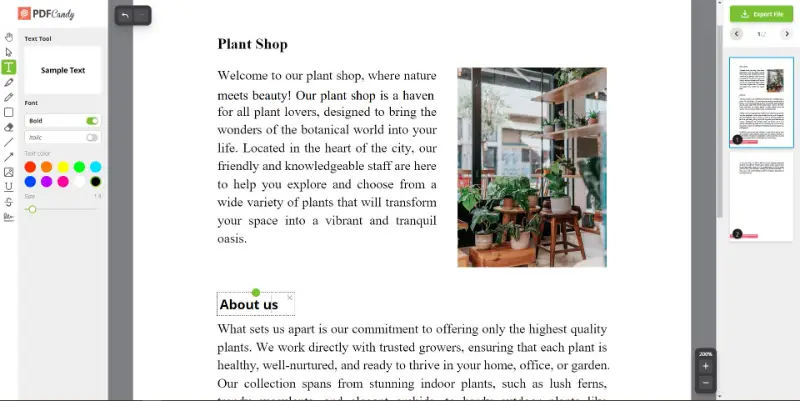
- Select "Text" and click the desired area of the page to create a new box. Now you can type and add new text to a PDF.
- Try the "Pencil tool" to write with a stylus or your mouse.
- If needed, you can place your autograph with the "Signature tool".
- Tap "Export file" to process and download the result or share it directly.
Editing existing PDF text in PDF Candy
This service also allows you to edit text in PDFs. Import the file, select "Text" and hover your mouse cursor over the needed line. Click to enable editing and remove unwanted content. Add new information and export as described above.
Advantages of online service to write on a PDF
This free online PDF editor provides many advantages to help make management more efficient. Here are some of the advantages of PDF Candy:
- Easy to use. This is an intuitive tool that makes it simple to adjust text and highlight information in a document.
- Free service. PDF Candy allows users to write on a PDF for free, making it a great choice for anyone looking to save money.
- Range of features. The platform offers various features such as text editing, drawing, adding signatures, and converting functions.
- Compatible with multiple formats. PDF Candy supports multiple formats, including Word, Excel, PowerPoint, and images.
- No registration required. You do not need to sign up or create an account in order to utilize the tools.
- Secure and confidential. All files uploaded to the platform are kept secure and are only accessible by the person who added them.
Google Docs
Google Docs is an incredibly useful service to collaborate and create with others. Not only can you generate new documents, but you can also write on a PDF and edit existing text in PDFs directly. This can be a great time-saver, as you don’t have to convert to a different format.
How to write on a PDF with Google Docs
- First, upload the PDF file to your Google Drive.
- Click "Open With" and select "Google Docs". Once it is open, you will see all the text highlighted with a box around it.
- Now, you are free to write on the PDF just like any other document!
- When you are finished, simply save the changes and download the result back onto your computer.
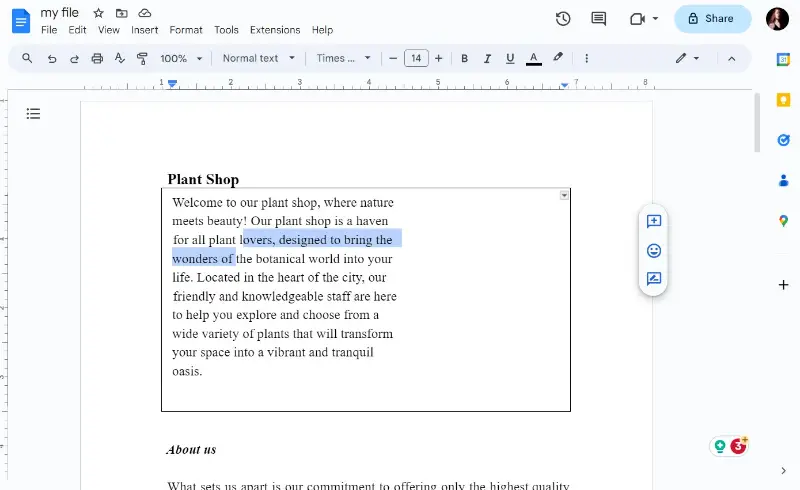
Google Docs can be an invaluable asset when it comes to adjusting text. With its simple steps and user-friendly features, there’s no reason not to try this powerful online service.
Tips and tricks to make editing PDF faster
- Leverage cloud storage services, such as Google Drive or Dropbox, for sharing of your results. This will enable access from multiple devices without having to upload/download each time.
- Employ keyboard shortcuts like Ctrl+F (Find), Ctrl+A (Select All Texts), Ctrl+C (Copy), and Ctrl+V (Paste) for quicker changes on the fly.
- Utilize the "Split PDF" feature to quickly break PDF into separate pages.
- Take advantage of the "Merge PDF" feature to combine multiple PDF documents into one.
- Try the "Rotate PDF" feature to quickly change the orientation of pages for easier viewing.
- Take advantage of the "Compress PDF" tool to reduce the size without changing its content or quality.
How to write on a PDF - final words
Last but not least, writing on a PDF document can be simple if you know how to do it. The most important thing is to find a service you can trust to meet your needs.
- Make sure you know what features and functions a PDF editor has before you buy it, so they meet your needs.
- Check that the service's security is of a high standard so that your papers are protected from unauthorized access and manipulation.
By taking note of these points, you can guarantee that you'll get the most out of your experience.
FAQ
Can I write on a PDF without altering the original content?
Yes, just add annotations, comments, or text boxes over the existing content.
Can I write on a scanned PDF?
Yes, it is possible with the help of the OCR (Optical Character Recognition) tool. It converts scanned images into editable text, allowing you to add notes.
Can I convert a PDF into a different format to write on it?
Yes, turn your file into XLS, DOC, and others, then make your changes and switch it back to PDF. However, be aware that conversion can sometimes affect formatting.
Can I fill out a PDF form without printing it?
Yes, you can do it with interactive forms directly on your computer or mobile device.
Can I add a signature to a PDF?
Yes, you can electronically sign a document by drawing, typing it, or using a saved image with PDF editing tools.