
PDFs, right? They’re everyone’s favorite because they look good no matter where you open them. Seriously, you could email your resume from a toaster and it’d still show up perfect. But, wow, try to extract one page from a PDF document and suddenly it’s a whole thing.
Don’t sweat it, though—I’m here to make it easy. Doesn’t matter if you’re a student just trying to send one assignment, a busy pro, or tidying up your digital mess, I’ve got you. I’ll show you a bunch of simple ways to grab the pages you need from a PDF, no headaches or tech wizardry required.
Method 1. PDF Candy
Let’s chat about PDF Candy — it’s honestly one of those sites you stumble across and then wonder how you ever lived without it. Super user-friendly, all the tools you need for PDF conversion and more are right there, and you don’t have to download anything or sell your soul with a million signups.
How to export a single page from a PDF with PDF Candy
- Open your web browser and head to the PDF extractor.
- Import the document into the working area by either dragging and dropping it, utilizing the "+Add file" button, or uploading it from Google Drive or Dropbox.
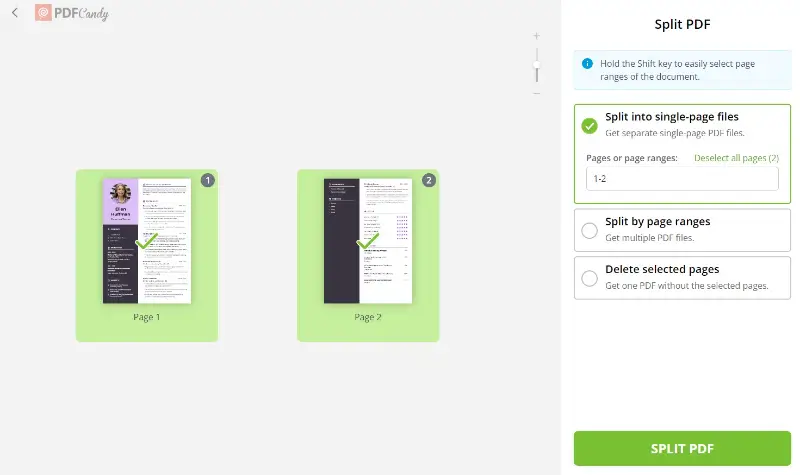
- Select the "Split into single-page files" mode to extract a single slip from a PDF.
- Use the cursor to choose the thumbnails or input the desired folio number that you want to separate.
- Initiate the PDF page extraction process by clicking "Split PDF" . Then, proceed to save your file by pressing "Download".
Pros:
- Convenience. The design is so clean, the process of extracting pages from a PDF quick, you won’t get lost or annoyed.
- Accessibility. As an online platform, it is accessible from any device. If you’ve got Internet, you’re set—laptop, phone, tablet, whatever.
- Compatibility. Supports a multitude of formats, ensuring compatibility with different types of PDF files and enabling users to work with documents from diverse sources.
- Privacy and Security. The service employs encryption protocols to protect sensitive information and does not store uploaded archive permanently.
- Versatility. Offers various tools beyond just splitting pages. Need to merge, convert, or shrink a doc? It’s all right there, no headaches.
Best for:
- Freelance Writers: Share only a single draft page with an editor instantly.
- Attorneys: Pull the exact clause or evidence to send to a client.
- Educators: Detach one worksheet from a large teaching packet.
Method 2. PDF Candy Desktop
PDF Candy Desktop — think of it as your sidekick to edit PDF, always ready to jump in when you need to split up a file or grab a page or two. It’s got a bunch of other handy features too, so you’re not just stuck with splitting. And hey, it works even when your Wi-Fi's gone AWOL.
How to export specific pages from a PDF in PDF Candy Desktop
- Download PDF splitter for Windows PC and install it.
- Open the program and hit on the "Split PDF" tab.
- Upload the document you want to edit.
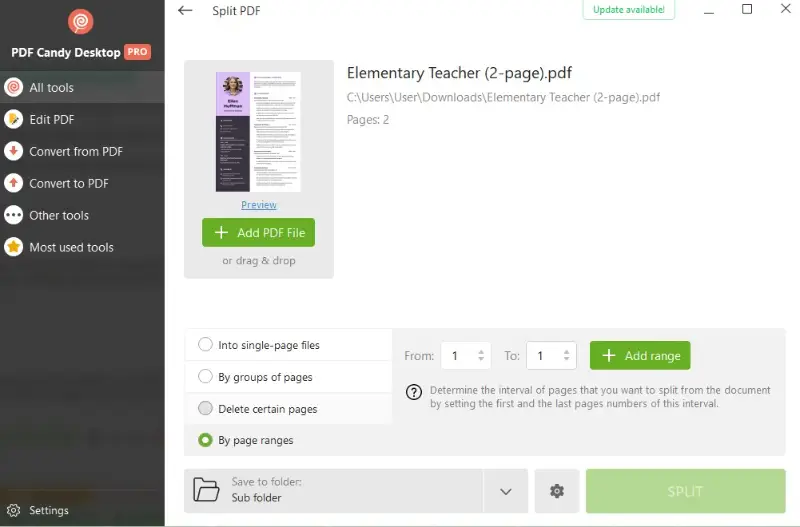
- Select the "By page ranges" option – this will allow you to choose which panels you wish to take out of the report.
- Enter the numbers of the leaflet(s) you want to extract. For example, if you wish to retrieve section 5 from your material, enter "5" in the box next to "Add range".
- Click "Split" and wait for your file to be processed.
Pros:
- Totally works offline, so you’re good to take pages out of a PDF no matter where you are.
- Features an intuitive and easy-to-navigate interface, making it accessible to users of all skill levels.
- You get to set who can print or edit your new PDF, so you’re in charge.
Best for:
- Academic Researchers: Extract references from long scanned journals while working offline.
- Financial Analysts: Isolate selected account pages without risking cloud uploads.
- Operations Managers: Break apart status reports into smaller ones for teams.
Method 3. Adobe Acrobat
So, Adobe Acrobat is basically the standard when it comes to PDFs. It’s loaded with tools suitable for extracting pages from PDFs, and if you’re already using other Adobe stuff, it just fits right in.
How to take one page from a PDF in Adobe Acrobat
- Launch the program and open the PDF.
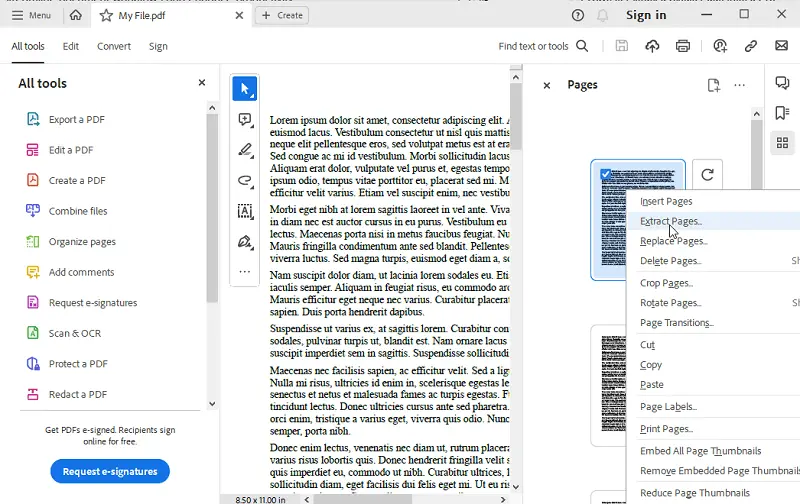
- Right-click the thumbnail and select "Extract Pages".
- Specify the output settings (choose the current sheet only). Hit "OK" to extract PDF pages.
- Save the result to your desired location.
Pros:
- The software allows for fast export of one slip of a PDF, ensuring accurate results.
- Integrates with other Adobe products, enabling users to incorporate extracted lists into larger projects.
Cons:
- Some features cost extra, so don’t be surprised if you hit a paywall.
- It might feel a little overwhelming at first if you’re new to it.
Best for:
- Brand Strategists: Insert individual marketing visuals into broader presentations.
- Film Producers: Lift scene breakdowns to coordinate with editing tools.
- Corporate Trainers: Build tailored handouts from large instructional guides.
Method 4. Browser
No downloads? No problem. If you’ve got Chrome (and honestly, who doesn’t?), you can pull out PDF folios right from your browser. It’s quick and painless.
How to save individual pages of a PDF using a browser
- Launch your PDF file in Chrome.
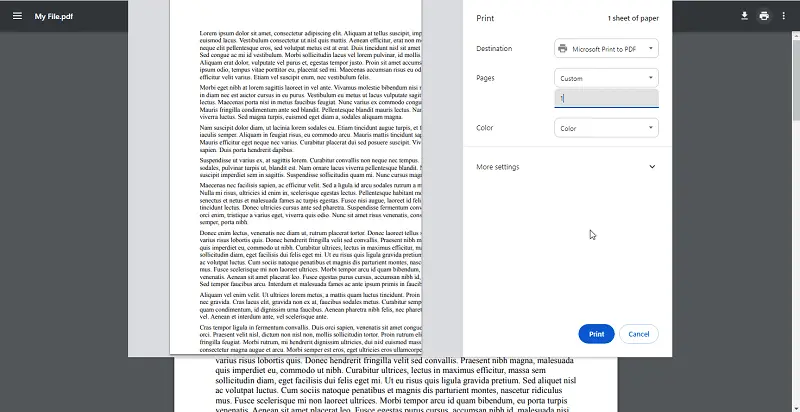
- When your PDF opens in the browser, tap "Print". Switch to the "Microsoft Print to PDF".
- Choose the specific panel you need to extract.
- Click "Save", and your new PDF will contain only the selected one.
Pros:
- Extract pages with integrated features, eliminating the need for separate PDF editing tools.
- This PDF extraction method is entirely free to use, making it a cost-effective solution.
Cons:
- Sometimes the formatting can get a little weird, depending on your PDF.
- There aren’t any fancy tools here—just the basics, but hey, it gets the job done.
Best for:
- University Students: Save one sheet of lecture notes without handling the whole file.
- Job Applicants: Export only the resume sheet from a bulky portfolio.
- Travel Advisors: Send a single itinerary slip instead of the entire packet.
How to extract PDF pages: tips
- Just need the highlights? Pick out exactly what you want—text, images, the works. No need to carry extra baggage!
- Got a PDF with layers? Yup, some have them. If there’s a messy layer you don’t need, toss it.
- Don’t let your pages get ugly! Keep an eye on resolution so everything stays sharp and clear.
- Leverage scripting tools like Python libraries (e.g., PyPDF2).
- For scanned PDFs, convert text into images to check accurate formatting preservation.
FAQ on how to extract one page from a PDF
Will the extracted page maintain its original formatting?
Usually, yeah! There might be tiny changes if your PDF’s all over the place, but most of the time it’ll look just like you remember.
Can I extract a specific range of pages rather than one?
Yes, many of the methods mentioned allow you to specify a number of folios for extraction. This is useful if you need to save certain sheets of a PDF.
Can I extract pages from password-protected PDFs?
This depends on the method and whether you have the necessary permissions to extract one page from a PDF. Some tools may require you to enter or remove the password before proceeding.
Conclusion
Seriously, pulling out a page or two from a PDF isn’t hard—and it can make your life a whole lot easier. Whether you’re using some fancy online tool or just your browser, you’ll be snipping out exactly what you need in no time.
So, next time someone sends you a monster PDF and you only want that one important part, you’ll know what to do. Go ahead, take control of your PDFs—it’s simpler (and more satisfying) than you’d think!