
In the current digital landscape, changing between formats is essential—whether you’re dealing with detailed documents for work or simply need to archive personal data. If you want to know how to convert PDF to TIFF, you’re in the right place.
No need for complicated software suites or a degree in IT. Here are two practical, free methods on how to do that both online and offline. Both get the job done—quickly, and without hassle.
Way 1: PDF Candy
PDF Candy provides an efficient, web-based solution designed to simplify the management and conversion of files—a process especially valuable when high-resolution outputs are required for professional or archival purposes.
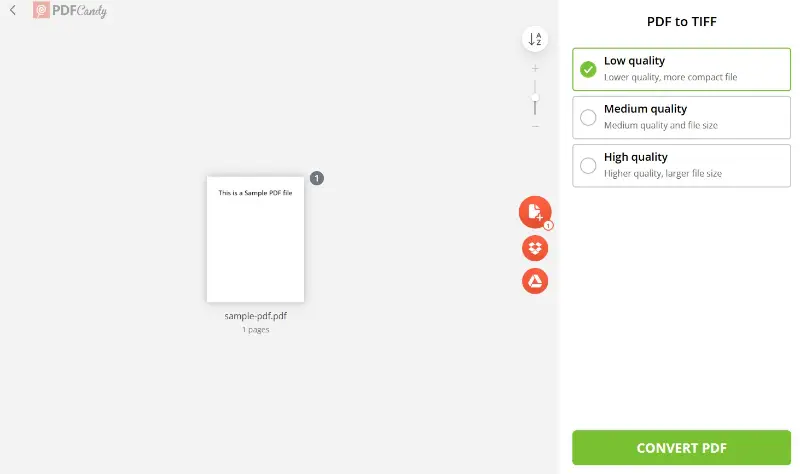
How to save PDF as TIFF online with PDF Candy
- Launch the PDF to TIFF converter in your browser.
- Upload the item you intend to process.
- Select the desired quality (low, medium, or high), depending on your use case and image requirements.
- Click the "Convert PDF" to initiate the transformation.
- Once complete, hit "Download file". If your PDF is multi-page, the system provides a .zip archive containing all materials for streamlined access.
Best for
- Archivists – Convert scanned papers into lossless TIFF for long-term preservation.
- Instructors – Transform PDFs into visual materials for class distribution or student handouts.
- Reporters – Turn researches or press documents into footage formats suitable for publication or reference.
Way 2: PDF Candy Desktop
PDF Candy Desktop is a robust software designed to handle a wide range of tasks directly on your computer. Unlike its online counterpart, it provides a powerful offline solution for managing PDFs without the need for an internet connection.
How to convert PDF to TIFF on PC with PDF Candy Desktop
- Download PDF Candy Desktop for Windows to your PC.
- Install and open the application.
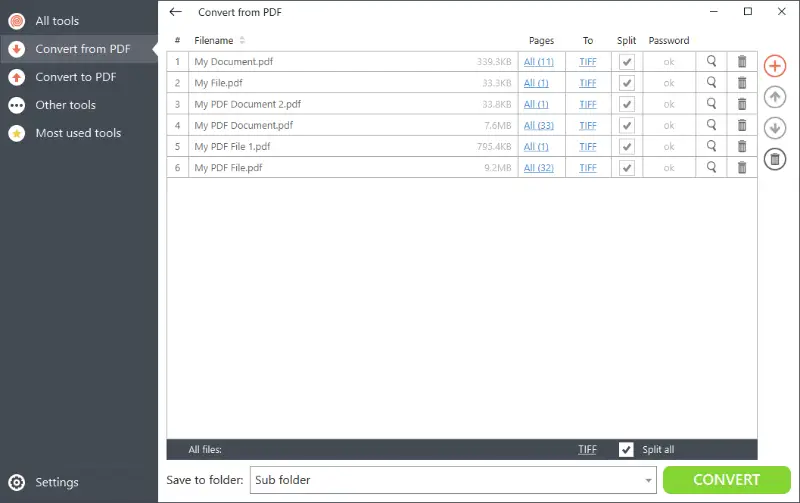
- Navigate to the PDF to TIFF conversion module within the interface.
- Select the file(s) you wish to proceed with.
- The document will appear in the queue, where you can specify page ranges and preview content as needed.
- Pick the level of quality and specify the destination folder for the result. Then, press the green "Convert" button.
- Once done, the results will be saved automatically to your chosen directory.
Best for
- Government Staff – Perform secure, offline modifications of confidential materials without relying on the web.
- Visual Artists – Batch-process PDFs into high-resolution TIFFs for portfolios.
- Laboratory Scientists – Manage several PDFs offline, controlling page selection for documentation.
What exactly is a TIFF file
TIFF stands for Tagged Image File Format, and in the professional world, it’s basically the gold standard for high-fidelity raster graphics.
One reason? Flexibility. This extension handles a variety of color spaces—think grayscale, RGB, CMYK—so it’s compatible with everything from publishing pipelines to medical scans.
TIFFs can pack in multiple layers and even entire sets of pages within a single item. That’s a huge cause they show up in advanced picture editing workflows or archiving systems where keeping every possible detail matters.
On the compression front, TIFF supports both lossless algorithms like LZW (so, no sneaky degradation in fidelity) and, if needed, **lossy*—useful if you need to trade a bit of pixel-perfect clarity to save space.
Metadata is another massive plus here. TIFF can store precise information: origins, logs, camera settings. That’s clutch for gurus who need to track every redaction or maintain accurate audit trails.
However, due to their rich detail, TIFF tends to be larger in size compared to other formats like JPEG or PNG.
TIFF vs PDF
Here's a comparative table highlighting the key differences and similarities between TIFF and PDF:
| Feature | TIFF | |
|---|---|---|
| Primary Use. | High-quality raster pages, professional photography, and imaging. | Document exchange, preserving formatting and layout. |
| Compression. | Both lossless (e.g., LZW) and lossy. | Lossless (e.g., ZIP), but often utilized with minimal compression to preserve quality. |
| Quality. | High-quality, suitable for intricate and high-resolution pictures. | Quality depends on the embedded content, not inherently high-resolution. |
| Color Depth. | Supports various color depths, including grayscale, RGB, CMYK. | Has color but is more about integrity. |
| Multi-Page Support. | Multiple pages and layers in a single file. | Multiple pages in a single draft. |
| Metadata. | Can store extensive metadata. | Can include metadata, such as author and creation date. |
| File Size. | Generally large due to high quality and exhaustive data. | Typically smaller, depending on the content and compression settings. |
| Editing. | Primarily for photo manipulation. | Designed for editing, annotation, and form fields. |
| Compatibility. | Widely used in scientific fields. | Universally compatible across different devices and platforms for viewing and printing. |
Tips
- Always use high-resolution PDFs for sharpness.
- Choose your color mode wisely; it impacts both detail and file size.
- Set appropriate DPI for clarity and print accuracy.
- Flatten all layers or transparency to avoid rendering issues.
- Carefully review final output—watch for cropping, scaling, or misalignment.
- Adjust configuration for multi-page layouts where necessary.
- Ensure legibility without over-compressing.
FAQ
Which type of PDF works best for TIFF transformation?
Image-dominant documents, such as scans of physical papers, generally convert to TIFF more effectively without noticeable loss.
Does converting to TIFF make the text uneditable?
Yes, since this is a pic format, any text becomes part of the picture and is no longer modifiable.
What is the ideal resolution for creating high-quality TIFFs?
For optimal clarity, aim for a resolution of 300 DPI, especially for archival or printing purposes.
How to convert a PDF to TIFF: conclusion
Wrapping up, converting PDF files to TIFFs is pretty straightforward, but it does open up a lot of possibilities—primarily if you deal with imaging workflows or archiving.
Honestly, whether you opt for an online tool or some offline software, pick what suits your tech setup and project requirements. No fuss, just results.
By choosing the right method for your needs, you ensure that your PDF files are transformed into high-quality TIFF images that are ideal for various professional and personal applications.
Other articles you may find interesting:
If you don't need to convert the entire document, consider extracting just the pictures from the PDF. You can find out how to save pictures from a PDF with our guide.
Additionally, did you know you can add hand-drawn illustrations to a PDF file? Discover the best tools for drawing on a PDF in our detailed tutorial.