
Understanding can be very beneficial in numerous scenarios, such as sharing depictions on the Internet or incorporating them into presentations or documents.
Ever interested how to save a PDF as a JPEG? It’s like having a secret superpower — suddenly you can pop drawings into slideshows, blast them across the Internet, or make your life a little easier.
Maybe you want one page from that PDF, or you’re on a mission to turn the whole thing into crisp JPGs — either way, I’ve got your back.
This isn’t rocket science, but there are a few ways to do it, and I’m about to discuss all of them. We’re talking software options, online tools and little tricks to get a bunch of high-quality JPEGs.
PDF Candy
PDF Candy is a web-based service that provides a complete range of tools for handling documents. It has instruments for both viewing and editing papers as well as reshaping them to other file formats.
How to turn your PDF into clear JPEG online with PDF Candy:
- Open the online PDF to JPEG converter.
- Upload your PDF using the "+Add file" button or simply drag and drop it into the designated area.
- Choose the desired quality for the output image(s): Low, Medium, or High.
- Initiate the metamorphose by pressing "Convert PDF". When the process is finished click "Download file".
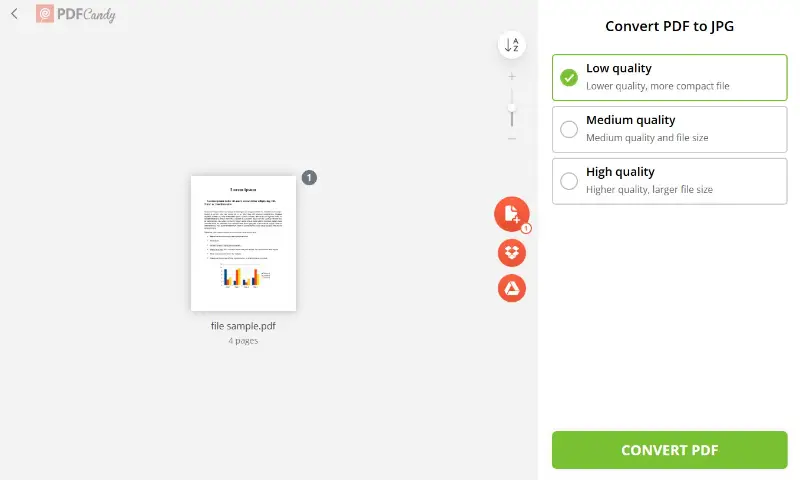
Image Quality Levels
Before you change a PDF to JPEG online, set the quality of an output picture(s).
- Opt for High quality for the utmost clarity and detail in your photo.
- Select Low quality for a smaller size, ideal for conserving storage space.
- Choose Medium quality for a well-balanced compromise between file size and fidelity.
File Sharing
After exporting a PDF to one JPEG, you have multiple choices for downloading and sharing:
- If your paper contains multiple pages, you can generate a compressed archive (ZIP) containing all images. Alternatively, you may download individual pages by picking their respective thumbnails.
- For single-page documents, direct upload to Google Drive or Dropbox is supported via one-click functionality.
- Additionally, you have the option to create a shareable link for your file. This link remains active for 7 days, in compliance with our Privacy Policy, after which it is automatically deleted. However, you may remove the URL at any time.
Other Advantages
- Supports all popular types, including DOC, XLS, PPT, and formats.
- Compatible with major web browsers such as Opera, Firefox, Google Chrome, and Safari.
- Generates high-quality files that faithfully preserve the original format.
- Registration and payments are unnecessary - it's a free PDF-to-image converter.
- User-friendly interface streamlines the entire process.
- Export PDF to JPEG effortlessly without the need to install any software on your device.
- Works on Android, iOS, Windows, and Mac operating systems.
PDF Candy Desktop
PDF Candy Desktop is a software application aimed at offering extensive features for redacting PDFs.
In contrast to the online version, it provides offline access, enabling users to refine their drafts without needing an Internet. It serves as an effective tool for transforming PDF into JPEG and other different formats like PNG, among others.
How to change a PDF to several JPEG with PDF Candy Desktop:
- Download and install the PDF Candy Desktop.
- Launch the program and either hit "Add file(s)" or directly drag the PDFs you wish to modify to the tool icon.
- Choose the desired output format (JPEG, PNG, etc.) and adjust the page range as needed.
- Initiate the process by clicking "Start" and patiently wait for it to complete.
- Upon completion, press "Download" to save your PDF as a JPEG file.
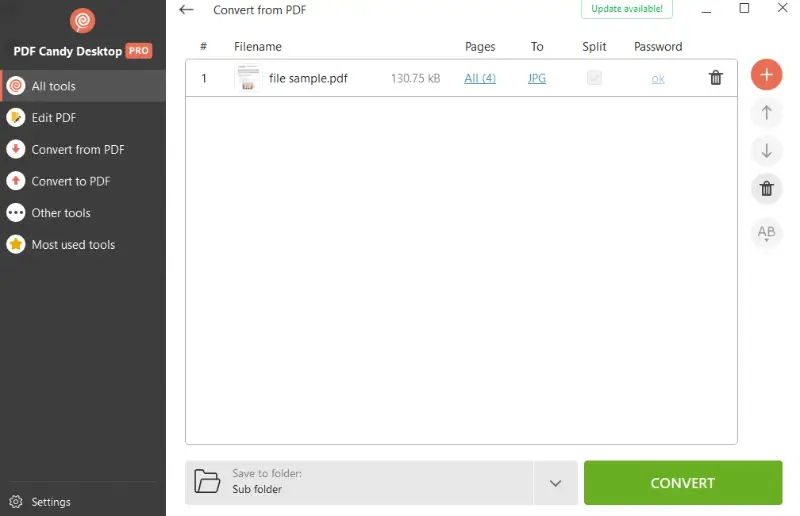
Pros:
- Swift and straightforward PDF-to-picture adaptation.
- Operates seamlessly offline, without reliance on an internet connection.
- Compatible with all prevalent editions of Windows.
- Provides the functionality for bulk conversion.
- Effortless navigation across features within the application.
- Maintains a minimal memory footprint and a low impact on PC system resources.
Adobe Acrobat
Adobe Acrobat is a multifaceted software suite primarily known for its robust capabilities in creating, editing, managing, and sharing PDFs. Making use of this program for converting a PDF to a JPEG is an optimal approach to ensure your material appears exactly how you want it.
How to create a precise JPEG from a PDF via Adobe Acrobat:
- Start Adobe Acrobat and open the PDF document.
- Go to the menu bar and click "Export PDF To".
- From the list of available options, opt for "Image" and select "JPEG" as the output format.
- Hit "Convert to JPEG" to proceed.
- In the dialog box, navigate to the destination folder where you want to save the PDF as a JPEG, then click "Save". Pick the folder where you want your converted JPEG to be, then click “Save.” That’s it — file goes where you tell it.
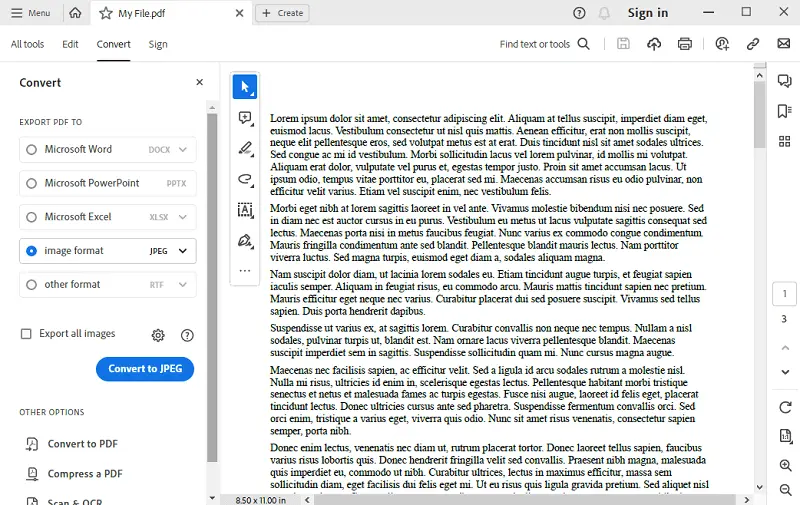
Pros:
- The resulting JPEGs are of outstanding quality, preserving accuracy to the original.
- The PDF to JPG converter works on both Mac and Windows systems, providing flexibility in its application.
Cons:
- The cost of the software could be limiting for some users.
- The wide range of features may introduce a learning curve, requiring some skill to completely leverage its functions.
Preview
Preview is a standard footage and PDF viewer that comes pre-installed on macOS devices. It offers a diverse range of options for accessing and organizing various kinds of materials.
How to save a PDF as an image with a Preview:
- Begin by launching Preview and opening the document. You can achieve this by right-clicking the PDF and choosing "Open with" > "Preview".
- Go to the top menu and tap "File" > "Export". From the drop-down menu, opt for the JPEG format.
- Select a destination folder for the converted file and then press "Save" to finalize the process.
You may also find it helpful to adjust the quality of the photo before saving it. You can do this by clicking on "Quartz Filter" > "Decrease File Size" when exporting.
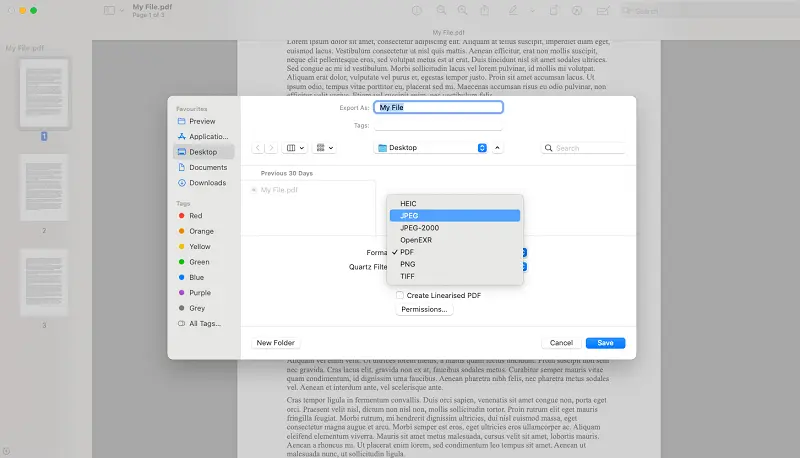
Pros:
- Intuitive interface, ensuring accessibility for individuals of all proficiency levels.
- Offers fundamental features for images and PDFs, enabling users to perform slight modifications prior to transforming to JPEG.
Cons:
- Turning PDF into JPEG, PDF to JPEG can result in a loss of clarity and resolution for text and vector components.
- The program is mainly set up for converting single files and does not support batch processing.
- PDFs that contain intricate layouts or high-resolution footage might suffer from reduced fidelity.
PDF-XChange Editor
PDF-XChange Editor is a desktop-based program for Windows that allows users to view, edit, annotate, OCR, and digitally sign documents.
How to make a PDF into a JPEG in PDF-XChange Editor:
- Launch the application.
- Open your PDF via "File" → "Open" or by dragging it into the interface.
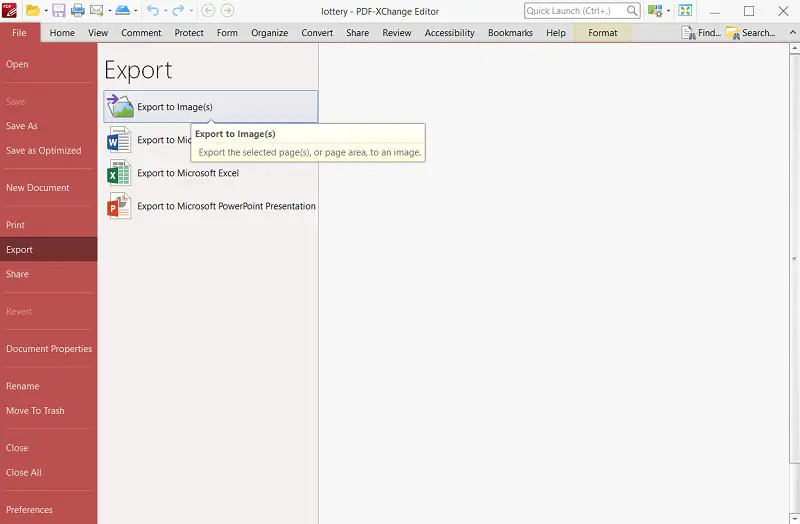
- Go to the top menu: "File" → "Export" → "Export to Image..."
- Pick JPEG (*.jpg) from the dropdown menu.
- Select if you want to process all pages, a specific range, or just the current one.
- Press "OK". The tool will render each page as a separate file and save it in the chosen location.
Pros:
- You can fine-tune resolution (DPI), color depth, page range, and other options.
Cons:
- High-resolution pictures (e.g., 300 DPI) can end in fairly large files.
Bonus Method. Make a Screenshot
To save a PDF as an image without bulky software or online converters, simply utilize the screenshot feature. When you capture a photo, your device records precisely what is shown on the desktop and stores it as graphics — typically PNG or JPEG, based on your settings.
It’s a straightforward road to retrieve graphics from a PDF without dealing with additional applications.
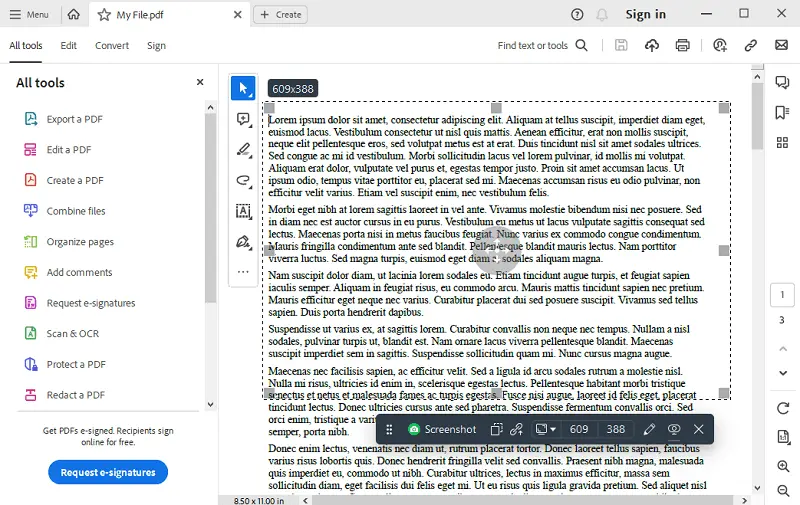
it's important to note that this method only captures the visible portion of the PDF, which may not include the entire document if it extends beyond the display area.
Additionally, the resulting image quality may vary depending on factors such as resolution and the quality of the screenshot.
However, you will only record what is presently in view. If your PDF extends over several pages or is out of display area, you'll have to repeat the procedure or utilize a scrolling feature (some browsers provide this, though not all).
The fidelity relies on your resolution and the utility used. To achieve clear text, ensure you zoom in as much as you can without distorting the page's appearance.
Pros:
- You can focus on a specific section of the document, which is beneficial if you only need a particular chart, diagram.
- All leading OS come with integrated features — external progs or subscription costs are unnecessary. Fill in procedure details here.
- Whether you’re on Windows, macOS, Linux, iOS, or Android, capturing your monitor is a built-in capability.
Cons:
- For papers longer than a single page, you must take multiple pictures and possibly merge them later — annoying for sizable files.
- You should have the ability to open the PDF on your device; if you can’t view it, you can’t shot it.
- Images are constrained by your display's pixel density and configurations. For contracts with a high level of detail, this may not be adequate.
Why save your PDF as a JPEG?
Alright, let’s be real — sometimes PDFs are just... stubborn little files, aren’t they? Here’s why you’d want to turn a PDF into a JPEG:
- Sharing. Everybody and their grandma can open a JPEG. Unlike PDFs, which sometimes act all high-maintenance, JPEGs slip right through email, DMs, or whatever social platform without a hitch.
- Web Compatibility. Try uploading a PDF to some random blog or e-commerce site — good luck. JPEGs? They’re the golden child. Faster loading, easier to slap into articles, and search engines actually know what to do with them.
- Graphics Integration. Converting a PDF to JPEG allows for seamless integration of content, such as charts, graphs, and diagrams, into presentations, websites, or drafts.
- Printing Purposes. If you need a crisp printout, JPEGs usually get the job done without fussing around with weird formatting.
- Reduced File Size. Saving PDF as a JPEG can significantly minimize the paper, making it more efficient to store, upload, or transmit large documents over the internet.
FAQ
Can I save an entire PDF as a JPG?
Totally, yeah. You can turn a whole PDF into a pile of footage — one visual per page. Don’t expect a single giant JPG with every sheet stacked; it’s more like a photo album than a poster.
Does the quality degrade?
Honestly? Yeah, a bit. JPGs are all about compression, which means some stuff — especially crisp text or fancy images—might look a tad fuzzy. If you’re picky about fidelity, you’ll definitely notice.
What is the best resolution for a PDF-to-JPG conversion?
Depends what you’re doing, really. Wanna print it? 300 DPI is the gold standard — nice and sharp. Just chucking it on a website? 72 DPI usually does the trick, and loads way faster.
How to Convert PDF to JPEG: Conclusion
There’s a bunch of ways how to make a PDF into a JPEG — maybe you’re using online converter, employing a desktop app, or slapping that screenshot button like your life depends on it. Each method’s got its own perks, so honestly, it comes down to whatever fits your vibe.
Follow the steps above, and boom — you’ll have shiny JPEGs instead of PDFs.
Look, whether you’re a pro trying to make your paperwork less painful or you wanna toss a page from a PDF into a group chat, knowing this trick is actually super handy.
Seriously, once you get the hang of flipping PDFs into images, you’ll wonder how you ever put up with all that old-school nonsense.
Try out all the options PDF Candy offers online, such as:
- Insert new text, incorporate pictures, highlight, draw, and perform various modifications effortlessly.
- Seamlessly merge files to consolidate footage with existing PDFs.
- Enhance sharing convenience by reducing size.mages