
As people become more conscious about the environment, many businesses switch to paperless document flow. Hence, signing electronic contracts in PDF format is a common practice now.
This article shows 5 ways how to sign a PDF on Mac quickly and without resorting to complex and expensive programs. This will help business owners and workers digitalize their contract signing and create an electronic signature.
Method 1. PDF Candy
This popular online service allows you to add a signature to your PDF on a Mac in just a few simple steps. All you need is your computer connected to the Internet.
How to sign a PDF online with PDF Candy
- Open the online PDF signer.
- Next, upload the document using the "+ Add file" button. Do this by dragging the files from your device's internal memory or uploading directly from Google Drive and Dropbox.
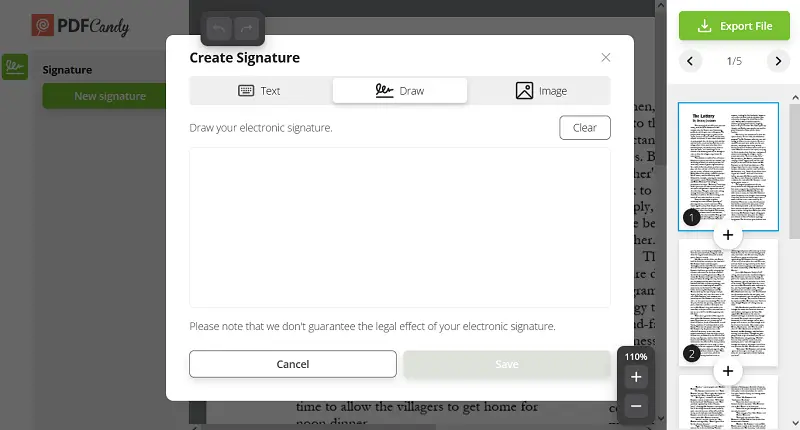
- When the PDF document opens, click the "Add Signature" tool in the left column of the working window.
- Type your initials with the keyboard, draw your initials with the mouse or trackpad, or insert an image.
- Adjust the size of the endorsement to match the document lining.
- Select the "Export File" button to sign your PDF on Mac. Save the document or transfer it back to the cloud.
On the download page, you will find supplementary instruments for other manipulations with your PDF file, such as setting a password. You can merge PDFs, sort or delete pages, compress, and more.
Pros of signing PDF documents on Mac online
- Free to use way to go paperless;
- Does not require downloading and installing additional software;
- Works on all models of iMac and MacBook and all versions of iOS;
- Ability to choose any browser to add a hallmark to any PDF file;
- Fast data processing due to modern algorithms;
- Availability of additional free online PDF tools to further work with the PDF.
Method 2. Preview
This option to incline a hand-written signature to PDF involves the use of the pre-installed application of your MacBook or iMac. The program has several useful features that many new users disregard because they are unaware of their existence.
How to sign a PDF on Mac with Preview
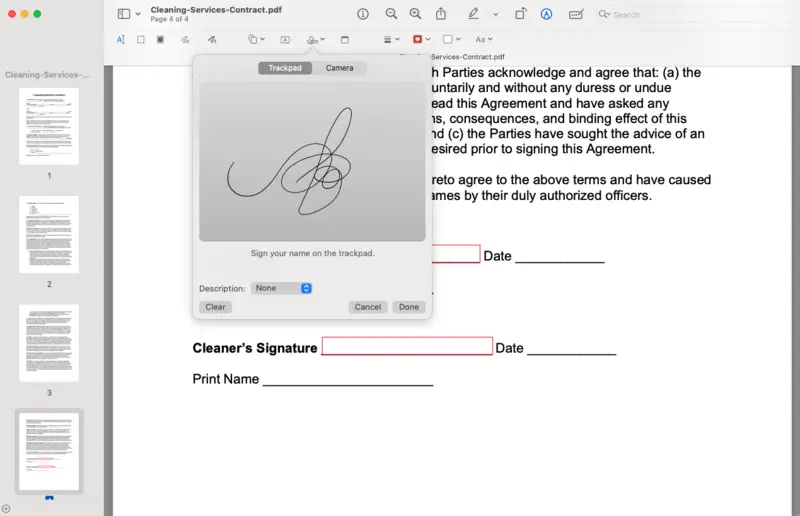
- Open the PDF file you want to sign with the Preview.
- If your Markup Toolbar is hidden, open it with the icon next to the search area.
- Then click the identifier icon. Use the trackpad to create the seal electronically or sign on white paper and transfer the autograph using the "Camera" option.
- Move your emblem to the desired location on the document. Modify the size if needed.
- Save the changes to sign a PDF on Mac.
Now you can proceed and send the signed paper to a recipient. Locate the PDF and email it. In case your file is too big to be sent, you can first compress your PDF and forward a lighter form.
Pros of using Preview to sign a PDF document on Mac
- Ability to transform a live signature on paper into a digital one;
- The program is already pre-installed on your PC;
- Supports new and old versions of the Apple software.
Cons
- You have to know the meaning of all the icons in the application to find the right one;
- No possibility to immediately share the signed document as the app works offline;
- Does not save the original unsigned file;
- Complex marks may lose details while being transformed from paper.
Method 3. DocuSign
This is a service that helps quickly add a signature to a PDF and can be used on a Mac. The online toolkit is suitable for use in the corporate setting as you can assign documents to specific individuals.
How to sign PDF files on Mac using DocuSign
- Go to the website. Purchase an access code or sign up for a 30-day free trial.
- Type your first and last names in the corresponding areas, add your phone number, and select "Next".
- The platform will email you a confirmation link to the electronic address provided, and click "Confirm Email". Set a password. Just like that, you have a profile with DocuSign.
- Go to the "Signatures" menu and determine your signing style by choosing "Create Signature".
- Upload the document(s) to sign PDF on Mac online.
- In the dropdown list "Recipients", you can add other signers or indicate that you are the only signer. Click "Sign" in the bottom right corner.
- Add your logo or initials, and adjust the sizing and position. Hit "Finish" to complete the signing.
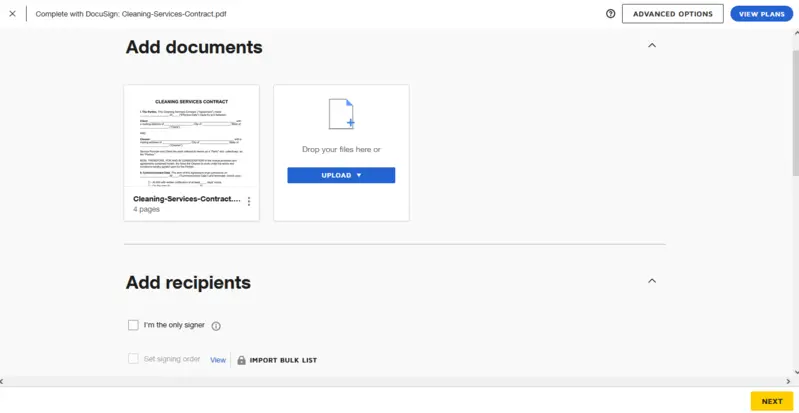
The signed PDF will be available in the "Completed" folder. If you sign a scanned contract, you are capable of performing optical character recognition of the PDF and saving the content for reference.
Pros of utilizing DocuSign to sign a PDF on your Mac online
- Allows to designate receivers and set reminders to sign documents.
Cons of DocuSign online PDF signer for Mac
- Confusing desktop interface for iMac users due to the layout of the website;
- All recipients have to have a profile with the portal to receive documents;
- In the trial version, the monogram is surrounded by a watermark: the service's name and the user's account number;
- Some functions are exclusive to those having paid access.
Method 4. Adobe Acrobat Reader
The standard Acrobat Reader also offers to sign a PDF on Mac electronically. The user is able to make a new pattern or insert an existing one into the PDF file.
How to put a signature on PDF on Mac with Adobe Acrobat Reader
- Install the application on your computer. Launch it.
- Use "Open File" to begin working with your document. In the menu on the left, select "Fill & Sign" from the "All tools" area.
- Choose "Add Signature" or "Add initials," depending on what is relevant to you. You can type, draw in the field, or upload an image with your pre-made hallmark.
- Change the size and position of the endorsement. Save the signed PDF.
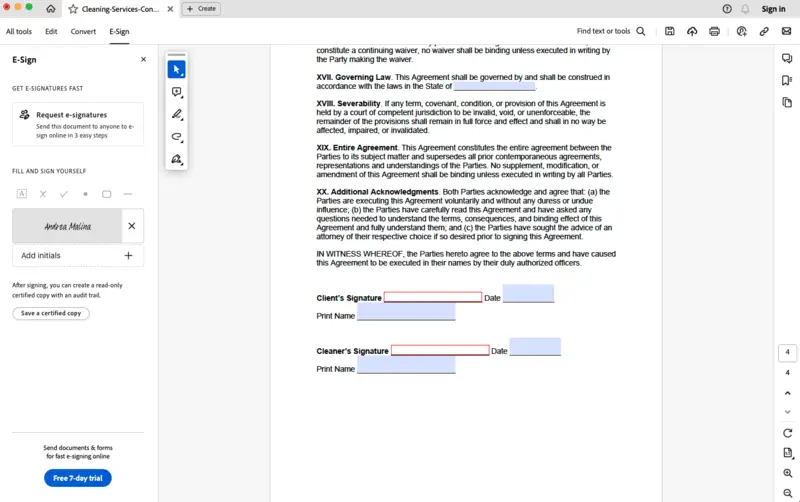
After you save your signed paper, you can add page numbers to the file to facilitate a fast page search.
Pros of signing PDF on Mac with Acrobat Reader
- Friendly interface, understandable on an intuitive level.
Cons of using Reader as a tool to sign a PDF file on Mac
- Limited choice of styles for typed scribble;
- Many features of the software are available with a paid account.
Method 5. ABBYY FineReader PDF
At its heart, FineReader PDF is built around ABBYY's proprietary OCR engine, which is considered one of the most advanced in the industry.
How to put signature on PDF on Mac with ABBYY FineReader PDF
- Launch FineReader PDF.
- Click "Open PDF Document" and select the file.
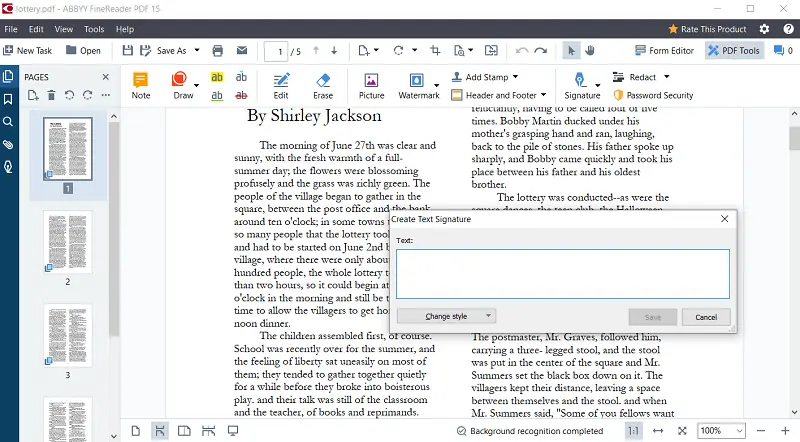
- Hit "Signature". From the drop-down menu pick the needed option.
- Import image, add text or select your certificate to create a personal touch.
- Place the result on the page.
- Apply and save the document.
Pros
- The Corporate version supports digital certificate-based emblems.
Cons
- Doesn’t integrate with cloud-based platforms like DocuSign or Adobe Sign.
Desktop vs online PDF signers
Online and offline PDF signers offer distinct advantages and functionalities. Understanding the differences between these two options can help users choose the most suitable solution for their specific needs.
| Feature | Web-based | Offline |
|---|---|---|
| Accessibility | Can be used on any device with a web browser | Requires a version for a specific device or operating system |
| Convenience | Often includes cloud storage | Can be used with no dependency on the internet |
| Security | Relies on secure server infrastructure for document storage | Documents remain on the user's device |
| Collaboration | Allows for real-time collaboration and sharing of documents | Collaboration features may be limited without internet access |
| Cost (if paid) | Often subscription-based with monthly or yearly fees | One-time purchase or subscription with potential for updates |
Ultimately, the choice depends on various factors such as internet availability, collaboration needs, personal preferences, etc. By considering the above comparison, users can make informed decisions to meet their document signing needs effectively.
FAQ
Is it legal to sign a PDF document electronically?
In many jurisdictions, electronic signatures are legally binding, provided they meet certain criteria outlined in endorsement laws and regulations.
Can I sign a PDF document on my smartphone or tablet?
Yes, many mobile apps and software solutions allow you to sign PDF documents on smartphones and tablets using touchscreen or stylus input.
How secure are electronic signatures?
Electronic autographs can be highly secure when implemented correctly, often offering additional security features such as encryption and authentication.
Is it possible to sign a PDF form?
Yes, you can sign PDF documents that contain form elements or checkboxes. Fill out the required fields and then apply your motif using the appropriate method.
What is the difference between a digital signature and a drawn one?
A digital trademark uses cryptographic techniques to authenticate the identity and ensure that the document hasn’t been altered after signing. A drawn, on the other hand, is simply a graphical representation of the signer’s name, typically made with a mouse, trackpad, or stylus.
Can a digital signature be revoked or modified?
Once it is applied to a PDF, it is generally irreversible without invalidating the entire document.
Conclusion
Now you know 5 different ways how to sign a PDF on Mac fast and efficiently.
All four methods are valid and effective but are based on different principles. Some offer more tools, some specialize in remaining basic; some are online services, while others are offline software.
Choose the one that works best for you!
Other articles you may find interesting
- Do you want to sign several documents at once? Learn how to combine PDF files without Acrobat, which will allow you to generate just one scribble and be consistent in all fields.
- On the contrary, need to add a signature and send specific pages of the PDF? Here you can find out how to save only certain pages of a PDF.sign