
Google Docs service is known as a convenient way to create and share documents online. Moreover, it allows to collaboration of multiple consumers on the same file.
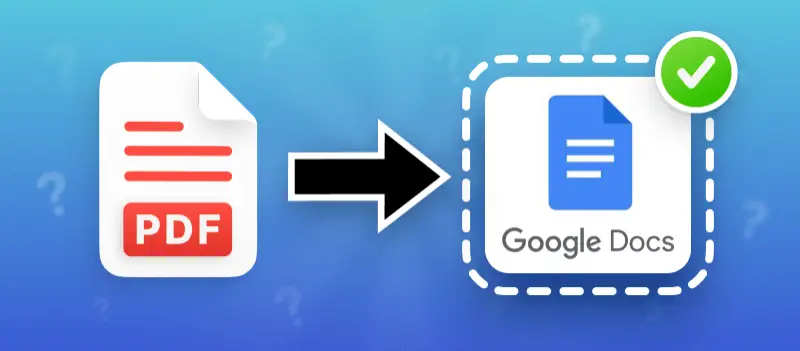
In this article, we will explain how to convert your PDF to Google Docs, so you can take advantage of all the benefits of the online platform.
With our simple tutorial, you'll be able to quickly and easily convert a PDF into a Google Doc on any device at hand. Let's delve into the details!
PDF Candy
Are you a student who needs to share a PDF to work with your project group or a professional who needs to work with colleagues on a report, Google Doc is the way to make your life better.
Good news – there's a perfect solution to convert PDFs into Google Docs in just two clicks by utilizing a free online tool - PDF Candy.
The beauty of this PDF converter is that it works right in your browser – no need to download and install desktop software. In addition, you can modify your file before converting, like adding page numbers, modifying the text, etc.
How to convert a PDF to a Google Doc online
- First, open the online PDF to Word converter.
- Second, click the "Add file(s)" button and find the PDF on your device. Alternatively, you can upload it from Google Drive or Dropbox.
- Review your document(s), and rearrange the order if you're working with several drafts. Hit "Convert".
- Wait for the converted paper to appear in a designated menu. You will see a chunk of useful options such as downloading, sharing, and sending to cloud storage.
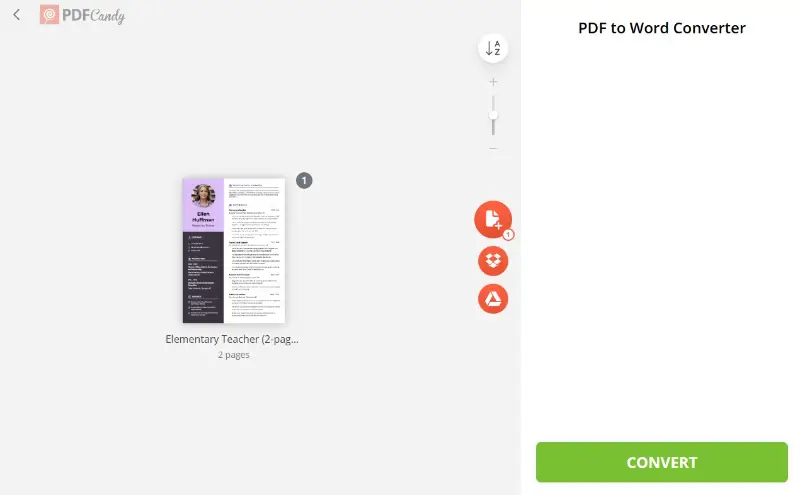
As you can see, the process is easy and fast. With the direct upload option from and to your Google Drive, the conversion task becomes almost effortless.
In addition to the PDF to Word converter, PDF Candy offers many other tools to work with your electronic documents. These include a Word to PDF converter, an image extractor, a password-protecting tool, and more.
Best for:
- Researchers – combine multiple PDFs into one for literature reviews.
- Editors – adjust text, add page numbers, or tweak layouts before conversion.
- Administrative assistants – manage different PDFs quickly using a browser-based tool, no installation needed.
Fact: In some educational platforms, Google Docs-based collaboration is supported for up to 50 simultaneous users.
Google Docs
Utilizing Google Docs itself is another way to save your PDF in a format suitable for the online storage. Apart from being cloud-based, it offers the added benefit of being free and beginner-friendly.
How to convert a PDF into Google Doc without formatting
- Log into your Google Drive account.
- Opt for "New" in the top left corner and hit "Upload File" from the dropdown menu.
- Select your document from your computer and press "Open".
- The PDF will be uploaded to your Google Drive. Right-click the file and select "Open with" followed by "Google Docs".
- You will be presented with an option to convert the PDF into a Google Doc. Tap on it and wait for the output to appear in a different window for you to begin editing.
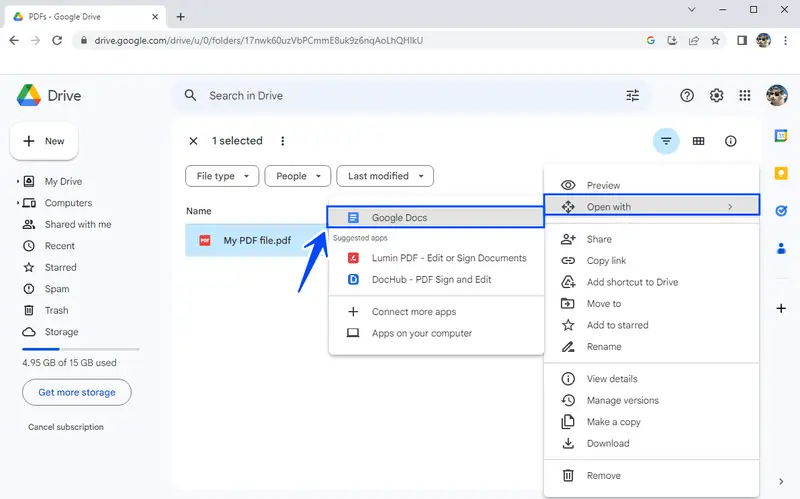
Using Google Docs is sure an easy way to quickly convert PDFs into a text document. You can immediately follow up with editing or sharing your file with others, which will streamline your workflow.
Best for:
- Students – upload and revise lecture notes, assignments, or group projects directly online.
- Teachers – distribute converted worksheets and collaborate with classes seamlessly.
- Journalists – adjust transcripts or reference materials instantly from any location.
Microsoft Word
Converting PDF to Google Docs doesn't have to be done exclusively online. For instance, desktop software will do just as good of a job as an online PDF converter.
You can use Microsoft Word to save PDF as DOCX and then transfer your paper to the Google Docs editor.
Unlike online services for converting documents, this method allows you to perform the format transition offline. Hence, you can complete the task even if you've got no internet connection.
How to convert your PDF to Google Docs on PC
- Open Microsoft Word on your computer and go to the "File" menu.
- Hit "Open" and choose the PDF you'd like to convert.
- Click "Save as" and choose ".docx" (for Google Docs compatibility) as the output format.
- Name the file and press "Save" to finish the conversion.
- After that, you only need to upload your archive to Google Drive and open it with Google Docs.
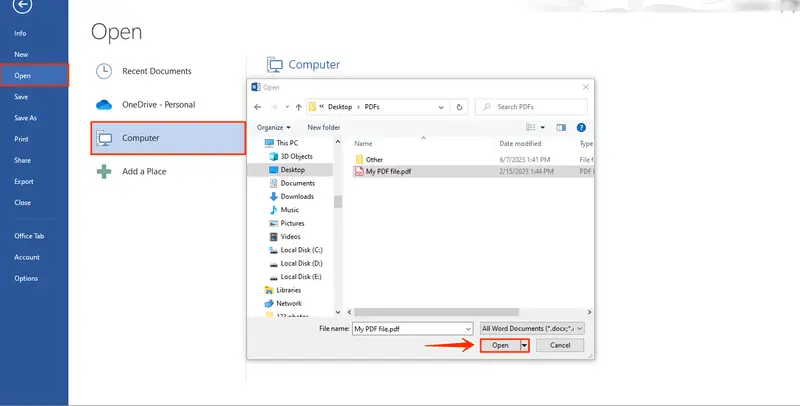
Using Microsoft Word to convert PDF to Google Docs provides an alternative solution to online options. It gives flexibility in what method to choose based on individual preferences.
Best for:
- Lawyers – handle confidential cases offline and maintain formatting before uploading.
- Accountants – process financial reports locally without relying on internet access.
- Authors – transform draft PDFs into Word, refine them, then move to Docs for collaboration.
Browser
If you're looking for a fast and efficient way to turn your document into an editable format, ILovePDF is a reliable online tool worth considering. It’s simple, free to use, and doesn’t require account registration for basic tasks.
How to convert a PDF into Google Doc in browser
- Go to ILovePDF PDF to Word tool.
- Employ the "Select PDF file" button or drag and drop your paper directly onto the page.
- Once it is uploaded, click the red "Convert to Word" button.
- When the processing is complete, press "Download Word" to save the report to your computer.
- Head over to Google Drive, hit "New" > "File upload", and select the result.
- After it's imported, right-click the preview and choose "Open with" > "Google Docs" to begin editing.
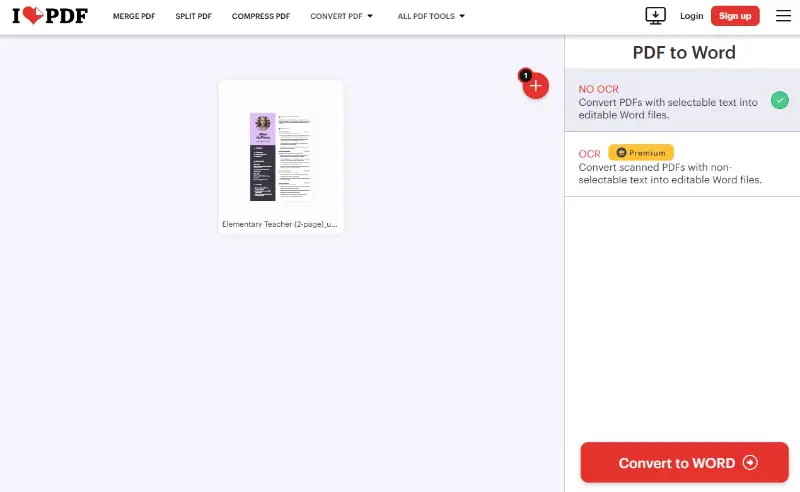
ILovePDF makes it easy to transform PDFs into Word, which you can then quickly open in Google Docs. This method preserves formatting more accurately for records with tables or complex layouts, helping you maintain the original structure.
Best for:
- Designers – retain visuals, tables, and layouts when adapting portfolios.
- Consultants – convert client agreements on the spot and continue working in Docs.
- HR specialists – adjust resumes or applications received as PDFs with minimal effort.
PDF vs Google Doc: comparison table
| Feature | Google Docs | |
|---|---|---|
| Type | A snapshot—what you see is what you get | Always changing, super flexible |
| Editing | Needs special apps (kind annoying) | Edit instantly, anytime, anywhere |
| Collaboration | Basically old-school, send by email | Everyone can hop in at once |
| Formatting | Locked down — never changes on you | Might wiggle around a little |
| Security | Can lock it up tight with passwords | Simple permissions, easy sharing |
| Size | Tends to get chunky, especially with pics | Usually small, lives in the cloud |
| Access | Needs a dedicated viewer | Just pop it open in any browser |
| Best For | Final copies, contracts, official stuff | Drafts, teamwork, ongoing projects |
FAQ
Question 1. Can I edit my converted document in the Google Docs format?
Answer: Absolutely! Google Docs is super chill when it comes to revising. Open up your doc and start making changes — edit text, drop in some images, build a table, whatever you like. You can even invite your pals to help out.
Question 2. How long does it take to convert a PDF to Google Docs?
Answer: Usually? Not long at all. For most files, it’s like 7 to 10 seconds per page — enough time to sip your coffee. If your paper’s huge or has lots of footage, it might take a little longer, but nothing crazy.
Question 3. Does converting my PDF into a Google Doc impact its formatting?
Answer: Sometimes things get a bit wobbly with the layout, especially if the PDF is wild. But hey, most stuff comes over looking pretty close to the original. If something looks off, you can always fix it up in Docs.
Question 4. How can I create a PDF from a Google Doc?
Answer: You can easily convert your Google Doc to PDF by choosing "File" → "Download as" → "PDF Document" or using online Word to PDF. Alternatively, download the document in Word format and convert it to PDF with a specialized tool.
Question 5. Can I convert a scanned PDF into Google Docs?
Answer: You sure can! You’ll just need to run it through an OCR tool first. That’s what grabs the words from a scan and lets you edit them. Once you’ve done that, you can tweak it in Google Docs like any other paper.
How to convert PDF to Google Doc: final words
So, here’s the deal — turning a PDF into a Google Doc isn’t rocket science, and you’ve got a few ways to pull it off. You could try out an online converter, download some desktop app if you’re into that, or let good old Google Drive handle it for you.
It really comes down to what works best for you. Think about how is this gonna work on your phone or laptop? Do you care about privacy? Oh, and are you okay with free versions or do you need all the bells and whistles?
Honestly, don’t stress about picking the "right" way straight away. Try a couple of options, see what suits. Maybe you’ll find one that just... converts and becomes your go-to. Give it a shot!
Other popular online PDF tools
- Add watermark to protect your PDF from unauthorized application.
- Set a strong password for your PDF to avoid data leaks.
- Compress your PDF to save your device and cloud space.
- Split PDF file with 4 modes to save conversion time and remove unnecessary information.