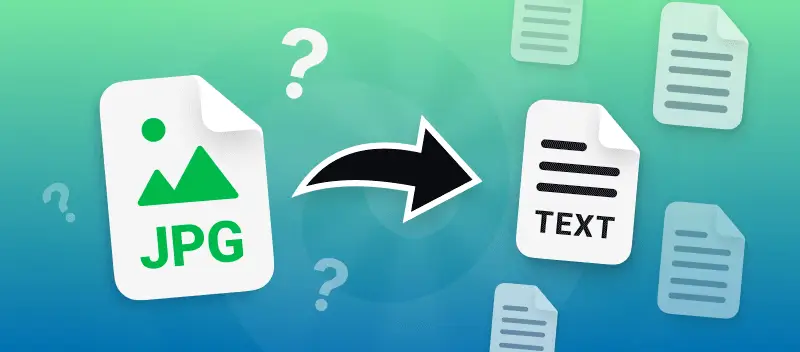

Sometimes you may find yourself in a situation where you have printed documents but need to edit them. In such circumstances, you can scan those papers and then convert the image to text.
For example, if you're a lawyer working with legal contracts, you may need to pull out the text in order to analyze it. Similarly, if you're a marketer, you can use this technique to quickly create content from footage, such as posters or infographics.
Recognizing how to convert a JPG to text is an important skill for many professionals.
This article will show you a step-by-step guide on how to extract text from JPGs on any device online.
How to convert a JPG to text
The process of converting JPG to text is fairly straightforward. Once you've scanned your documents, save them as graphics. Open any browser on your phone or computer and go to PDF Candy.
Step 1: Create a PDF
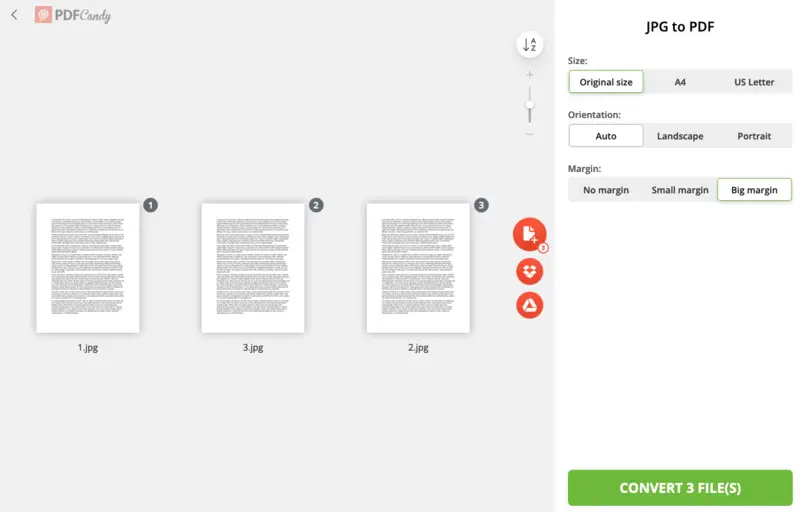
First, you need to make a PDF out of your image(s). The JPG to PDF converter will help you change the format. The tool can process multiple files at once. So, if there are several visuals that need to be converted, upload them all.
Step 2: Use the optical character recognition tool
Now that you have the PDF made out of the pictures, you need to extract the text from PDF images through OCR. To do so, follow the steps below.
- Open the OCR tool.
- Upload your PDF with the "Add file" button.
- Choose the document's language from the dropdown menu.
- Hit "Start" to initiate the processing.
- Once ready, download the TXT.

Creating a PDF from images before uploading it to OCR is necessary for optimal processing time. PDFs tend to have smaller sizes compared to individual images, making them more efficient to work with.
Additionally, many OCR software and tools do not support footage uploading. Hence, you're better off having the document in a widely accepted format such as PDF.
Transforming a JPG to text via PDF Candy is a straightforward and efficient process. It is preferable because it offers a range of features, including:
- Easy-to-use interface. The steps are simple and to follow, with no complicated setup required.
- High-quality conversion. The resulting text will be of good fidelity and accuracy.
- Free. You can apply the JPG-to-text converter for free!
- Security. All your papers are kept safe and deleted within 60 minutes after processing.
- Speed. The conversion is fast (depending on the size) and efficient.
Overall, employing PDF Candy for JPG-to-text conversion is a straightforward and convenient way to get your work done swiftly and precisely without sacrificing view or protection. And best of all, it’s free! So, why not give it a try today?
Why convert a JPG picture to the text?
- Digitizing documents. Got some scanned papers lying around? Turning those into text is way less hassle than dealing with pictures. You can actually edit and search through them, which is a total game-changer.
- Accessibility. If someone’s using a screen reader, they can’t "see" an image—real words lets everyone in on the info. Big win for inclusivity!
- Data extraction. Trying to type out info from a receipt or form is the worst. Apply OCR and let the tool do the boring work for you.
- Archiving. Handwritten notes, old newspapers, whatever—convert those to text and you’ve got a backup that’s easy to search and never gets lost.
- Translation. Snap a pic of a menu in another language? Once it’s text, translating it is a breeze.
- Text analysis. Whether you’re looking for keywords or trying to figure out the mood of a note, you need actual text, not just a footage.
- Searchable content. Text extracted from images can be indexed and made indexed, which is beneficial for creating databases from printed materials.
Tips on image to text conversion
There are a few key points to pay attention to when you convert JPG picture to text:
- Choose the right tool. Not all OCR tools are equal. Some are super accurate, some... not so much. Check if it works for your language and device.
- Optimize quality. Blurry or shadowy photos are a no-go. Bright, sharp shots are the secret sauce here.
- Pre-process photos. Crop unnecessary areas, straighten skewed visuals, and remove noise or artifacts before running OCR.
- Employ language settings. Configure picture-to-text converter to recognize text in the appropriate language or character set for better accuracy, especially when working with multilingual documents.
- Use batch processing. Got loads of graphics? Don’t upload one by one—that’s just painful. Batch or merge them for less hassle.
- Proofread and correct errors. OCR isn’t perfect. Always glance through the text and fix the weird mistakes (like "l" turning into "1"—classic).
Overall, converting JPGs into text format can be a great way to streamline your workflow and increase productivity. As long as you are aware of these key points and apply them properly, you should be able to complete the process without any problems!
Common issues when converting JPG to text
| Problem | Solution |
|---|---|
| Blurry Image | refine resolution for sharper details. |
| Handwritten Notes | Use OCR designed for script recognition. |
| Complex Formatting | Extract sections separately for accuracy. |
| Faint Text | Enhance contrast for better detection. |
| Distorted Letters | Apply sharpening filters to refine edges. |
| Different Languages | Choose OCR supporting multilingual input. |
| Logos or Graphics | Remove non-text elements before processing. |
FAQ
How does OCR work?
So, OCR (that’s Optical Character Recognition) basically teaches your computer to read. It looks at a picture, figures out where the letters and words are hiding, and then spits out text you can actually use. Pretty cool, right? It’s like giving your scanner a brain.
What are the limitations of the OCR technology?
OCR is smart, but it’s definitely not perfect. Give it a fuzzy shot, some wacky handwriting, or fonts that look like they’re straight out of the circus, and it’ll get confused. Add in messy backgrounds or weird layouts, and you’ll probably have to fix a few things yourself. It’s helpful, but not a miracle worker.
Can OCR software preserve the layout of the original document?
OCR software generally focuses on extracting text from images rather than keeping formatting . Moreover, the output file is TXT, which is a non-designed textual paper.
Which languages does OCR support?
OCR technology supports a wide range of languages. For instance, PDF Candy can recognize text in 19 languages, including Chinese, Korean, Turkish, and others. Unless you’re trying to scan Klingon or Elvish... then, good luck.
What is the difference between OCR and ICR ?
Simple! OCR handles printed and typed stuff. Intelligent Character Recognition is for handwritten notes—so if you’re trying to digitize grandma’s cursive recipes, you’ll want it. Though, honestly, even ICR has trouble with really wild handwriting.
Are there mobile OCR applications?
Absolutely! Tons of apps let you snap a pic with your phone and presto, text you can copy and use. Chances are your camera app already has some kind of OCR built in these days.
Can OCR software handle PDF with password protection or encryption?
Generally, OCR software cannot directly process PDF files that are password-protected or encrypted as it needs unrestricted access to the text content. You must remove the protection before you can use OCR.
How does OCR work on documents with both images and text?
No worries. OCR software will usually scoop up the text directly and then dig through the pictures for any more words hiding in there. It’s pretty good at multitasking.
How to convert a JPG to text: conclusion
Converting JPGs to text is such a time-saver. No more typing out pages and pages! If you’ve got a mountain of paper or some old files you want to digitize, this is the way to go. Super handy and way less boring than retyping everything yourself.
More tools to use on PDF Candy
- In case your footage are in PNG format, try our image to PDF converter.
- To work on PDFs, you can employ our PDF editor to make changes without the need for any additional program.
- If you have a written document that you need to transform into DOCX or DOC format, apply our PDF to Word converter.