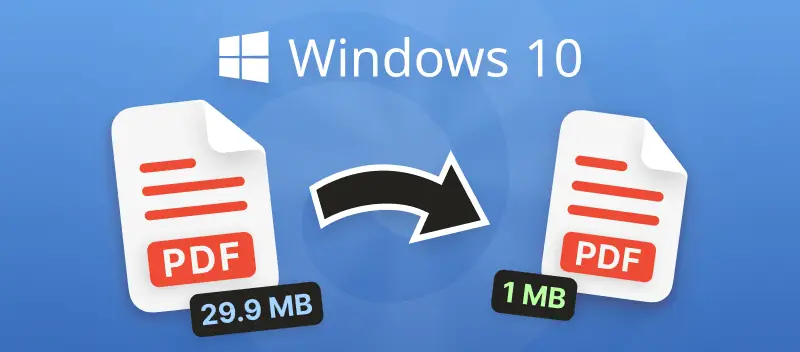

Huge PDFs are just the worst, right? Whether you’re emailing a big report, those chunky files can be a real headache. Luckily, if you’re using Windows 10 (or 11—hey, I see you), there are a bunch of tools out there to help compress your PDFs without wrecking the quality.
I’ll walk you through some easy online tricks and a couple of programs so you can finally stop worrying about annoying size limits. Trust me, once you get the hang of it, you’ll wonder why you ever put up with slow uploads and angry alerts.
PDF Candy Desktop
Prefer handling things offline? You’re gonna like this. PDF Candy Desktop is quick, easy on your computer, and won’t eat up your storage—seriously, it’s super light.
Want to shrink those massive PDFs on Windows? No sweat! Check out the steps below, and you’ll have it sorted in no time.
How to compress a PDF on Windows 10 with PDF Candy Desktop
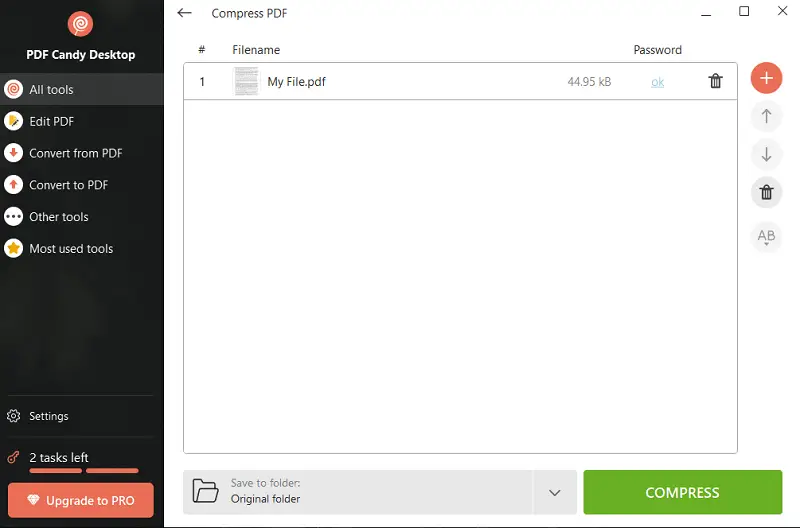
- Download PDF Candy Desktop onto your PC and launch the application.
- Choose the "Compress PDF" tool.
- Either drag and drop the desired documents onto the PDF size reducer or utilize "Add file" to select them.
- Designate the folder for the output and click the "Compress" button to initiate the operation.
Best for:
- Office managers who prefer offline solutions and rapid processing.
- Legal aides handling confidential contracts.
- Accountants working with large client reports without slowing systems.
7-Zip
Our next approach involves utilizing the 7-Zip archiver as a PDF compressor. Prior to usage, it requires installation on your Windows PC.
Notably, it is a cross-platform software, facilitating PDF compression not only on Windows but also enabling individuals to condense PDF on macOS.
How to compress all PDFs on Windows PC via 7-Zip
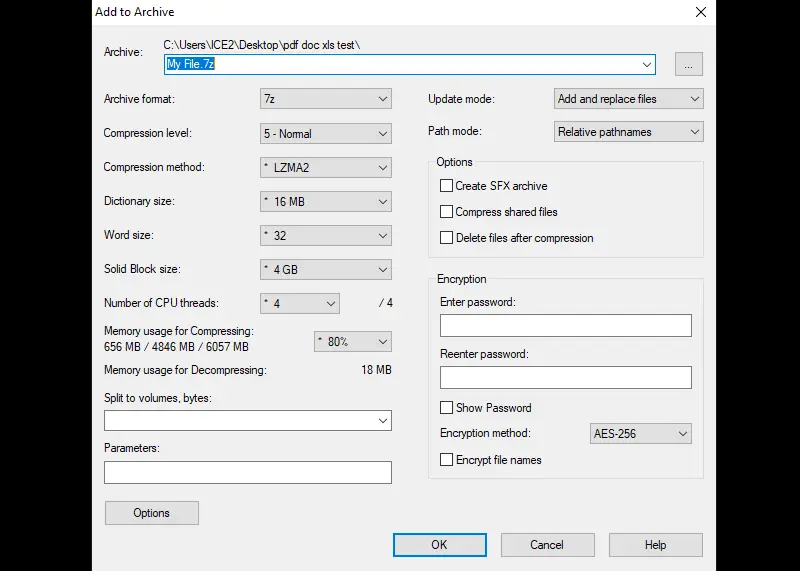
- Begin by right-clicking the PDF and navigating the mouse cursor over the "7-Zip" option.
- Select "Add to archive..." from the menu.
- Choose the desired format for the archive. Common options include .7z or .zip among others.
- Pick the PDF compression method and level. Typically, LZMA or LZMA2 is commonly used, although professionals may opt for alternative settings.
- Once all parameters are configured, hit "OK" to initiate the process for your PDF.
Best for:
- IT specialists managing files across multiple platforms.
- Software engineers compressing projects.
- Data analysts requiring adjustable compression for extensive datasets.
PDF Candy
This method is excellent for individuals seeking an immediate PDF compressor without the need for installation.
PDF Candy is beneficial for those operating on different OS or considering a switch. Below are instructions on how to compress a PDF online on Windows 10.
How to compress a PDF on Windows online with PDF Candy
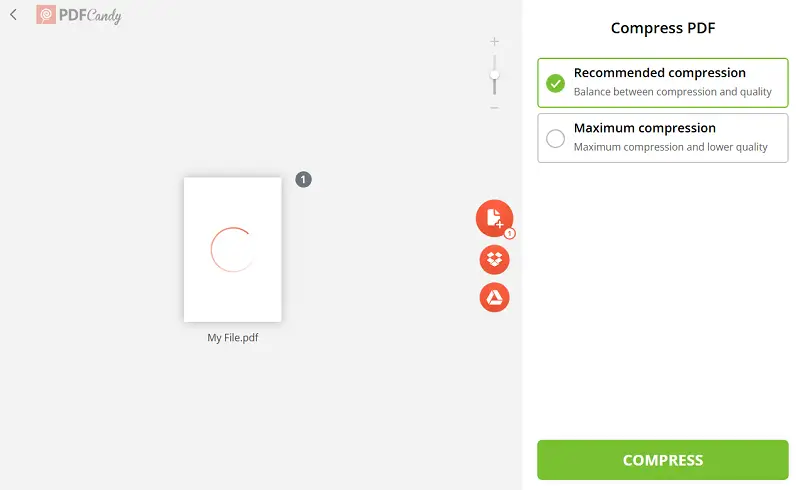
- Access the "Compress PDF" tool.
- Upload your document using Windows Explorer or directly from Google Drive and Dropbox.
- Choose your preferred compression level: Recommended or Maximum.
- Click the "Compress PDF" button to proceed.
- Save the resulting file on your PC or send it back to cloud storage accounts.
Best for:
- Freelancers switching between devices.
- Students preparing assignments or presentations quickly.
- Remote employees collaborating via cloud storage.
Why shrink a PDF?
- Let’s be real, waiting forever for a file to upload or send is the worst. Smaller PDFs zip through emails way faster. Less spent time, more doing—what’s not to love?
- If you’re always running out of storage (and honestly, who isn’t?), smaller papers mean more room for the good items—photos, playlists, or whatever else you’re into. Your phone or laptop will thank you.
- Nobody likes staring at a loading screen, right? Shrinking PDFs helps them open quicker, even if your Wi-Fi’s being stubborn. Makes things easier for everyone.
- And hey, reducing PDF size makes organizing and backing subjects up a breeze. Less clutter, less stress. Who doesn’t want that?
Tips for compressing a PDF
- So, before you do anything, ask yourself—why do you want compress this PDF? Is it all about making the draft super tiny, or do you care more about keeping it looking crisp and nice? Figuring that out makes picking the perfect method simple.
- Next, just go in there and kick out all the extra junk—old footage, random notes, weird metadata. You’d be surprised how much stuff you can ditch without losing anything important.
- If your PDF’s gotta play by certain rules (like for legal or accessibility), make sure your shrunken version still checks those boxes.
- Oh, and if you’re still employing some ancient app, maybe it’s time for an upgrade. The new ones are way better at creating lightweight PDF without wrecking the quality.
- Please, don’t forget to keep a copy of your original file. If something goes sideways, you’ll be glad you’ve got the OG version tucked away.
- Think about where people will actually open your PDF. Phones, tablets, laptops—they all manage docs a bit differently.
FAQs
Can I compress multiple PDFs simultaneously on Windows 10?
Yes, you can downsize several PDFs at once using various methods such as PDF Candy or 7-Zip. These tools provide batch processing capabilities for greater efficiency.
Will compressing a PDF affect its quality?
Most PDF software and online tools offer options to adjust the compression level to balance size reduction with acceptable quality. It's essential to choose appropriate settings based on your preferences and requirements.
Will compressed PDFs remain compatible with other devices and software?
PDFs created on Windows 10 should be consistent with other hardware and PDF software, as long as the compression method used adheres to standard specifications.
What should I do if the resulting PDF is still too large?
Try to remove or resize HD images, or split the PDF into smaller parts if possible.
Does color format influence optimization?
Switching from CMYK to RGB reduces overhead, as CMYK contains extra printing-related details. Grayscale further minimizes footprint.
Why might a compressed file remain large?
High-resolution images, extensive metadata, and embedded elements contribute to size. Removing excess data improves efficiency.
Summary
So we went over how to compress a PDF, no matter if you’re using Windows 10, 11, 8, or even good old 7. It’s honestly pretty easy—the best method depends on what you’re trying to do and whether your Internet is being chill or acting up.
Follow the steps I mentioned, and you’ll have those giant PDFs slimmed down in no time (without making them look fuzzy or weird).
Plus, here’s a sweet bonus: PDF Candy does more than just condense PDF. You can add passwords, tweak your files online, and all that jazz. So whether you wanna keep things secure, work with friends, or feel good about saving some digital space, you’re covered.