
If you frequently work with files, knowing how to add a signature to a PDF can really streamline your workflow. Whether you’re finalizing an agreement or giving your approval on important paperwork, having your autograph ready to go is practically essential these days.
Honestly, the days of scribbling your name with a pen are long gone. Now, digital solutions lead to the entire process becoming much quicker and more convenient.
Here are three reliable methods I use to incline my initials to a PDF. With these techniques, you'll be sealing the deal in no time.
PDF Candy
Adding a signature to your PDF document is a great way to personalize it and make it look more professional. If you're searching for an effortless way to attach it to your PDF, then a free online utility, like PDF Candy, is perfect.
How to digitally sign a PDF online with PDF Candy
- Go to the "Sign PDF" tool.
- Upload your file—you can drag and drop it, too.
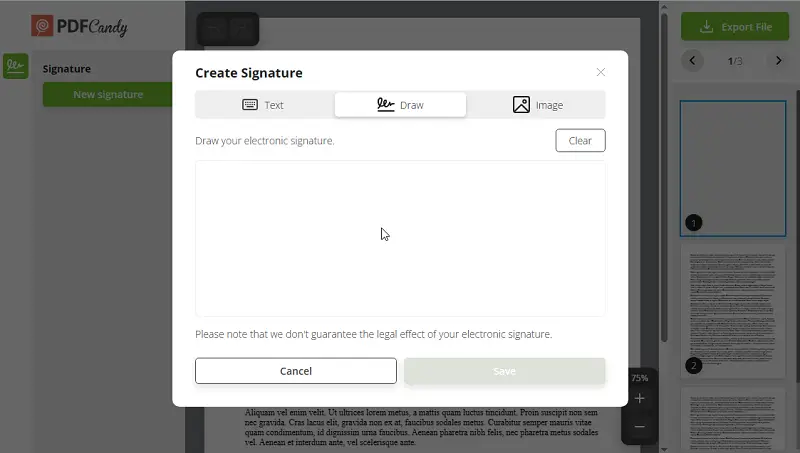
- Press "New Signature".
- Select between options: insert text, draw it with a touchpad or mouse, or upload the image.
- Then hit "Save" to keep your signature.
- Tap on the needed signature. Adjust its size and position.
- Once you are satisfied with the result click "Export File".
- Download the PDF by hitting the green button.
Using this service for signing your documents online is preferable for many reasons:
- Completely free and straightforward.
- No installation or downloads needed.
- Supports a wide range of file formats.
- Includes handy extras like password protection.
- Super quick—you receive your signed draft right away.
- Compatible with Windows, Mac, Linux, Android, and iOS.
So in case you're examining how to electronically sign a PDF, this method is worth considering!
Adobe Acrobat
Adobe Acrobat is a familiar name when it comes to creating and editing. You can also employ it to insert a signature in a PDF.
How to add a signature to a PDF in Adobe Acrobat
- Install the program and open the PDF file there.
- Click on the "Tools" tab at the top of the window, then select "Fill & Sign".
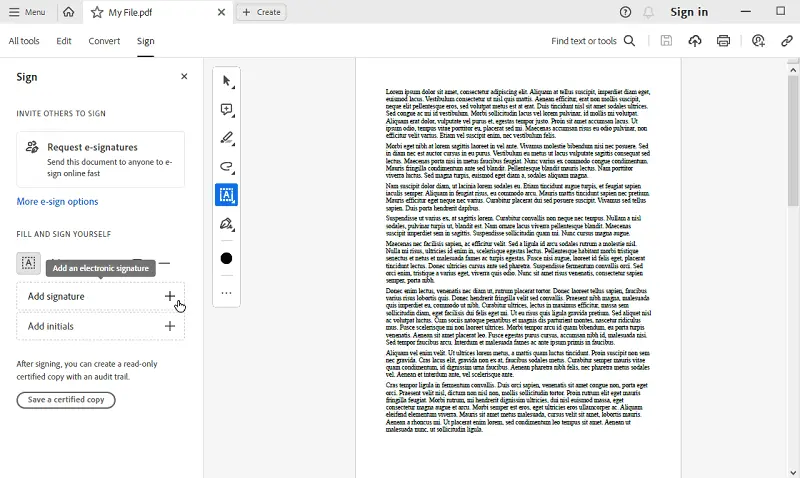
- Press the "Sign" button.
- Opt for "Add Signature" from the drop-down menu.
- Choose "Type", "Draw", or "Image". Type in your name, draw it with your mouse or upload an image and tap "Apply".
- Place your electronic signature in the appropriate spot, and hit "Done".
Pros:
- Incredibly simple.
- You can create an endorsement via your computer's webcam.
- Provides secure and legally recognized autographs.
Cons:
- Only available with the paid Pro version.
- Supports Windows and Mac only; no Linux support.
- After making an inscription, you can’t tweak its appearance.
Adding a digital signature to a PDF document utilizing Adobe Acrobat is quick and easy. You’ll end up with a sharp, professional consent in just a few steps.
DocuSign
DocuSign is a widely used electronic signature and transaction management platform that enables individuals and businesses to securely mark and send documents.
How to sign PDFs with DocuSign
- Create a DocuSign account or log in to your existing one.
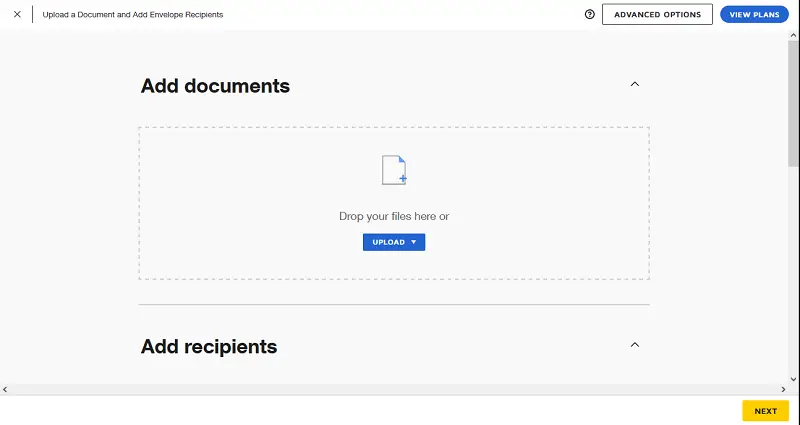
- Upload the PDF.
- Incline the field by clicking "Sign" and "Add Signature".
- Choose the desired font, size, and color. Confirm the location of the signature box.
- Enter your name, and press "Apply".
- Hit "Send" to forward the paper.
- Type in the recipient’s email address, then tap "Continue".
- Provide instructions for the signer and click "Send".
- Once completed, you’ll receive an email letting you know your file is ready for download.
Pros:
- Offers extra features like reminders, monitoring, and audit logs.
- Lets you pick from several signature styles, including handwritten versions.
Cons:
- The free plan is more limited than the paid options.
- Setting up complex documents can take some time.
- Doesn’t encrypt papers stored on their cloud.
- Costs can rise if you need to operate lots of files.
DocuSign is a great tool to securely add signatures to PDFs electronically. However, users should consider the pros and cons before deciding whether it's the right solution.
Types of PDF signatures: table
| Type | Description |
|---|---|
| Digital | A cryptographic seal that confirms the identity and ensures integrity. |
| Electronic | A method of consent or agreement marked on PC, not relying on encryption techniques. |
| Typed | The signer's name or initials entered directly into the document. |
| Image-based | A scanned or electronically created signature picture inserted into the file. |
| Drawn | A handwritten mark created with a stylus or mouse on a touchscreen device. |
FAQ
Is it possible to include multiple signatures in one PDF?
Absolutely! With our online tool, you’re free to put any number of sigs. You can go for a handwritten look or pick from the ready-made styles, and decide where each should appear.
Why bother signing a PDF?
Your autograph does more than just finish off a document—it proves you’re the one approving it, keeps things trustworthy, and makes everything legally binding.
Is it legal to sign a PDF electronically?
For sure. In most countries, digital signatures carry the same weight as putting pen to paper.
Are there any specific regulations?
Yes, there are. Rules can vary depending on your location or where your business operates. Well-known services like DocuSign follow these standards.
Tips for signing PDFs
- Place your endorsement where it won’t hide any key details.
- Verify it’s readable—not too large or too tiny.
- Preview the paper on different devices to confirm your initials look right everywhere.
- If you use a signature image, store it securely and avoid easy-to-guess file names.
- Don’t send your signed PDF through unprotected or sketchy channels—keep it protected and out of reach from prying eyes.
Conclusion
In conclusion, mastering the art of adding signatures to PDFs not only elevates the efficiency of your digital workflow but also ensures the authenticity and legal validity of your important files.
Whether you opt for the traditional charm of a handwritten endorsement or the precision of a tool-generated one, the methods explored in this article empower you to personalize your docs with ease.
More free PDF tools to explore
- After creating an autograph, you can lock the PDF with a password. This prevents anyone from editing it.
- If you need to make changes to a document that has already been signed, you can employ the PDF Editor.
- Once all the changes are in place, you can compress the PDF file so that it can be simply sent to any user via e-mail.