
PDFs, honestly, they’re everywhere these days. It’s like, no matter what device you’re on, they just work. Super handy... until you get stuck with some giant document and you only need, like, extract five pages pages for your project. Been there, done that.
But here’s the good news: want to split PDF files into multiple smaller ones? Way easier than you’d think. Seriously, it’ll save you time, stress, and secure your friends or coworkers from getting bombarded with stuff they don’t even need.
So, let’s break it down together. I’ll show you a bunch of easy ways to divide those PDFs—some quick online tools for when you’re in a rush, and desktop options if you wanna get a little more hands-on.
PDF Candy
PDF Candy offers a convenient web-based solution for breaking PDF files into individual elements.
In case you're aiming to segment extensive documents into more manageable parts, this tool serves as an optimal choice. It ensures that quality and format remain intact throughout the process.
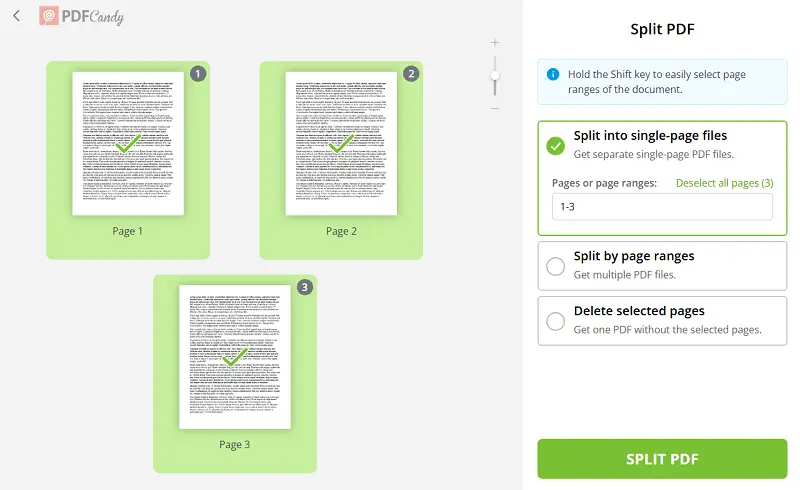
How to split a PDF into multiple files online with PDF Candy
- Go to online PDF splitter in your web browser.
- Click "+Add File" and select the PDF you want to split. Or use the drag-and-drop function to upload the file.
- Choose whether you want to split into single pages or by page ranges. You can also pick to delete selected pages from the document.
- Set the page numbers if you opted for separating by page ranges.
- Hit the "Split PDF" button to start the process.
- Once finished, download each of the parts separately or as an archive with all of them included.
Advantages:
- Compatible across major web browsers like Google Chrome, Firefox, Opera, and Safari.
- Ensures high-quality results that maintain their original format.
- Offers a free and secure PDF separator without requiring any registration.
- Allows you to split PDF into multiple files without any loss of information.
- Boasts an intuitive user interface for a seamless experience.
- Enables effortless document splitting without the need to install any software.
- Provides options to download each split part individually or as a unified ZIP archive.
- Accessible on various devices including Android, iPhone, Windows PC, and Mac.
- Supports a wide range of popular formats, including DOC, PPT, TXT, PNG, and others.
PDF Candy Desktop for Windows
PDF Candy Desktop is a comprehensive software solution designed for managing and manipulating PDF files. This versatile program offers a wide range of features, including splitting, merging, converting, editing, and securing PDFs, all within a user-friendly interface.
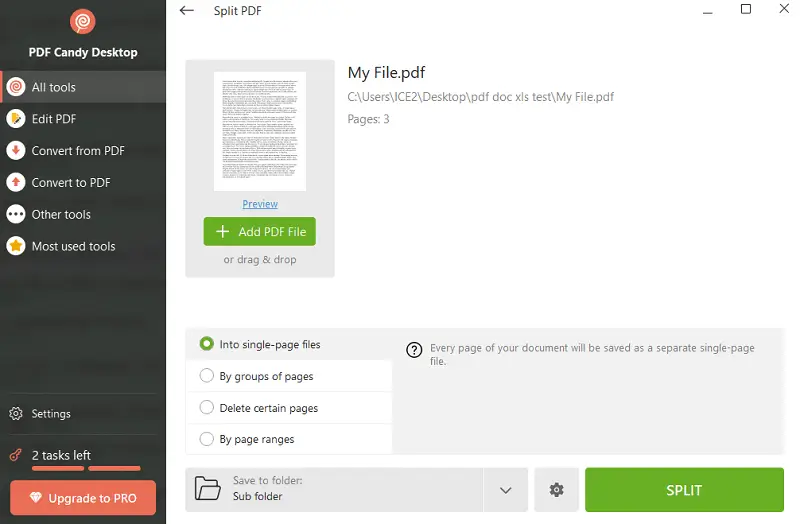
How to separate some PDF pages on PC with PDF Candy Desktop
- Download and install the splitting program on your computer.
- Launch the application and navigate to the "Split" tab located in the menu.
- Select the PDF you wish to divide by uploading it directly or dragging and dropping it onto the tool icon.
- Choose from four available options: splitting into single-page files, grouping pages, removing specific pages, or splitting by page ranges, based on your requirements.
- Utilize the advanced settings to add a password, set a title, specify an author, and define a filename prefix. Also, designate the output folder.
- Once you've configured all necessary settings, click the "Split" button located at the bottom of the screen to split pages in PDF into individual archives.
Benefits:
- Offers various splitting options, empowering users to tailor the process to their requirements with ease.
- Eliminates concerns about reloading or restarting pages during the breaking PDF.
- Ensures the privacy of your files as they remain securely stored on your computer.
- Provides additional tools like PDF unlocker and a metadata editor for enhanced functionality.
- Compatible with Windows 7, 8, 10, and 11.
Adobe Acrobat DC Pro
Adobe is a versatile solution for individuals and businesses needing advanced PDF management capabilities, from creation and editing to collaboration and security enforcement. It provides a wide range of editing tools for modifying PDF content.
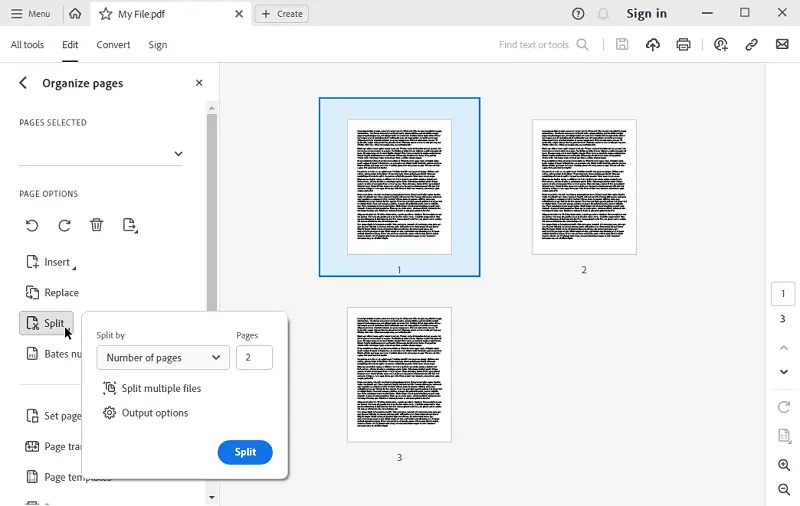
How to break a PDF with Adobe Acrobat DC Pro
- Begin by downloading the application and opening your PDF file within it.
- Navigate to the "Tools" menu and hit the "Organize Pages" icon.
- Pick "Split" option.
- Choose your preferred method for splitting the PDF into pages, whether by number of pages, file size, or top-level bookmarks.
- Customize the output settings as needed, then confirm by clicking "OK".
Pros:
- Ensures precision in separating PDFs, maintaining the integrity of the original document layout, formatting, and content.
- Users can split PDFs according to specific criteria.
Cons:
- Splitting option is not available in the free version.
- It is a premium software with a subscription-based pricing model.
- May require significant system resources, particularly on older or less powerful computers.
Browser
Google Chrome is an easy-to-use browser for splitting PDFs into multiple documents without an internet connection. The process is relatively straightforward and only requires a few simple steps.
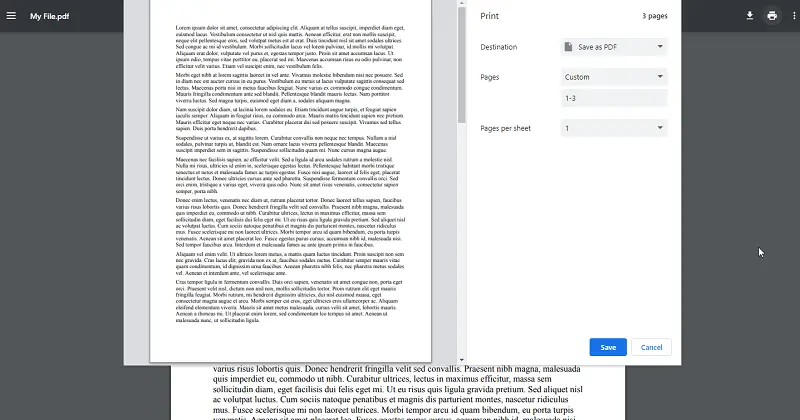
How to separate all pages in PDF in a browser:
- Open the PDF within the browser. This can be achieved by either dragging and dropping the file into a Chrome window or right-clicking and selecting "Open with".
- Locate and tap the "Print" icon positioned in the upper right corner.
- From the ensuing drop-down menu, opt for "Save as PDF".
- Within the page section, choose the "Custom" option. Then, specify the page numbers for creating separate PDFs.
- Proceed by hitting "Save". This action will prompt a dialogue box, allowing you to assign unique names to each one and designate the preferred saving location.
Pros:
- No need to install any additional software.
- Fast-breaking PDF processing.
Cons:
- Limited customization options.
- No built-in PDF editor.
- You cannot cut the whole paper as separate pages at once.
Reasons to split a PDF into multiple files
- Ease of Sharing. Large PDFs can be difficult to share, especially via email or messaging platforms. Breaking a PDF into parts makes it easier to distribute to others.
- Organization. Splitting a PDF into smaller sections can help organize the content better, making it easier to navigate and locate the needed information within the document.
- Focus on Specific Content. Sometimes, you may only need certain pages of a PDF for a particular task or project. Separating the PDF pages allows you to extract and center on the content you need.
- Reduced Size. Big PDFs can take up a significant amount of storage space on your device or server. Division of the PDF can make it more manageable and efficient to store and transfer.
Tips on splitting up a PDF
- Ensure all visual elements remain intact after separation.
- Confirm electronic approvals stay valid in split documents.
- Prevent missing typefaces by keeping necessary font data.
- Exclude hidden layers or metadata if not required.
- Apply or remove encryption as needed for each output.
- Adjust DPI settings to prevent resolution loss.
- Verify split files meet industry standards like PDF/A.
FAQ
What is the most efficient method for splitting up a PDF?
The optimal method for dividing a PDF is to try an online PDF page extractor with straightforward and user-friendly features.
Is splitting a PDF a reversible process?
Generally, no. Once the document has been divided into multiple sheets, they are treated as separate entities. However, you can always merge the split files back together if needed.
Does dividing a PDF reduce the quality?
No, a PDF splitter will not lower the quality unless the process is done incorrectly or with faulty software or hardware.
Can I split password-protected PDF?
Some PDF separators support splitting encrypted PDF files, while others may require you to input the password before proceeding. Be sure to check the capabilities of the tool you're using and ensure that you have the necessary permissions to access the doc.
How do I protect my PDF after splitting it?
You can lock your divided PDF via a web-based application or set the password while splitting papers in the desktop version.
Will my data remain secure when I cut my PDFs?
Yes, if you employ a dependable online platform, all of your data will remain secure.
Can I manipulate pages prior to separating my PDFs?
Yes, you can rotate and crop pages before segmenting them into different documents.
How to split pages in PDF: final words
In conclusion, dividing a PDF file into several is a beneficial method to facilitate its organization and distribution.
It's important to remember that the process will vary depending on whether you are using an online service or software. If you're splitting large PDFs, be aware that it may take some time for the process to complete.
Altogether, breaking PDFs into individual units is an easy procedure that necessitates minimal effort and yields fantastic results. In a short amount of time, you can easily modify your documents and make them more accessible to yourself and others.