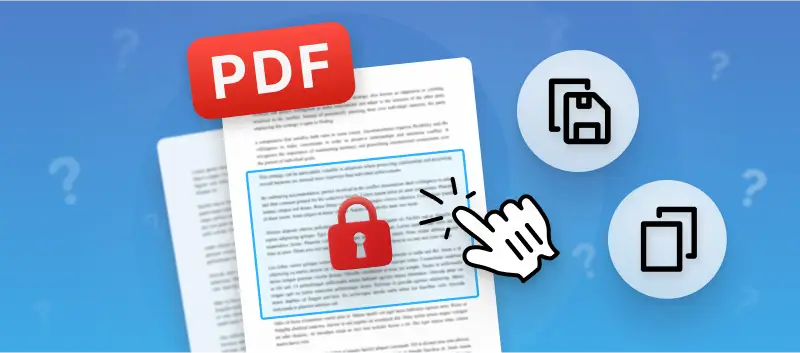

Ever wondered "Why can't I copy and paste from a PDF?", only to hit a wall? It’s a simple task, but with PDFs, things don’t always go as planned.
In this article, we will answer this question and look at the different reasons that can cause it. We will provide you with 3 different ways to successfully copy and paste text from a PDF document. So let's get started!
Reason 1 - Encrypted PDF
So, first up: protected PDFs. If your paper is locked with a code, you can’t just copy and paste. The encryption blocks you from making any changes, including grabbing the words.
But don’t worry. There’s a way around it. You can use a password remover to unlock your file and finally duplicate the text you need. One tool that gets the job done is PDF Candy. It’s online, simple, and you don’t need to install anything.
Here’s how to use it:
- Open your web browser and go to the online PDF unlocker.
- Click "Add file(s)" to upload the document to the platform. You can also drag and drop it into the designated area.
- Choose one of the decryption options. If you remember the combination, go for "Manually". If you don't know it, select "Automatically".
- Press the "Unlock PDF" button and the service will remove the password from the file in seconds.
- After processing is complete, hit the download link, and the file will be saved to your device.
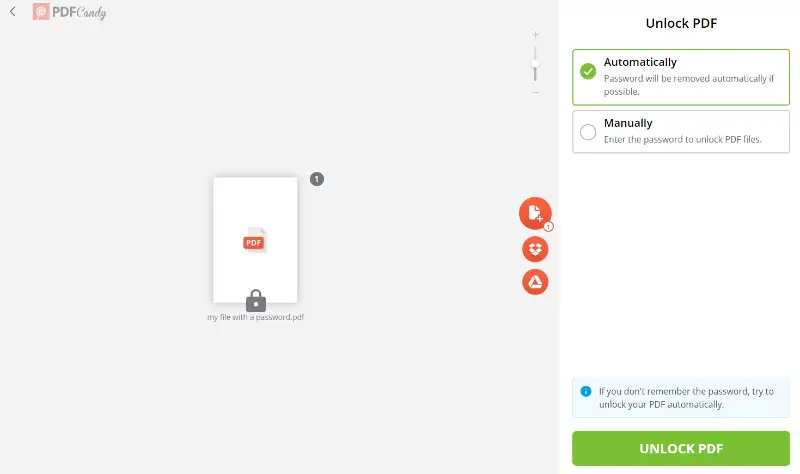
It’s quick, it’s safe, and you don’t have to stress about losing your data or messing up your material.
Once your PDF is unlocked, just open it in any PDF editor or reader. You’ll be able to copy and paste text like you normally would. No more jumping through hoops, now you have access to the info you need.
Reason 2 - Scanned document
Sometimes you unable to copy text from a PDF because you’re looking at an image, not real text. The computer isn’t seeing words. So, you can’t highlight or select anything.
Trying to retype everything by hand from a scanned PDF? That’s a nightmare - slow and frustrating. But there’s a much better way: use OCR.
- OCR stands for Optical Character Recognition. It is a technology that converts unselectable text in different types of files, such as scanned paper documents, PDFs, or images captured by a digital camera, into editable and searchable data.
This tool enables you to take a picture-PDF and turn it into plain text that can be managed.
What to do if you can't copy and paste from PDF:
- Go to the PDF Candy website.
- Find and choose "OCR PDF" on the homepage.
- Click "Add File(s)" to upload the document containing scanned images or text. Alternatively, you can drag and drop the PDF into the area.
- Select the language used in the scanned document. This helps the engine recognize characters more accurately.
- Hit the "Start" button. The service will start processing.
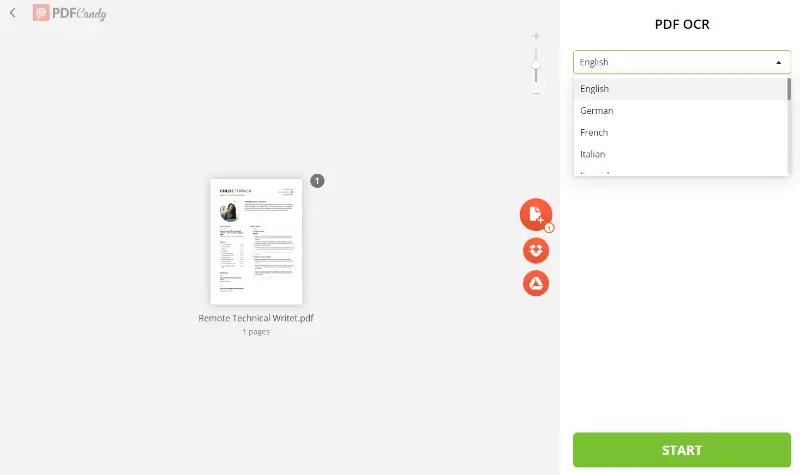
The platform has other useful features such as compressing PDFs, merging multiple papers into one, converting PDFs to other formats such as Word or Excel, and more.
Reason 3 - Security settings
Chances are the document’s security settings are blocking you.
Some PDFs are locked down on purpose. Maybe the creator wanted to stop anyone from editing their work. Sometimes, though, it happens by accident when someone saves the file with default restrictions.
Either way, if you want to copy and paste from a PDF that has prevention against editing, you'll need a special PDF converter.
PDF Candy is an online service that can convert PDFs into editable Word documents. It is straightforward to operate and does not require any extra software or plugins.
Follow this instruction if you can't copy text from PDF due to its security settings:
- Go to the free PDF to Word converter.
- Click "Add File(s)" to upload the PDF you want to convert to DOCX. You can also add files from Google Drive or Dropbox.
- Press the "Convert" button. The tool will start the conversion process.
- Save the file to your computer or upload it back to the cloud storage.
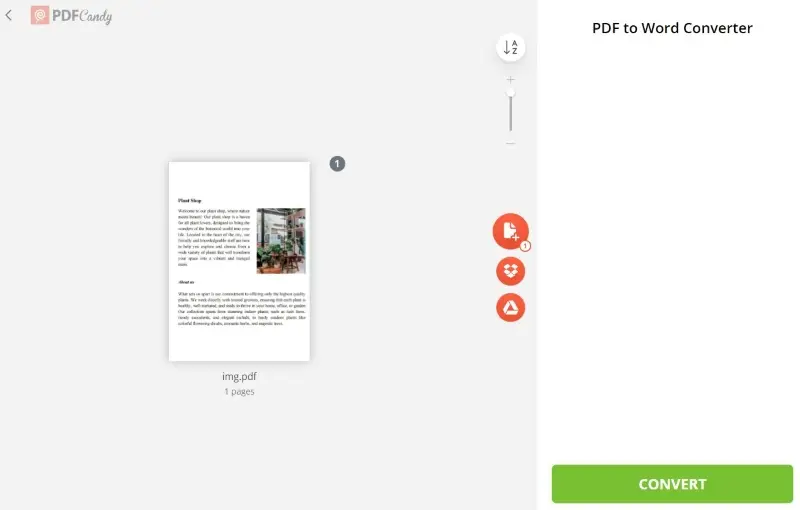
Aside from solving text selection problems, the service offers many other features for working with PDFs. You can split and merge, compress files for faster downloads, and add watermarks to PDFs.
Advantages of using PDF Candy when you can't copy and paste from a PDF
PDF Candy is a powerful online tool for managing PDF documents. It offers many features that make it an ideal choice for those who require regular interaction with this file format.
Why use it if you're unable to copy text from PDFs:
- Fast, simple processing. Pick the tool you need, upload, and let PDF Candy handle the rest.
- Easy. Whether you’re removing passwords or converting PDFs to other formats, the layout is straightforward, you won’t get lost.
- One-stop shop. All the utensils you need are right there on a single platform.
- No downloads needed. Everything runs online, so you don’t have to clutter your computer with extra programs.
- Totally free. Utilize all the features without paying or signing up.
- Extra security. After removing a password to copy text, you can protect your file again, nice for keeping things confidential.
With its helpful instruments, you can quickly edit, convert, compress, split, merge, and protect your PDF files easily.
PDF Candy Desktop - an ultimate decision for Windows users
PDF Candy Desktop offers the same tools as the online version. It is tailored to the Windows environment and allows you to use it even without an internet connection.
Removing passwords
Unlocking the content hidden behind a password becomes a simple task. With a few clicks, users can navigate through the intuitive interface, swiftly unlock the document, and gain access to the text that was once off-limits.
OCR for scanned documents
The desktop application can transform scanned images into editable and selectable text. This OCR magic ensures that even the most challenging PDFs become accessible.
Conversion to different formats
When security settings limit straightforward copying, this feature becomes the beacon of hope. Users can convert the PDF to Word or another format.
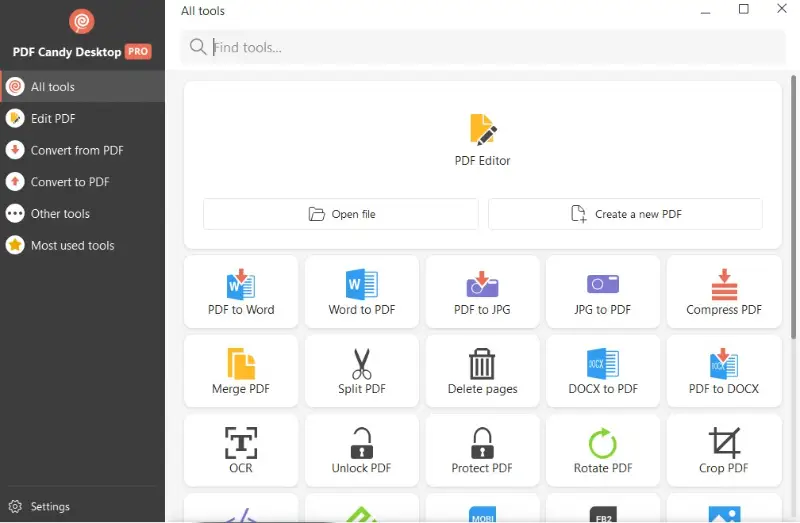
In short, if you are looking for a comprehensive yet easy-to-use software then look no further than PDF Candy Desktop. It is the best decision for people who need a reliable solution for handling their papers.
Preventive measures for future PDFs
Text-based PDF creation
Always start your PDFs from actual text documents, not pictures. This keeps everything accessible and way easier to search. After you make a PDF, double-check that you can select the text, copy it, and paste it somewhere else. If you can’t, you’re dealing with a footage, not real sentences.
When you export from programs like Word or InDesign, pick the settings that keep your text as text. For example, in Microsoft Word, hit "Save As", pick PDF, and verify you’re saving a searchable file.
Embed fonts properly
When creating or saving a PDF, ensure that all fonts are inserted. In Adobe Acrobat, this can be done by selecting "Properties" under "File" and checking the "Fonts" tab.
You will see a list of typefaces used in the draft and their status. They should be listed with "(Embedded Subset)" next to them.
When exporting a Word to PDF, you can incorporate lettering by adjusting the save settings. Go to "File" > "Options". In the Preserve fidelity when sharing this document section, check the box for "Embed fonts in the file".
When possible, use standard fonts that are universally available to minimize any issues.
Open your PDF on different devices to check if the fonts display correctly. By following these steps, you can ensure that your PDFs maintain a consistent appearance across different systems and devices.
Apply OCR during scanning
If you have to scan a document, use software with OCR - like *Adobe Acrobat, ABBYY FineReader, or VueScan. That way, the scanned pages turn into searchable, selectable text.
Set the language and bump up the resolution (300 DPI usually works best) to make sure the OCR does its job well.
After scanning, look through the results and fix any mistakes. OCR isn’t perfect, so you’ll probably need to proofread a bit.
Consider using tools like Adobe Acrobat’s "Enhance Scans" feature to further improve the quality of papers. This can help correct any distortions or errors from the scanning process.
Test usability before sharing
Before final distribution, confirm that the document performs well with various tools and platforms.
- Run Acrobat’s built-in Accessibility Checker to catch formatting or structural problems.
- Preview the file with screen readers like NVDA or VoiceOver to simulate how it will be interpreted.
- Try copying content into a plain-text editor to check for logical flow and visibility.
Why Can't I Copy and Paste From a PDF: FAQ
1. Is it safe to use online services for sensitive documents?
PDF Candy cares about your privacy. They employ secure connections when you upload files and rely on strong, industry-standard encryption.
2. What should I do if the text isn't extracted correctly?
OCR tools can struggle with complicated layouts. If things look messy, you have to clean up the formatting yourself. Also, confirm that you picked the right language before starting.
3. Why is the pasted text garbled or unreadable?
If your PDF has a custom font or strange encoding, the text might turn out as nonsense when you add it somewhere else.
4. Why is some formatting lost when I paste text from a PDF?
The PDF format has its own rules to preserve the visual layout of a document. Each line often stands alone, so when you copy and paste, the content can get jumbled or lose its original shape.
5. Why can't I copy an image or graphic from the PDF?
Copying images or graphics from a PDF might not be supported. If the PDF contains pictures, you might need to use specific tools to extract and save the images.
6. Why is the copied text incomplete or missing information?
Some PDFs may utilize a method called subsetting, where only a subset of the font characters is embedded. This can result in missing text when copied. Additionally, if the document is poorly formatted, certain characters may be omitted when you try to copy and paste text from PDF.
7. Why does the copied text look weird when pasted?
The formatting might be lost or altered during the copying process. This can happen if the PDF document applies non-standard fonts or if some special characters are involved.
Conclusion
Knowing how to copy text from any PDF is useful for anyone. However, this is not always possible due to the formatting. Therefore, it is important to understand why you cannot extract text from a PDF.
The key points to remember when attempting to copy from PDF are:
- The paper shouldn't have a password.
- If the PDF was created via scanning or image, the text can be extracted only with OCR.
- The security settings must allow copying of the content.
However, armed with the insights shared in this article and equipped with a powerful tool like PDF Candy, you will be able to successfully overcome all issues.